The NovaStar TU20 Pro is an Android 11 media player and LED sending controller for indoor LED walls. It combines local playback, HDMI input and wireless mirroring with six Gigabit Ethernet LED outputs. It supports up to 3.9 million pixels with scaling; pixel-to-pixel display and the internal Android source are limited to 2.88 million pixels. Match the operating mode to your wall before buying, as explained in NovaStar’s TU20 Pro specifications.
This guide covers capacity, connections, screen mapping, setup, software, price considerations and the official manual. It also compares the TU20 Pro with the TU15 Pro. The maximum width and height are separate limits, not a supported combined resolution. Start with the wall’s native pixel count, then check the source mode and each output chain.
For a dependable result, start with the LED wall’s native pixel count and the receiving card configuration supplied with the cabinets. Then select the source that operators will actually use: an HDMI feed for live presentations, local media for scheduled playback, or wireless mirroring for ad hoc meetings. A controller can meet the headline pixel rating yet still be the wrong choice if the wall exceeds an output, width, height or workflow limit. The sections below provide a decision checklist and a practical installation sequence.
1. What Is the NovaStar TU20 Pro?
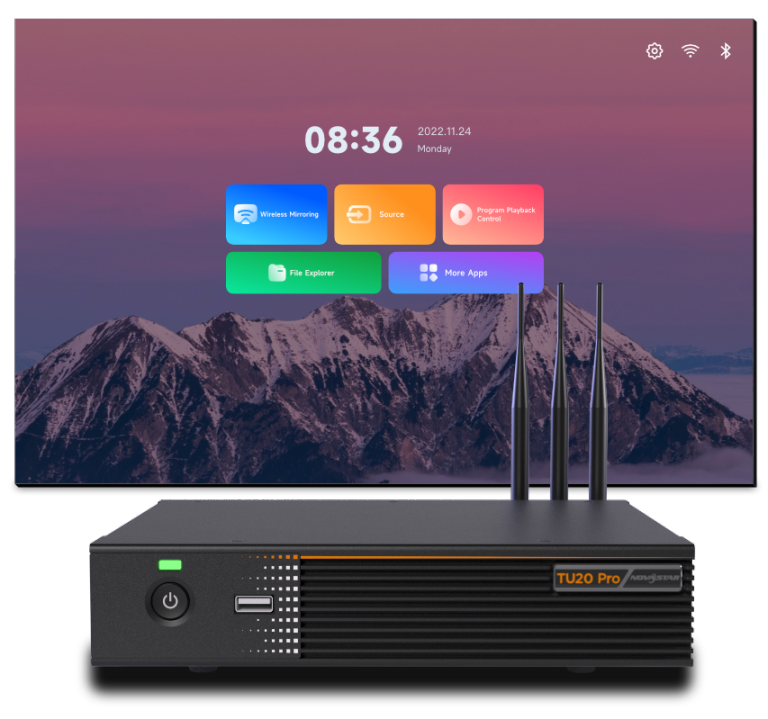
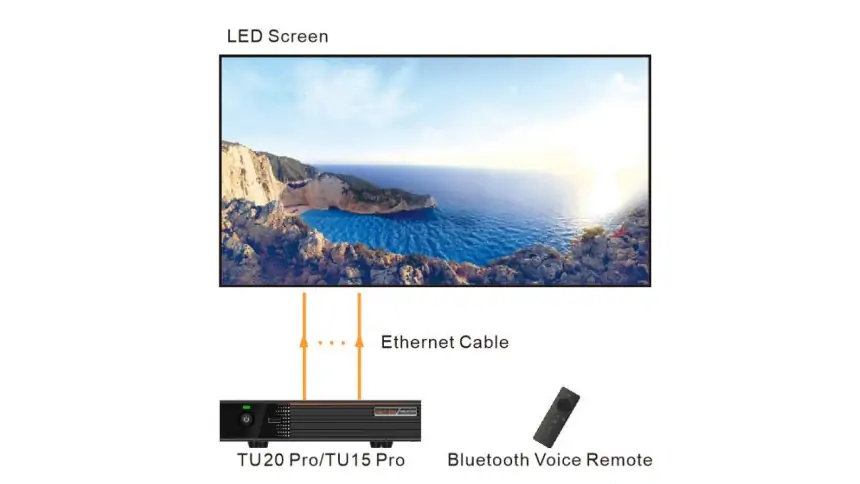
The NovaStar TU20 Pro is a combined media player and LED sending controller. Its Android 11 system can play local media or approved apps, while its six Gigabit Ethernet outputs carry the mapped image to receiving cards in the LED cabinets. That makes it useful when the wall must switch between scheduled content, an HDMI source and a visitor’s presentation. A conventional sending card still needs a separate source device; the TU20 Pro incorporates that source for many everyday jobs.
Design the signal chain as source → TU20 Pro → Ethernet outputs → receiving cards → modules. The TU20 Pro is responsible for scaling and routing a canvas to the cabinets, while the receiving card configuration describes each cabinet’s module and scan behavior. These are different settings. An incorrect receiving card file can produce scrambled colors or rows even when the controller’s canvas dimensions are correct.
The NovaStar TU20 Pro is best suited to indoor meeting rooms, education spaces and managed signage where operators value a simple local interface. It is not a substitute for a full live production processor when the design requires many simultaneous physical inputs, complex layering or redundant paths. Before choosing a controller, record the wall’s native width and height, cabinet resolution, cable path, source formats, audio routing and who will publish content.
For a first pass, multiply width by height. A 1,920 × 1,080 wall contains 2,073,600 pixels and fits below both the 2.88 million pixel-to-pixel limit and the 3.9 million scaled-output ceiling. A 3,840 × 1,080 ribbon contains 4,147,200 pixels and exceeds it even though its width alone is below 4,096. Check each Ethernet port’s permitted load and the exact receiving card topology in the current NovaStar TU Series documentation.
2. NovaStar TU20 Pro Features and Workflows
01. Screen Mapping and Configuration
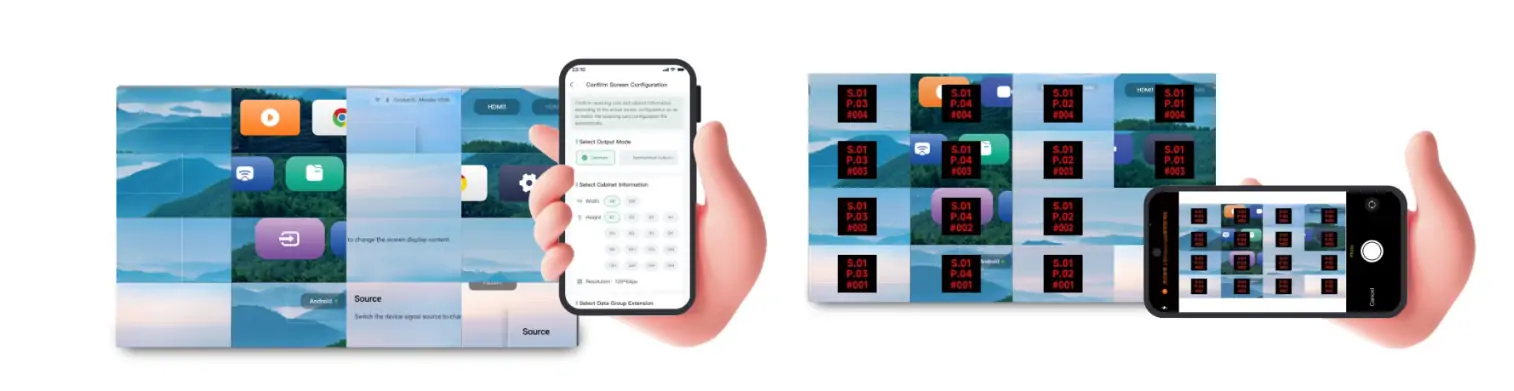
Screen configuration begins with cabinet data. Obtain the receiving card program and configuration file from the LED manufacturer or the original commissioning backup. Use the supported NovaStar workflow to identify the controller, load the correct files and define the physical port order. NovaStar’s user manual identifies VNNOX Care for screen configuration, topology, photo-assisted mapping and automatic configuration backup. These tools still require the correct cabinet data and a verified cable map.
During screen mapping, make a simple drawing that shows output port, first cabinet, cable direction and last cabinet for each chain. Match that drawing to the software canvas. Test with a numbered grid and solid red, green, blue, white and black. If the picture jumps across cabinets, correct the connection order before adjusting brightness or calibration. Save the working configuration both locally and in the maintenance records. The NovaStar TU20 Pro can simplify commissioning, but a verified backup remains the fastest recovery method.
02. Playback and Local Control
The NovaStar TU20 Pro offers three practical playback routes. For stable, repeatable signage, prepare content in the supported publishing software and schedule it for local playback. For a presenter who needs a live computer view, use an HDMI input and set the computer to a tested resolution and frame rate. For a short meeting, wireless mirroring can remove cable handoffs, provided the room’s network design supports it.
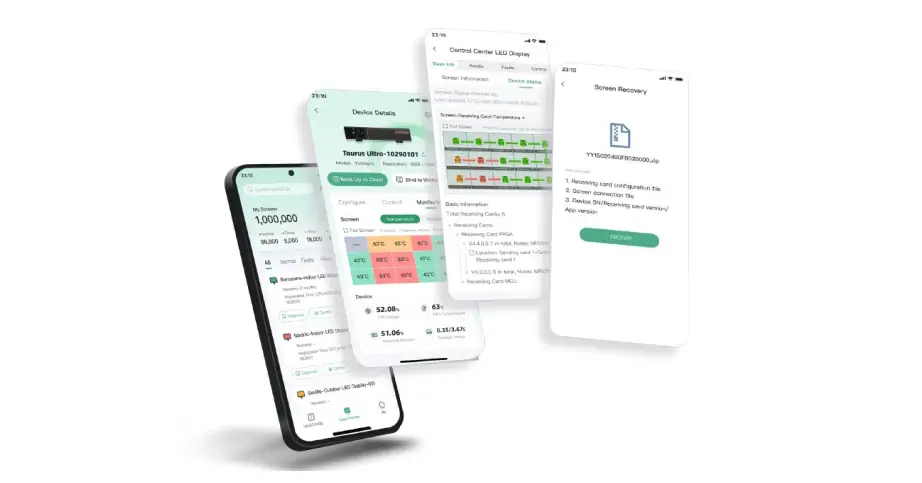
A Bluetooth remote gives the operator on site access to the menu and playback controls. Mobile and cloud workflows can help with program publishing and monitoring, but they need the correct account, network access and software version. Keep a local fallback program on the device for a network outage. When using third party conferencing apps, verify the specific app version, microphone, camera and audio path during acceptance testing. NovaStar lists support for common meeting applications, but compatibility of a complete conference installation depends on the attached peripherals and software releases.
03. Wireless Screen Mirroring
The TU20 Pro supports wireless mirroring across platforms. Single-screen mirroring is included; four- and nine-way split-screen mirroring require separately purchased activation codes, according to NovaStar’s specifications and optional-accessory list. That does not mean every combination will remain legible on a small LED canvas. On a 1,920 × 1,080 wall, nine equal tiles are only about 640 × 360 pixels each before borders or interface chrome. For spreadsheets and detailed drawings, one or two sources usually serve viewers better.
Plan wireless mirroring as a network feature, not just a controller feature. Check the client’s device type, Wi-Fi coverage, VLAN rules, discovery traffic and authentication requirements. If guests are separated from the controller by a restrictive network, mirroring may fail even while both devices have internet access. Test screen sharing with the actual Windows, macOS, iOS and Android devices expected on site. The user manual lists mirroring latency of no more than 80 ms for standard 1080p video at up to 60 fps over 8 meters. This is a stated test scenario; actual latency varies with encoding, wireless congestion and display processing. Use wired HDMI for timing critical interaction.
04. LED Canvas and Audio
The six Gigabit Ethernet outputs are LED data outputs for receiving cards; they are not six independent HDMI video outputs. Think of the wall as one canvas subdivided across cabinet chains. The NovaStar TU20 Pro supports up to 3.9 million pixels with scaling, with separate maximum width of 4,096 pixels and maximum height of 1,920 pixels. Pixel-to-pixel display is limited to 2.88 million pixels; the internal Android source also has a 2.88 million-pixel limit. All three constraints must hold at the same time. For example, 4,096 × 1,920 is 7,864,320 pixels, so that corner of the dimension envelope is not a supported full canvas.
Match the source to the canvas’s aspect ratio where possible. Otherwise decide whether to crop, letterbox or stretch; stretching circles and faces is rarely acceptable. Verify brightness and color on the actual cabinets after the receiving card mapping is correct. Audio can be routed to the room system, but confirm the chosen source, output connector and volume control path. A silent HDMI presentation is often an audio routing issue rather than a video controller fault.
05. Ports and System Integration
For system design, separate content inputs, LED outputs and control connections. The TU20 Pro has two HDMI 1.3 inputs, three USB 2.0 ports and six Gigabit Ethernet LED outputs. Its HDMI output supports 1080p monitoring; 3.5 mm analog audio and SPDIF provide separate audio routes. The control Ethernet port is distinct from the LED data outputs. Check RS232, sensor and relay pin assignments in the official connection specifications before wiring room controls.
Do not connect the LED data outputs to a normal office switch unless NovaStar’s documented topology explicitly calls for one. Label every cable with its output port and cabinet chain. Use suitable cable grade and stay within the manufacturer’s distance limit; for longer runs, plan optical conversion or a distribution design that the receiving system supports. Keep a service loop and document the port map. Those steps prevent a routine cabinet replacement from becoming a full remapping exercise.
3. NovaStar TU20 Pro Specifications and Pixel Capacity
The table below summarizes the NovaStar TU20 Pro specifications most relevant to an LED wall design. Values are from NovaStar specification V1.6.4, checked on October 14, 2026. Confirm the supplied hardware and firmware before procurement.
| Item | NovaStar TU20 Pro | What to check in your project |
|---|---|---|
| Controller type | Android 11 LED playback control processor | Required apps and offline playback behavior |
| LED loading | Up to 3.9 million with scaling; 2.88 million pixel-to-pixel | Native width × height, operating mode and each output chain |
| Internal Android source | Maximum 2.88 million pixels | Do not assume the scaled-output ceiling is the native source limit |
| Canvas bounds | Maximum width 4,096 px; maximum height 1,920 px | Both dimensions and total pixels must fit |
| LED outputs | Six Gigabit Ethernet ports | Receiving card and cabinet routing |
| System memory | 4 GB RAM; 32 GB storage listed in the product material | Usable media space after system files |
| Video playback | H.264 up to 4K at 30 Hz; H.265 up to 4K at 60 Hz | Test the exact file codec, bitrate and frame rate |
| Connectivity | Two HDMI 1.3 inputs, each up to 2048 × 1152 at 60 Hz; three USB 2.0 ports | 4K file decoding does not mean 4K HDMI input |
| Dimensions and weight | 211.7 × 185.0 × 50.6 mm; net 1.12 kg | Allow extra clearance for antennas, brackets and cables |
Capacity example: a 2,560 × 1,440 canvas has 3,686,400 pixels and is below the 3.9 million total, 4,096 width and 1,920 height bounds. However, it exceeds 2.88 million pixels, so it is not a pixel-to-pixel mode. Confirm the source resolution, scaling behavior and distribution across the six outputs with the supplier before specifying this wall.
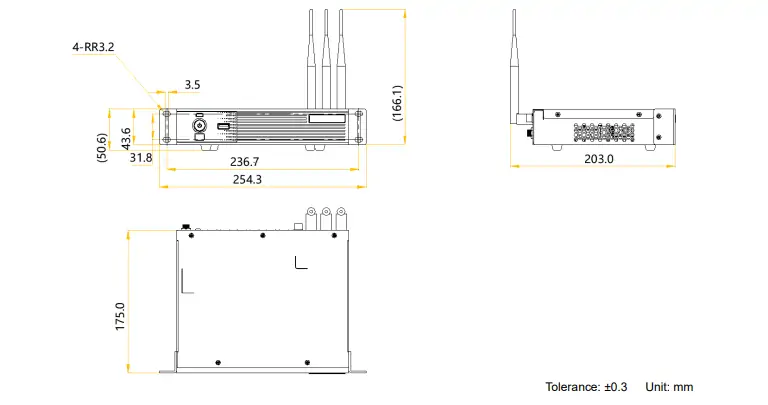
The retained mounting illustration below labels a 254.3 mm bracket span and 166.1 mm height with antennas, with ±0.3 mm tolerance. It differs from the current body dimensions in the table. Confirm the latest installation drawing for your hardware before drilling or reserving rack space.
4. NovaStar TU20 Pro vs TU15 Pro
The TU15 Pro and NovaStar TU20 Pro serve similar indoor playback use cases, but the larger controller gives more LED output capacity. Use the official TU Series comparison alongside the cabinet map and source plan; the maximum output rating alone does not establish native playback capability.
| Decision point | TU15 Pro | TU20 Pro |
|---|---|---|
| Published maximum LED loading | Up to 2.6 million pixels | Up to 3.9 million with scaling; 2.88 million pixel-to-pixel |
| Ethernet outputs | Four | Six |
| Typical fit | Smaller meeting or signage walls | Larger walls or more cabinet chains |
| Shared workflow | Android based local playback and screen control | Android based local playback and screen control |
| Selection test | Canvas and port loads fit with margin | Canvas and port loads fit with margin |
If the wall is comfortably inside the TU15 Pro envelope, extra capacity may bring no visible benefit. If the design approaches a port or total pixel limit, the TU20 Pro gives more room. Leave margin for a changed cabinet arrangement or future content format. Compare the exact source connectors, software features and firmware of the units being quoted. For deeper TU15 planning, see EagerLED’s NovaStar TU15 Pro specs and setup guide. For larger or 4K projects, see our TU15 Pro, TU20 Pro and TU4K Pro comparison. Multi-input live events may need a dedicated production processor.
5. NovaStar TU20 Pro Price and Buying Checklist
A single fixed “NovaStar TU20 Pro price” is not dependable across regions or projects. Distributor terms, tax, shipping, warranty, firmware support and bundled accessories change the delivered cost. Request a current written quotation that matches the exact scope of your installation.
Ask the supplier to itemize the controller, power supply, remote, four- or nine-screen mirroring activation if needed, whiteboard activation, any optional PTB1307 mirroring dongle, receiving cards and commissioning support. Confirm whether the quote includes a configuration backup and training for the person who will operate the wall. The least expensive controller purchase can become costly if the installer later needs an extra scaler, audio extractor or service visit.
Before ordering the NovaStar TU20 Pro, send the seller the wall’s exact pixel dimensions and a drawing of every cabinet chain. Ask them to confirm the total loading, the load on each output, the HDMI input format, the intended playback method and the current hardware and firmware revision in writing. If the project will use a cloud service, clarify subscription and network requirements. This turns a vague price comparison into a checkable system specification.
6. NovaStar TU20 Pro Manual, Software and Firmware
For the NovaStar TU20 Pro manual, product specifications and firmware, start from the official NovaStar TU Series product page or its download center. The TU20 Pro & TU15 Pro user manual V1.6.2 (PDF) is shared by both models. The TU20 Pro specification V1.6.4 (PDF) covers this model’s hardware. These were the current downloads checked on October 14, 2026; firmware must still match the exact device and revision. Keep a copy of the installed version number and its release notes with the project handover documents.
The user manual is useful for first boot, display configuration, screen mirroring, program publishing and maintenance. A specification sheet answers hardware and capacity questions. Software downloads such as ViPlex Handy or the relevant publishing tool should come from NovaStar’s current official channel. EagerLED’s NovaStar software download overview can help identify the tool, but use the manufacturer’s current package and instructions for installation.
Firmware updates should be planned maintenance. Export or back up the working screen configuration first, note the current firmware, keep stable power and follow the release notes in order. After an update, test mapping, HDMI input, local playback, mirroring, audio and remote management. Do not update a live show controller immediately before an event unless the release specifically fixes a blocking fault.
7. Where the NovaStar TU20 Pro Fits
The NovaStar TU20 Pro is strongest where one indoor LED wall must handle both managed content and occasional live presentations. In a corporate meeting room, the operator can switch from a welcome loop to an HDMI laptop and then to wireless sharing. A classroom can use a stable wired computer input while retaining local media for announcements. A showroom can keep a local fallback program when cloud connectivity is unavailable.
For retail signage, schedule content for the actual native aspect ratio and test text at the viewer’s normal distance. A high pixel count alone will not make small type readable from across a store. In an exhibition space, account for temporary cable routes, power sequencing and who has permission to change the program. For command rooms or medical spaces, validate the full system’s availability, security and latency requirements; the controller alone does not certify a mission critical workflow.
When designing the wall, pair the controller with cabinets whose receiving cards and configuration files are documented. EagerLED’s indoor LED screen options provide examples of the display side of the system. The NovaStar TU20 Pro is a controller choice within that broader design, and the right result depends on the cabinets, environment, signal sources and installation quality.
8. NovaStar TU20 Pro Setup: Step by Step
01. Calculate and Connect the Wall
Step 1: calculate the canvas. Record the pixel width and height of one cabinet, the cabinet count across and down, and the total native resolution. Multiply width × height. Check the 3.9 million scaled-output limit or the 2.88 million pixel-to-pixel limit as appropriate, plus the 2.88 million internal-source limit. Also compare width with 4,096 and height with 1,920. Draw each Ethernet output chain with an arrow for cabinet order. If multiple cabinet types are mixed, document each receiving card configuration separately.
Step 2: connect safely. With the display powered according to the cabinet maker’s sequence, connect the TU20 Pro’s LED outputs to the designated first cabinet of each chain. Connect the required HDMI source, audio system, control network and local peripherals. Label the cables before closing the rack. A notebook or spreadsheet with port number, cabinet coordinates and cable destination will make future service faster.
Step 3: prove a basic picture. After completing the software and mapping steps below, use a simple test source and a grid to verify every cabinet lights in the correct place. Do not start calibration or color tuning until topology is correct. The NovaStar TU20 Pro setup is easier when the physical wiring map and software map agree before any creative content is loaded.
02. Install Software and Publish Content
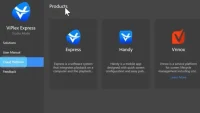
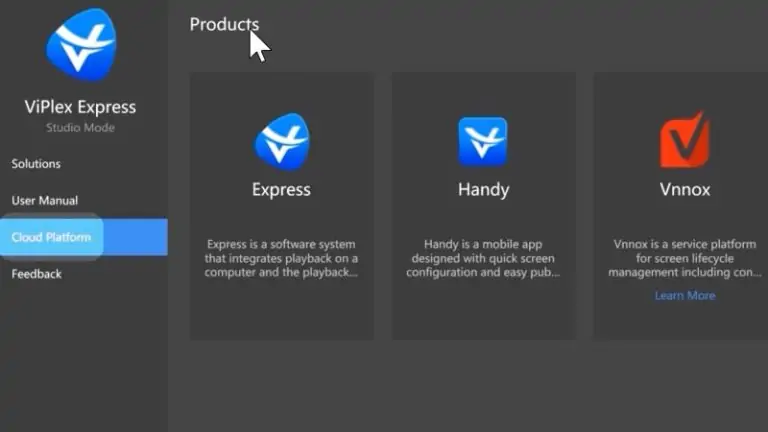
Use ViPlex Handy for program editing, publishing, screen control and mobile mirroring. Use VNNOX Care for screen configuration, cabinet topology and configuration backup. NovaLCT connects from a control PC through the controller’s control Ethernet port when that workflow is required. Follow the TU20 Pro setup instructions for the installed firmware rather than treating these apps as interchangeable.
Install only the software versions recommended for the current NovaStar TU20 Pro firmware. Record the device identifier, network settings and administrator contact in a secure handover document. If the display is on a managed corporate network, arrange required addresses and firewall rules with IT before commissioning day. Avoid assuming that a controller which can reach the internet can also discover a guest’s phone; these are different network paths.
For first use, select the language, pair the Bluetooth remote, set the time zone, connect to Wi-Fi and give the controller a recognizable name. Then build one short test program with a still image, motion clip and readable text. Publish it, restart the device, and confirm that it resumes as expected. Verify that the remote can recover the display if the network is disconnected. A successful content publish is only part of commissioning; playback after power loss and network loss matters just as much.
03. Map Cabinets and Verify Color
Load the receiving card files supplied for the actual cabinets. In the NovaStar TU20 Pro configuration interface, set the LED canvas to its native dimensions and map each output in cable order. A simple numbered image reveals swapped chains and reversed direction. Solid color fields reveal missing modules, incorrect color order and brightness differences. Keep a copy of the known good configuration outside the controller.
If the screen is black, check power and receiving card status first, then the controller output and source selection. If only one chain is dark, trace that output cable and first cabinet. If the image is fragmented or repeated, compare the mapping and receiving card file against the cabinet layout. If colors are wrong everywhere, verify color settings and the correct receiving card program. Change one variable at a time and record the result; random remapping makes diagnosis slower.
After the picture is correct, set brightness for the room and check grayscale and skin tones with suitable content. Do not claim that a phone photo alone replaces professional calibration on every fine pitch wall. NovaStar’s assisted features can accelerate setup, but critical color matching should be verified with the appropriate tools and viewing conditions.
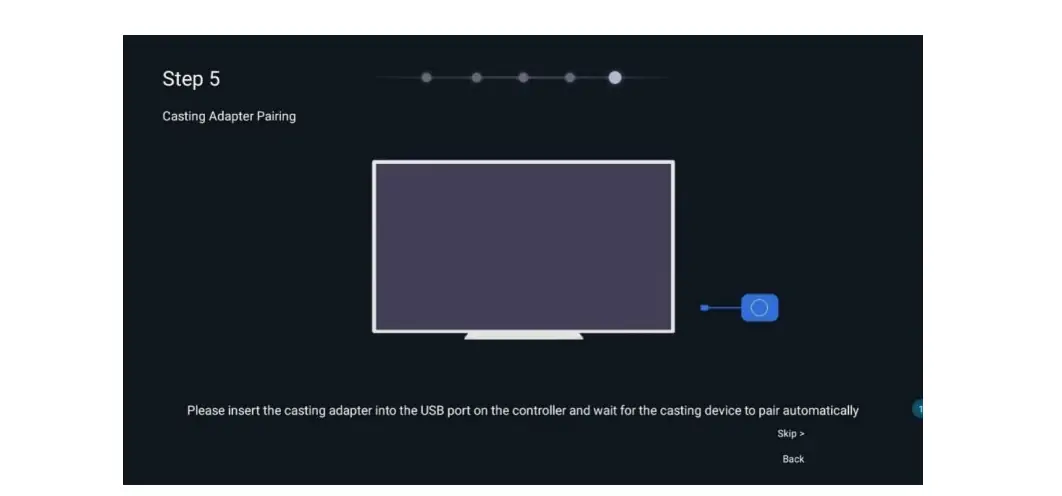
The older setup screenshot below shows casting-adapter pairing: insert a compatible adapter into the controller’s USB port and follow the pairing prompt. The dongle is optional, and menu steps can vary by firmware.
04. Test Sources and Troubleshoot
Test each source path that the operator will use. For HDMI, confirm the computer outputs the intended resolution and frame rate, and decide whether scaling should preserve aspect ratio. For USB playback, use FAT32 or NTFS media; exFAT and FAT16 are not supported in the current specification. Test the actual H.264 or H.265 files, including bitrate, profile and audio format. For wireless mirroring, try the real user devices from the real meeting network, including guest access if guests will present.
Check audio separately from video. Confirm which source supplies sound, where the TU20 Pro sends it and which device controls volume. Then power cycle the system and repeat a short switching test. If a program does not appear, verify that it was published to the correct device and schedule. If mirroring fails, check network discovery and permissions before resetting LED mapping. If a video stutters, test a lower bitrate or a wired source and watch for network or storage bottlenecks.
Record the final NovaStar TU20 Pro firmware version, output mapping, resolution, source settings and a few photos of the cable labels. This is the handover package that allows a future technician to recover the wall without guessing.
9. NovaStar TU20 Pro FAQs
The FAQ below answers practical NovaStar TU20 Pro questions about capacity, manual, price, software and screen mapping. Use the model’s current documentation and the installed firmware as the final authority for revision specific details.
01. What is the NovaStar TU20 Pro loading capacity?
The TU20 Pro supports up to 3.9 million pixels with scaling. Pixel-to-pixel display and the internal Android source are limited to 2.88 million pixels. Maximum output width is 4,096 pixels and height is 1,920 pixels; these limits do not permit a 4096 × 1920 canvas. Check each output chain as well.
02. Where can I get the NovaStar TU20 Pro manual?
Use the official TU20 Pro & TU15 Pro user manual (PDF) for setup and the TU20 Pro specification (PDF) for hardware limits. The manual is shared, but firmware must match the exact model and revision.
03. What software does the NovaStar TU20 Pro use?
Use ViPlex Handy for editing and publishing programs, screen control and mobile mirroring. VNNOX Care handles screen configuration, topology and backups. NovaLCT supports PC configuration through the control Ethernet port. Check the manual for compatibility with the installed firmware.
04. How much does the NovaStar TU20 Pro cost?
There is no dependable universal price. Request a current itemized quote covering the controller, tax, delivery, warranty and support. Confirm whether optional mirroring activation, whiteboard activation and the PTB1307 dongle are included before comparing prices.
05. Can the NovaStar TU20 Pro show an HDMI laptop input?
Yes. The two HDMI 1.3 inputs accept up to 2048 × 1152 at 60 Hz, according to the current specification. They are not 4K HDMI inputs. Test the laptop resolution, HDCP-protected content, scaling and audio routing before the presentation.
06. Does the NovaStar TU20 Pro support nine split screens?
Yes, with the appropriate activation. Single-screen mirroring is included; four- and nine-way split-screen mirroring require separately purchased activation codes. Confirm licensing with the supplier and test the intended devices and layout on the meeting network.
07. How do I fix an incorrect screen mapping?
First confirm cabinet order, Ethernet cabling and receiving-card configuration. Then load the correct cabinet file, set the output canvas and map each cabinet in physical sequence. Save the working configuration and test the full screen with a grid before connecting the final content source.
08. Should I update TU20 Pro firmware during installation?
Use firmware approved for the exact TU20 Pro hardware and your receiving cards. Back up the working configuration, read the release notes, and schedule a maintenance window. Avoid updating immediately before a live event unless the release fixes a confirmed issue.
10. Conclusion: Is the NovaStar TU20 Pro Right for You?
The NovaStar TU20 Pro is a useful all in one controller for indoor LED walls that need local playback, HDMI presentations and wireless sharing. Check the operating mode first: up to 3.9 million pixels with scaling, or 2.88 million for pixel-to-pixel display and the internal Android source. The separate 4,096 pixel width and 1,920 pixel height bounds and each output’s load must also fit. Calculate the native wall canvas and map the receiving card chains before ordering.
For an installation that will remain easy to operate, verify the current NovaStar TU20 Pro manual, test the actual media and devices, document the wiring, and save a known good configuration. Compare the TU15 Pro when the wall is smaller; request a current price quote that includes the full system and support. Those steps are more valuable than a headline specification alone.
 NovaStar MCTRL700 LED Controller: Specs, Setup & Capacity
 NovaStar MX6000 Pro Guide: Specs, Setup & 1G/5G
Related Posts
Fill In Your Needs In Detail
Fill in the screen usage scene and size you need in “Content”.You will get a quote.