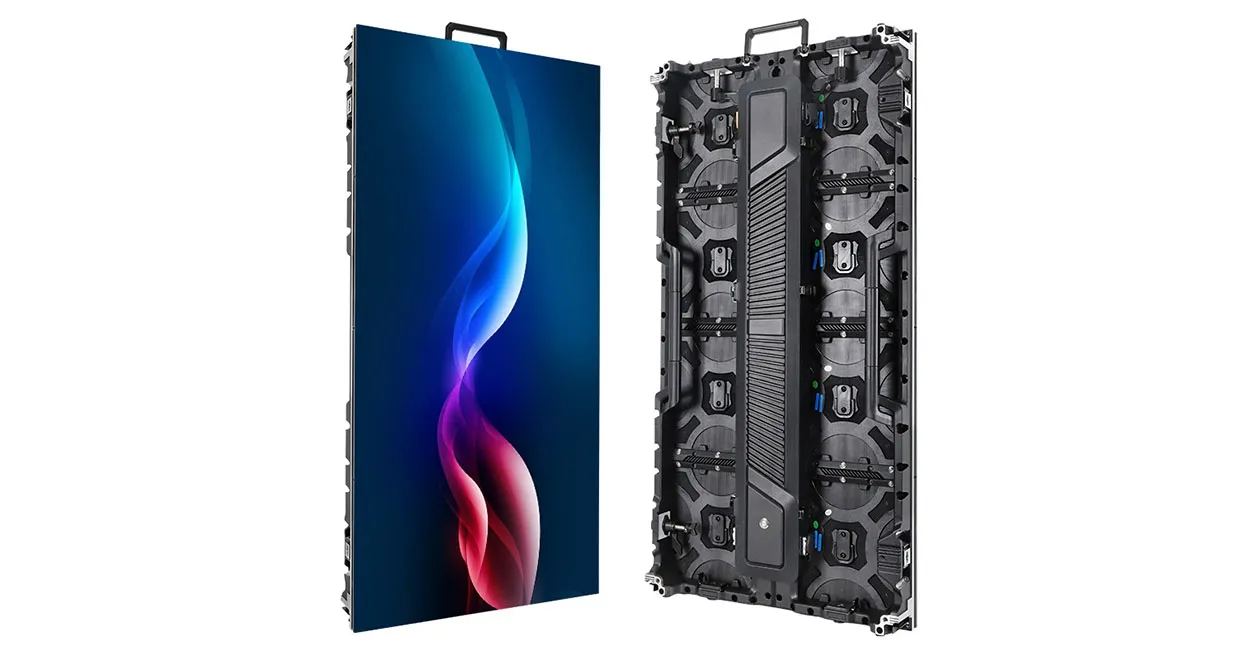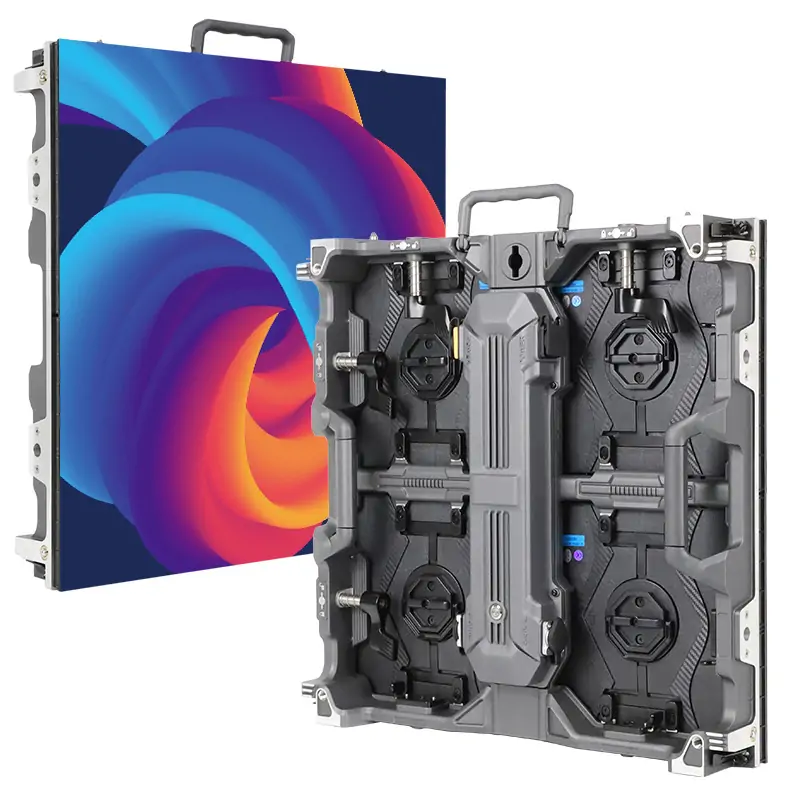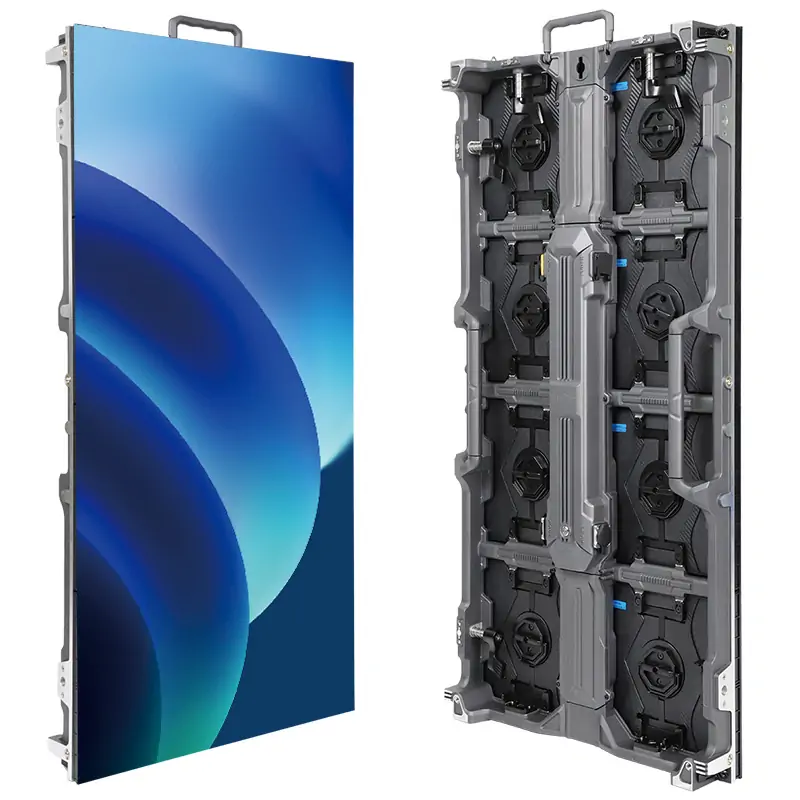
The NovaStar ET1S-G is a media server for small LED and LCD installations. It plays and arranges media, then sends video through HDMI or DisplayPort to a compatible display or LED processor. It does not replace the sending controller and receiving cards needed to drive an indoor LED display.
Use it for exhibitions, showrooms and small conference rooms where you need organized playback and a 4K-class output. This guide covers capabilities, setup and purchase checks using NovaStar’s ET1S-G specifications V1.3.2, dated September 7, 2026. Earlier hardware and software versions differ, so confirm the exact unit and license before ordering or upgrading.
1. What the Novastar ET1S-G Is Designed to Do
The ET1S-G sits at the content-source stage of the display system. Import videos, images, audio or supported presentation files, arrange programs in its playback software, and map the output to the intended screen area. Its network connector provides networking; it is not a cabinet-data output equivalent to the numbered Ethernet ports on an LED sending controller.
For an LED wall, a typical path is media files → ET1S-G → compatible LED processor/sending controller → receiving cards → cabinets. An LCD display instead accepts the supported video signal directly. If the destination is an outdoor advertising LED screen, protect and install the media server in an appropriate indoor equipment environment.
2. Key Features That Stand Out
Output capacity: NovaStar specifies one 4K × 2K output at 60 Hz. DP 1.2 supplies the main output; HDMI 2.0 copies that content, while four HDMI 1.3 connectors can distribute a mosaic of it. These connectors do not provide five independent 4K canvases. See the official output specifications, pages 2–5.
Programs and layers: the current specification lists playback of up to 20 layers, media-library management, batch import, cropping, masks and program crossfades. Layer count is not a promise of 20 simultaneous full-resolution video decodes. Test the actual codecs, frame rates and layer combinations required by your project.
Source types: the current specification includes local media, NDI, website, streaming-media and text sources, plus PowerPoint files up to 1080p. Network sources depend on the network and source availability. Prepare local fallback content when uninterrupted presentation matters, and verify fonts and slide effects on the supplied software.
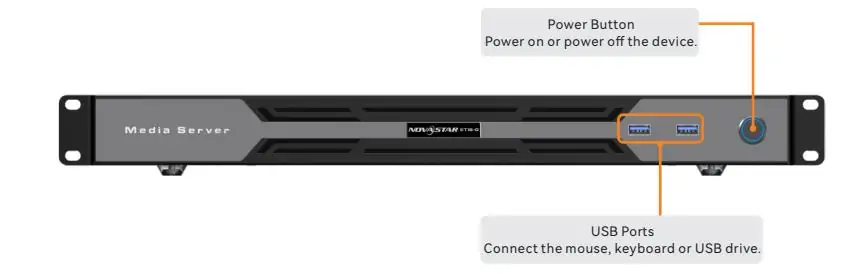
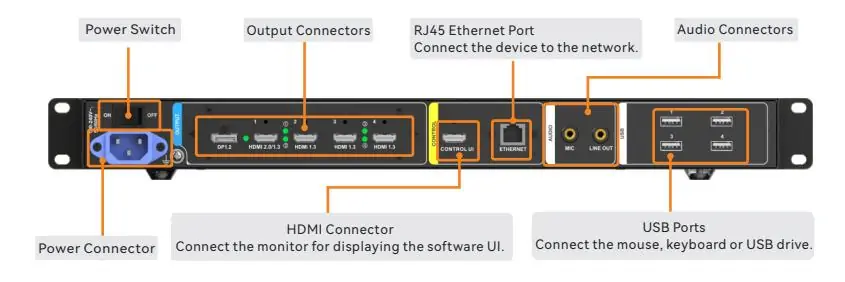
Connections shown below: the front panel has a power button and two USB 3.0 ports. The rear panel includes the mains switch, video outputs, CONTROL UI monitor connection, Gigabit Ethernet, microphone input, line output and four USB 2.0 ports. Use CONTROL UI for the operator monitor and the output connectors for program video.
3. Where It Fits Best
NovaStar positions the ET1S-G for smaller fixed installations, including exhibition booths, showrooms and conference rooms. It suits projects where a prepared media program and a manageable output canvas are more important than extensive expansion. Choose it by canvas size and content workload, not simply by the physical size of the screen.
For commercial advertising displays, assess daily playback, restart behavior and content handover. Small events may also fit if their source and output requirements are supported. Large concerts or mission-critical command rooms require a separate assessment of capacity, synchronization and redundancy rather than an assumption of suitability.
Before committing, run a representative project containing the heaviest videos, the most complex layout and the intended network sources. Check sustained playback and operator controls. If the design needs frame-locked output across several servers or automatic failover, obtain explicit confirmation for the proposed system; multiple connectors alone do not establish either capability.
4. A Practical Way to Think About Setup
Plan and connect: record the display resolution, refresh rate and downstream processor input. Mount the server horizontally with ventilation, connect the operator monitor to CONTROL UI, and connect a keyboard and mouse. Route the required HDMI or DP program output to the display chain. Label the operator and program cables so they are not confused.
Configure and load media: confirm the installed software and license, set a supported output timing, then import files into the media library. Arrange programs and map the output areas. Lock EDID only after confirming the intended timing. For related resources, see our NovaStar software and manual download guide; use packages intended for your exact version.
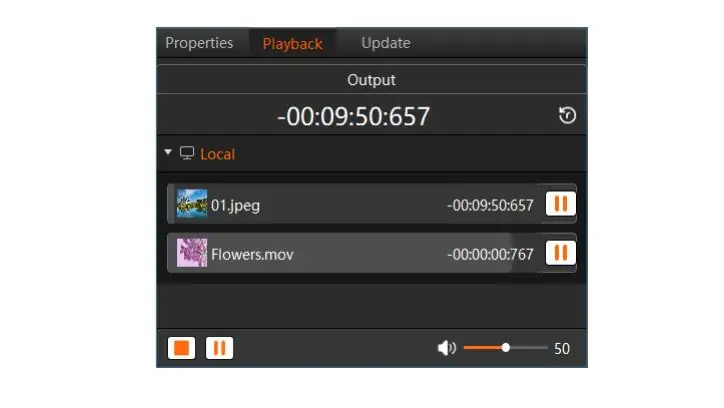
Test and save: preview each program, inspect screen edges and text, and check pause, stop, transitions and volume controls shown in the playback image. Test audio separately from video. Save the project and media together, verify startup behavior after a planned restart, and retain a known-working copy before changing software or output configuration.
5. Why People Choose This Kind of Solution
A dedicated media server can keep the playback project, output settings and operator interface in one installed system. That is a practical reason to consider the ET1S-G over an ad hoc source computer. It is not evidence that every installation will be fault-free; reliability still depends on content, power, networking and configuration.
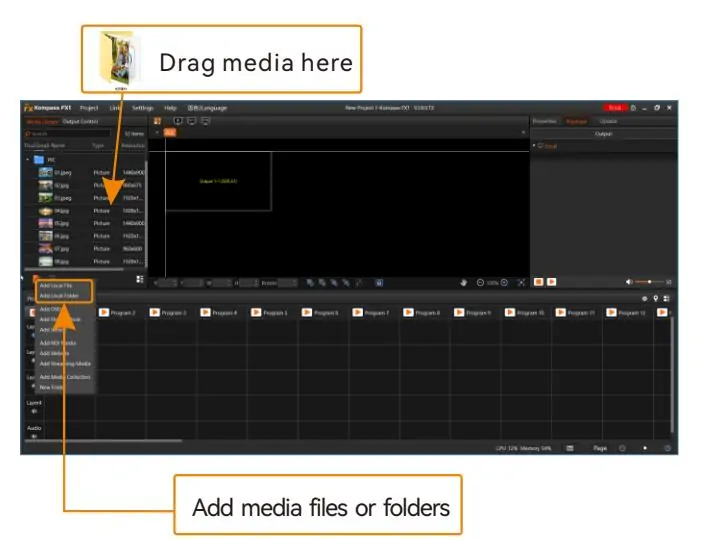
Media-library sorting and batch import can simplify repeated content updates. The interface illustration below shows the option to add media files or folders. Use clear filenames, check that all referenced assets are present, and preview the final project on the actual server before handing it to the operator.
Mosaic layouts and output mapping provide flexibility when a screen is unusually wide or divided into several areas. However, the resulting design must remain within the total output capacity and supported connector timings. A layout that is easy to draw in software still needs a compatible processor and verified cabling.
For daily operation, prepare a small set of clearly named programs and teach users how to start, pause, stop and recover playback. NovaStar lists VICP control support in the current specification. Confirm the compatible VICP version and required network connection during commissioning instead of assuming tablet control will work without configuration.
6. Technical Details Matter More Than People Think
Hardware revision matters. The V1.3.2 specification lists an Intel Core i3-1215U, 16 GB DDR4, 256 GB SSD, Windows 10 Enterprise LTSC and Kompass FX3 Pro Basic Edition with software license activation. The original V1.0.0 document instead lists AMD Ryzen hardware, 250 GB storage and Kompass FX1. Ask the supplier which configuration is being delivered.
Output restrictions: selecting HDMI 2.0 makes HDMI 1.3 connectors 2, 3 and 4 unavailable. HDMI 1.3 mosaic layouts include 1×2, 1×3, 1×4, 2×1, 2×2, 3×1 and 4×1. Their EDID setting applies to all four connectors together. HDMI 1.3 does not carry audio; plan a supported HDMI 2.0, DP or line-output audio path.
Size and operating limits: the current document lists 482.6 × 407.5 × 50.1 mm, 5.2 kg, 100–240 V AC and 80 W maximum power consumption. Operating temperature is 0–45°C with non-condensing humidity. Custom DP/HDMI 2.0 dimensions can reach 7,680 pixels wide or 4,095 high, within supported timings; those separate maxima are not a 7,680 × 4,095 output promise. See NovaStar’s connector and physical specifications.
7. How the ET1S-G Fits Into Real Workflows
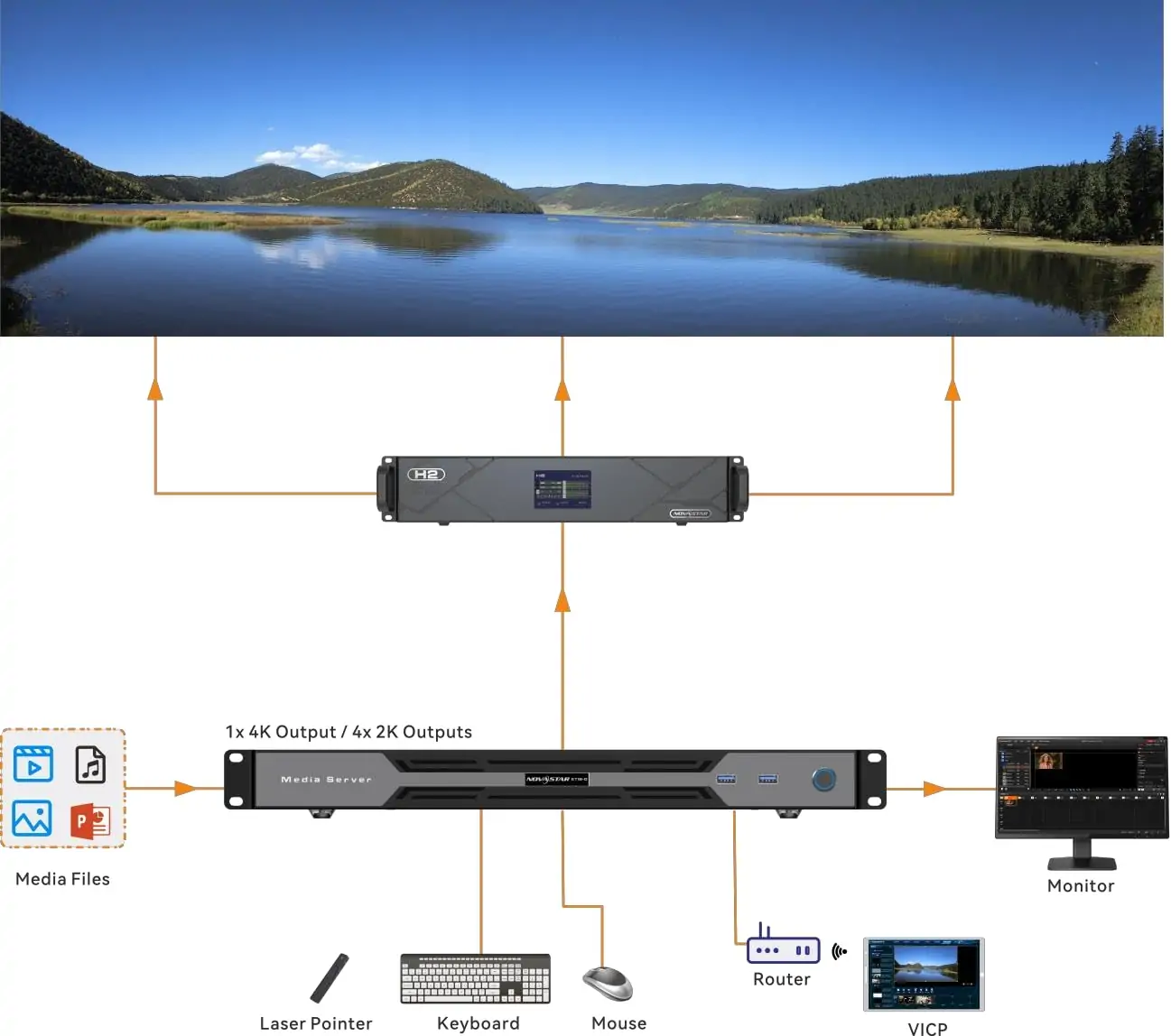
The application diagram above shows media imported into the ET1S-G, an operator monitor, keyboard and mouse, plus network control through a router and VICP. Keep this control path distinct from the program-video path. Document both so another technician can restore the installation without reconstructing it from memory.
For a showroom, prepare a repeatable program and confirm the approved startup behavior. For a conference, rehearse program changes and slide navigation with the presenter. For an event, agree on a fallback image or local clip and an operator action if a network source disappears. These are workflow recommendations, not automatic failover features.
During handover, provide the project, media assets, output resolution, cable diagram and software/license details. Record a simple recovery sequence: check power and monitor, confirm the correct program output, verify the active program, then inspect the downstream LED controller. Keep configuration backups separate from the only working server.
8. A Few Things to Keep in Mind Before Buying
Ask for a written quote identifying the ET1S-G hardware revision, storage, installed software edition and license activation. Include cables, downstream LED processing, commissioning, support and warranty terms in the comparison. No universal price applies across suppliers and configurations, and a hardware-only figure may omit items needed for a working installation.
Provide the supplier with the required output canvas, connector mode, frame rate, media codecs and maximum simultaneous layers. Ask for a demonstration using representative files. Confirm whether the project needs local playback, network sources, presentation control or integration with another control system; each adds different commissioning requirements.
Check who will operate and maintain the system. Agree on training, project backup, software updates and recovery support. Confirm all display-chain interfaces before purchase, especially when converting between HDMI and DP or using long cable runs. Test adapters and extenders with the intended timing rather than relying only on their connector labels.
9. Final Thoughts
The NovaStar ET1S-G is a compact media-playback source for appropriately sized LED and LCD projects. Its value comes from organizing media and programs while supplying a supported output to the display chain. Choose it when the canvas, content workload and operator workflow fit the verified configuration.
Keep the distinction between media playback and LED sending clear. If your installation uses a VX-series processor downstream, our NovaStar VX1000 setup guide covers the separate mapping, input and controller-backup tasks. Configure and test each stage before evaluating the complete system.
Use the current ET1S-G specification alongside the documentation supplied with your unit. Verify revision differences, save the project and rehearse recovery before handover. This provides a firmer basis for a purchase or installation than general claims about “smart control” or guaranteed stability.
 4K UHD vs QLED: Key Differences & Which is Better?(2026)
 SMD VS COB LED Display: Key Differences and Comparison Guide
Related Posts
Fill In Your Needs In Detail
Fill in the screen usage scene and size you need in “Content”.You will get a quote.