The Colorlight VX10 combines LED video processing and screen control in one unit. It accepts 4K sources through HDMI 2.0 and sends the processed picture to an LED wall through Ethernet or fiber. This guide covers setup and loading limits for professional LED displays.
1. What is the Colorlight VX10 LED Video Controller?
The Colorlight VX10 LED Video Controller processes incoming video and maps it to an LED display. Colorlight’s official VX10/VX6 product page lists a maximum VX10 output load of 6.55 million pixels. Input resolution and LED loading capacity are different limits: accepting a 4K source does not mean one controller can drive every pixel of a full 4K LED wall.
Key features include:
- Multi-format input support: HDMI 2.0, HDMI 1.4, DVI, 3G-SDI, and fiber ports.
- Advanced video processing: HDR support, 3-layer display, and precise color management.
- Flexible output options: Ethernet and dual 10G fiber outputs with redundancy.
- Real-time control: Web-based interface for easy configuration and management.
Before selecting a controller, calculate wall width in pixels × wall height in pixels. For example, 3840 × 2160 equals 8,294,400 pixels, exceeding the advertised VX10 maximum. Also confirm the supported load at your required frame rate and color depth with the supplier.
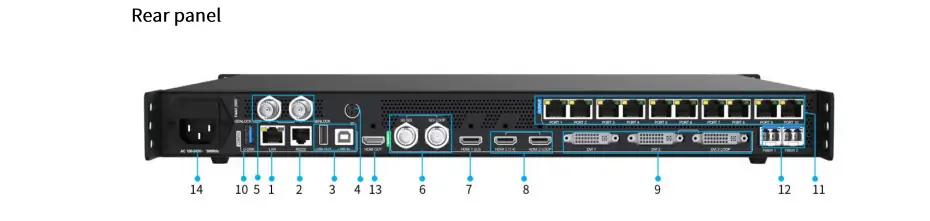
2. Colorlight VX10 Video Processor Hardware Overview
2.1 Input and Output Ports
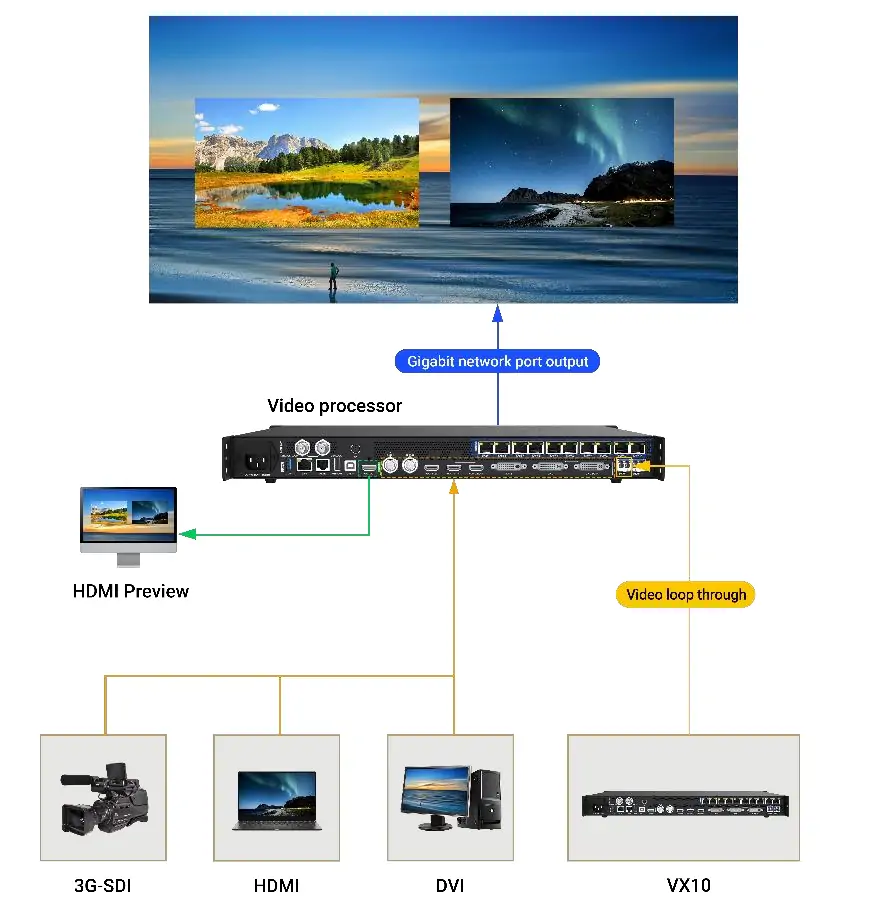
Check rear-panel labels: inputs, loop-through connections, LED outputs and network control have different functions.
Inputs:
- 1× HDMI 2.0 (HDCP 2.2 compatible)
- 1× HDMI 1.4 (IN & LOOP)
- 2× DVI (one IN & LOOP)
- 1× 3G-SDI (IN & LOOP)
- 1× 10G fiber port (Fiber1)
Outputs:
- 10× Gigabit Ethernet ports
- 2× 10G fiber ports (Fiber1 and Fiber2)
- 1× HDMI 1.3 for previewing or video output
2.2 Key Specifications
- Input: HDMI 2.0 accepts 4K video; confirm the exact timing in the VX10 specification download.
- LED output: Plan within the total pixel capacity and each output port’s supported load. Maximum width and height are individual limits, not a simultaneous full-resolution canvas.
- Frame rate: Colorlight advertises compatibility from 23.976 to 240 Hz; do not assume maximum loading at every rate.
- HDR: Requires a compatible source, configuration and display chain.
- Latency: Bypass supports low latency, but is not a guarantee of zero delay across the complete system.
2.3 Control and Connectivity
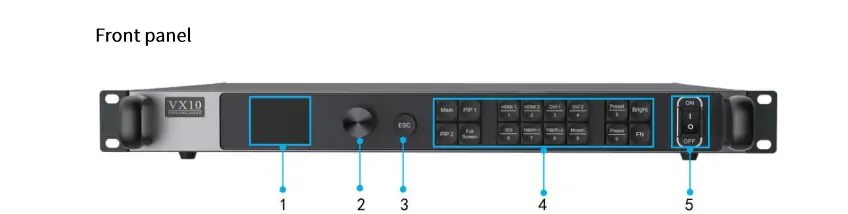
For Colorlight VX10 configuration, use the LAN connection and web interface. The front panel displays the device IP address. The VX10 user manual explicitly states that web access through USB is not supported. Check the relevant firmware documentation before using accessory or third-party control functions.
3. Basic Configuration of VX10 Video Processing Controller
Back up the existing screen configuration before making changes. Complete receiver mapping first, then arrange the source windows and test the whole wall before a live event.
3.1 Connecting to the VX10
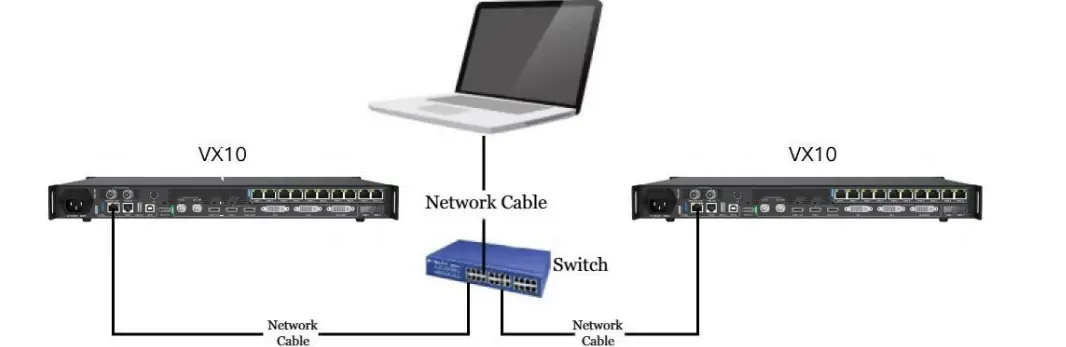
Network connection:
- Connect the PC to the VX10 LAN port directly or through a switch/router.
- Read the IP on the front panel. The manual’s factory default is 192.168.1.10; an installed unit may use another address.
- Use a compatible PC address on the same subnet, avoiding duplicate IPs. Open the controller address in a supported browser.
- For an unchanged factory setup, the manual lists 123456 for both username and password. Use the site’s assigned credentials if these were changed.
See the manual, sections 1.1–1.3 and 3.1.5. If the page will not load, check cabling, the current IP and subnet before resetting anything.
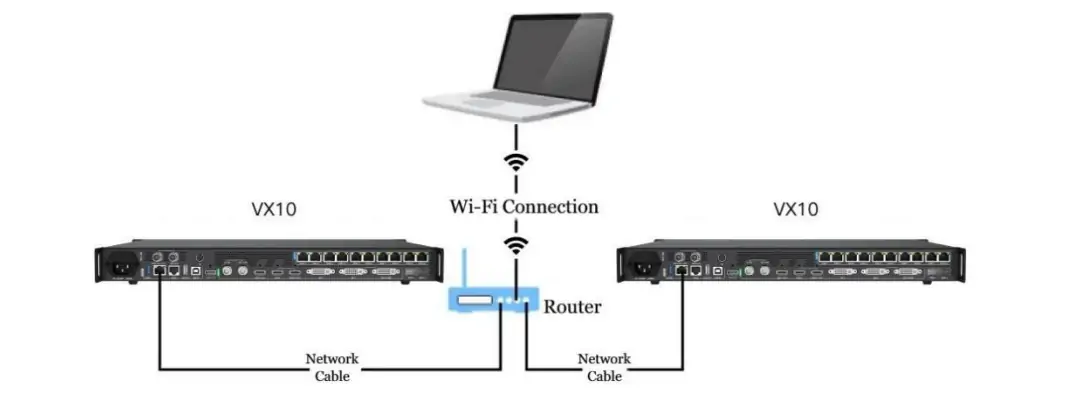
Wi-Fi setup (via a router):
- Keep the VX10 connected to the router by Ethernet.
- Connect the PC to that router’s Wi-Fi network, with access to the same subnet.
- Open the VX10’s current IP address. This is a wireless connection for the PC, not built-in VX10 Wi-Fi.
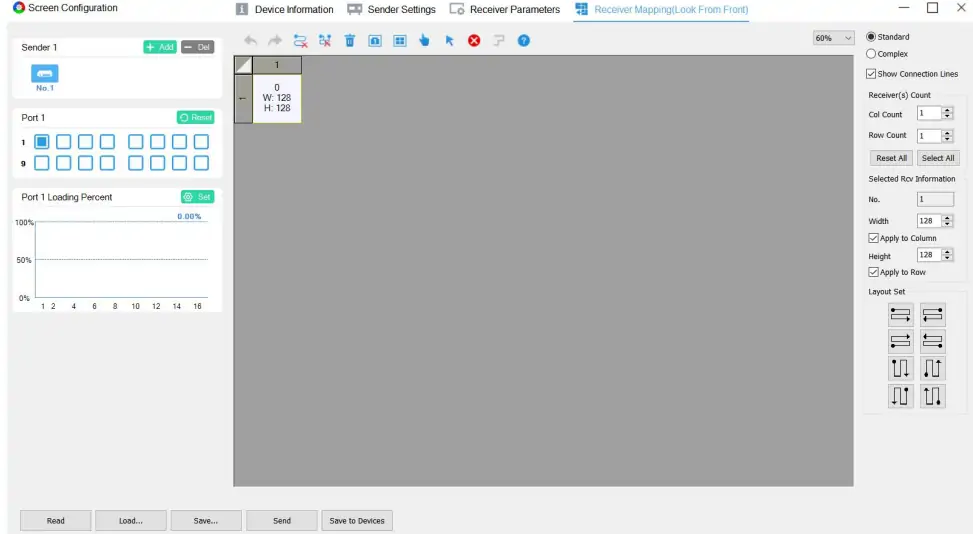
3.2 Setting LED Display Parameters
- The screenshot below illustrates the legacy LEDVISION workflow. Colorlight now marks LEDVISION as discontinued in its official downloads; confirm suitable configuration software for your receiving cards and firmware.
- Use the cabinet supplier’s approved receiver parameters and actual cable order. Test mapping and save the working configuration before adjusting video windows.
3.3 Adding Signal Windows
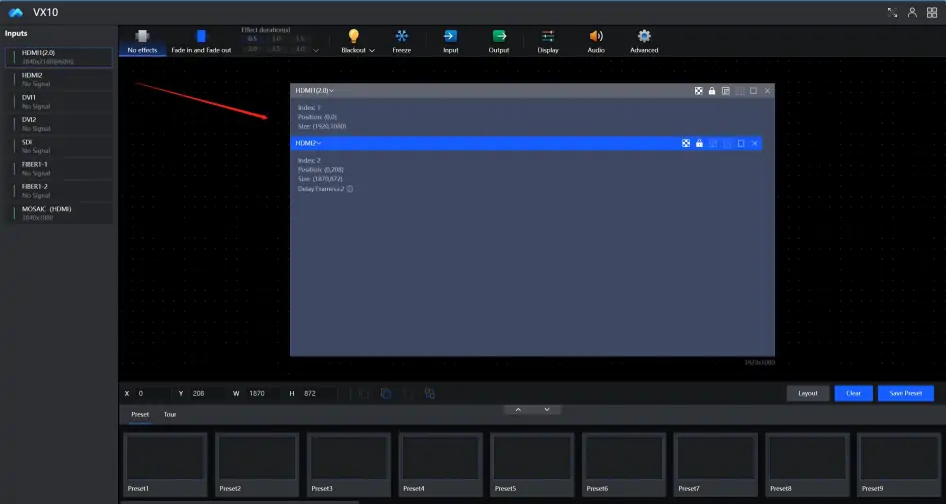
- Drag a source from the Inputs list onto the canvas.
- Set X and Y for position, and W and H for width and height. Check the window against the mapped wall dimensions rather than the source resolution alone.
3.4 Advanced Settings
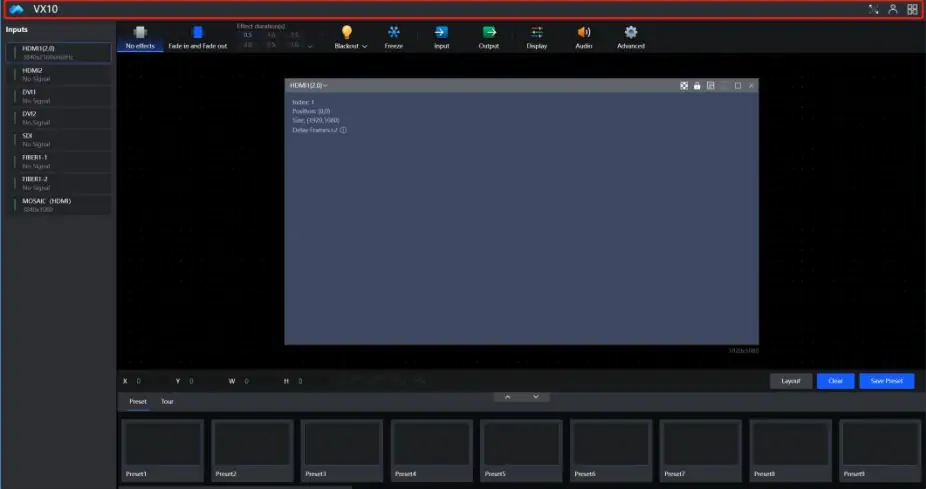
- Title bar: Access account, language and firmware controls.
- Input: Check source detection, cropping and EDID before changing display settings.
- Output: Review Bypass, HDMI1.3 output and FIBER2 output settings.
- Display: Adjust brightness and color using a test image.
- Audio: Confirm the selected source and compatible output hardware.
The manual’s section 3.4.5 describes bypass as pixel-to-pixel operation with one input on the primary layer. Check this limitation before enabling it for a multilayer show.
4. Colorlight VX10 LED Processor Cost
Colorlight VX10 price depends on the quoted package. No current manufacturer list price was verified for this guide, so an undated reseller range should not be treated as a reliable budget. Ask for a dated quotation that identifies the exact model, included accessories, warranty and delivery destination.
Compare controller price separately from optical modules, fiber equipment, receiving cards, shipping, tax and commissioning. Confirm stock and lead time, and ask whether support covers your screen configuration. You can request a VX10 system quote with the wall dimensions in pixels, source formats and required frame rate.
5. Typical Applications of Colorlight VX10 Video Processor
Test the VX10 against the signal path and LED wall required by each application.
5.1 Rental Staging and Live Events
- For rental LED displays, rehearse source switching and save a known working setup.
- Test backup inputs and bypass behavior before the show; low latency is useful only if the required layout is supported.
5.2 Broadcast Studios
- Check camera/source formats against the available HDMI and 3G-SDI inputs.
- Verify color, synchronization and visible delay with the complete studio chain before production.
5.3 Film Production
- Test the wall with the intended camera shutter and frame rate before filming.
- Check for banding, flicker and color mismatch. Controller settings alone cannot guarantee camera-ready results or consistent color across different environments.
5.4 Commercial Installations
- For large-scale LED walls, document the pixel load and cable routing.
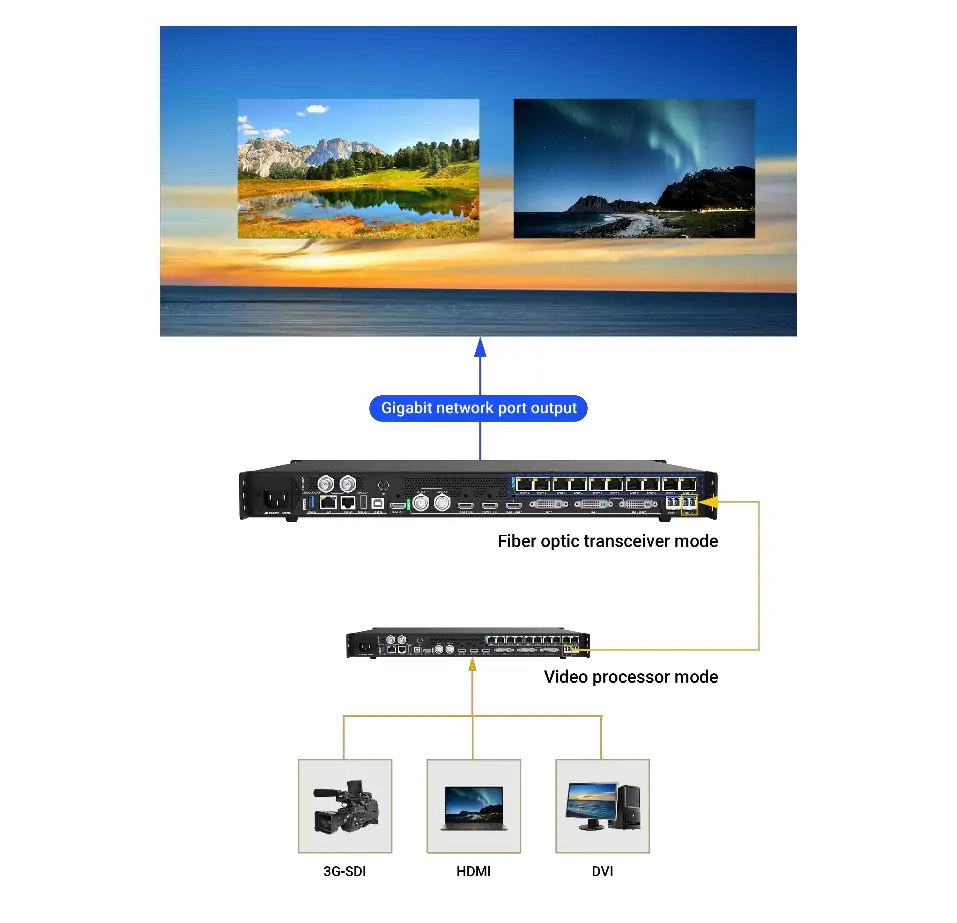
- Choose Ethernet or compatible fiber equipment for the installation distance, and keep a recoverable configuration for maintenance.
6. FAQs
7. Conclusion
The Colorlight VX10 is a practical option when its inputs, output capacity and operating modes match the screen. Calculate the pixel load, connect through the correct LAN address, verify receiver mapping and test the intended sources. Keep the original configuration and use Colorlight’s documentation for the installed firmware before changing advanced settings.
 Novastar MBOX600 Industrial Controller: What You Need to Know
 Novastar HDR Master 4K: Specs, Price and How it Works
Related Posts
Fill In Your Needs In Detail
Fill in the screen usage scene and size you need in “Content”.You will get a quote.