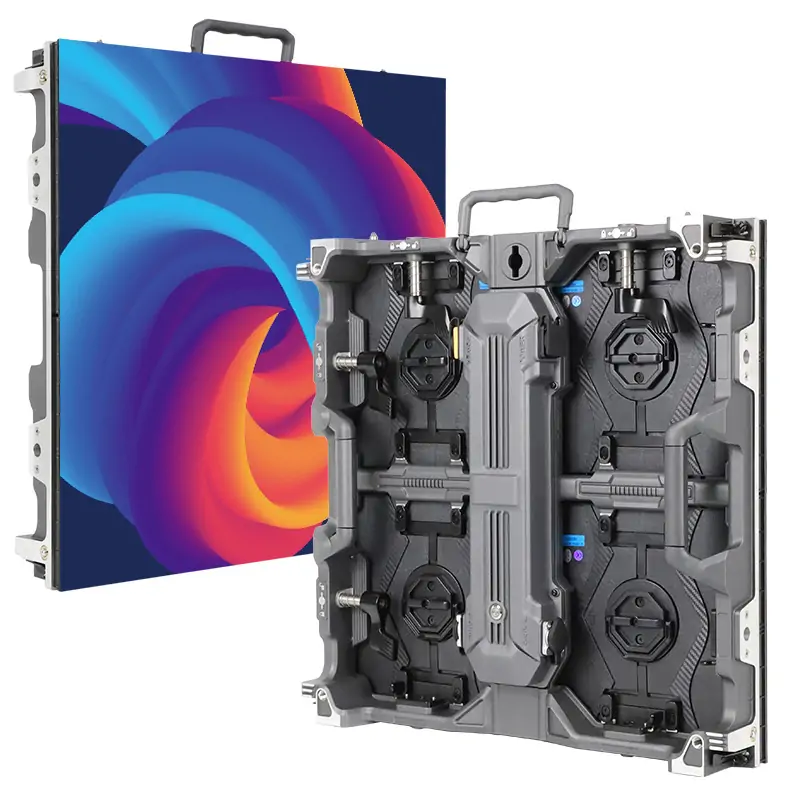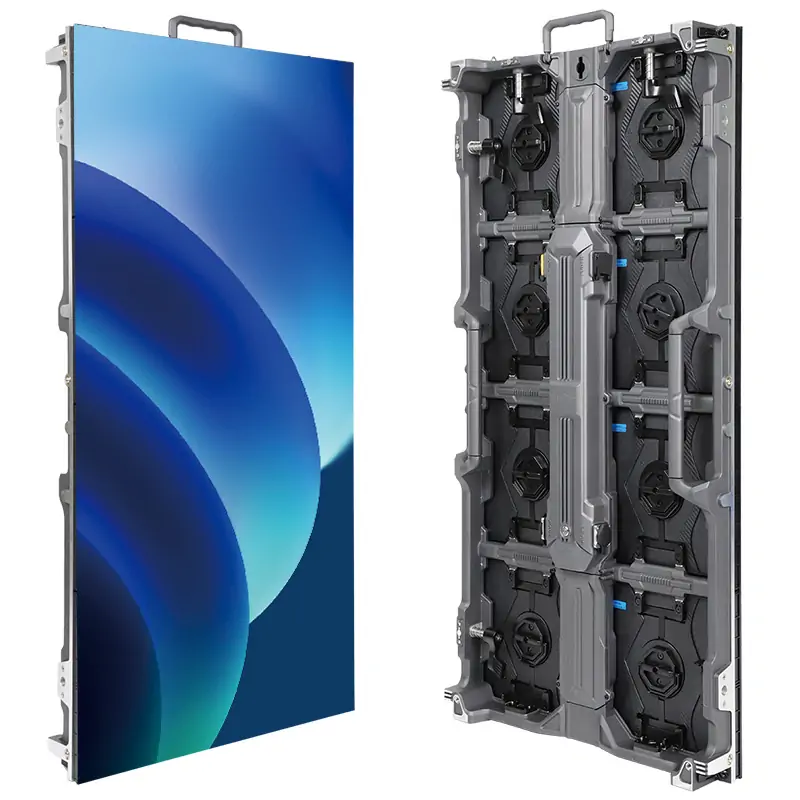
The NovaStar MCTRL4K is a synchronous LED sending controller with HDMI 2.0, DP 1.2, dual-link DVI, 16 Ethernet outputs and four optical ports. It supports up to 4096 × 2160 at 60 Hz under the specified input conditions. It sends a live source to LED receiving cards; resizing or combining video sources requires upstream processing. Check input format, bit depth and each cabinet chain before treating the headline 4K capacity as usable screen capacity.
This guide explains NovaStar MCTRL4K specifications, setup, software, scaling, and purchasing considerations. It includes pixel calculations, fault checks and manual PDFs for installation planning. In particular, custom resolution support should not be confused with automatic video scaling, and headline 4K capacity should not be applied unchanged to every bit depth or operating mode.
Use the nine sections below to plan a new system or review an existing installation. Technical limits are referenced to the manufacturer documents available in Section 7; the worked examples are planning calculations, not measurements from a completed project. Confirm the final configuration against the firmware and receiving-card combination supplied for your screen.
1. Key Features of the NovaStar MCTRL4K
The NovaStar MCTRL4K sits between a video source and the LED cabinets. A typical system follows this path: media server or player → optional video processor → controller → receiving cards → LED modules. The source creates the picture; the controller sends the appropriate image area to each mapped cabinet. Keeping those roles separate helps prevent purchasing and commissioning mistakes.
01. NovaStar MCTRL4K image quality and operating modes
The controller supports HDR10 and HLG, pixel-level brightness and chroma calibration, and individual RGB gamma adjustment for suitable high-bit-depth inputs. These functions address different problems. Calibration improves consistency between pixels and cabinets, while gamma affects tonal response. Neither can restore detail missing from a compressed source or repair a mismatched module configuration.
For the NovaStar MCTRL4K, HDR is a system-level choice. The specification requires 10-bit HDMI input and HDR-capable receiving cards. Confirm content mastering, signal format, screen brightness, and receiver compatibility together. Turning on HDR without checking the complete chain may produce an image that looks wrong even when the controller accepts the signal.
02. Low latency, 3D, and synchronization tradeoffs
NovaStar’s specification describes one frame from input to receiving card when low latency and input-source synchronization are enabled and cabinets are connected vertically. At 60 frames per second, one frame lasts about 16.7 milliseconds. The manual also gives a less-than-1-ms controller input-to-output figure when the image starts at position 0. These describe different measurement points; neither establishes total camera-to-screen delay. See the documents in Section 7, specification “Low latency” and manual section 7.2.
The documented low-latency mode uses HDMI or DP and is mutually exclusive with 3D and GENLOCK. The 3D function requires compatible equipment, including the EMT200 emitter and glasses. Decide which function the production actually needs before drawing the cable map. A feature list does not mean every feature can operate simultaneously at maximum capacity.
2. Detailed Technical Specifications of MCTRL4K LED Display Controller
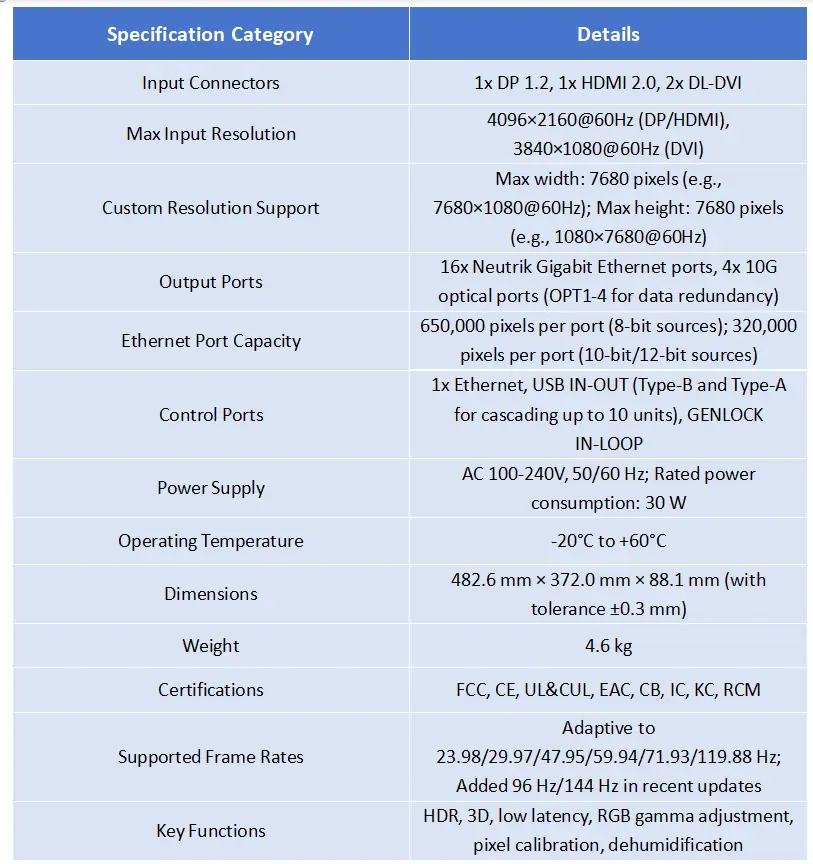
Read NovaStar MCTRL4K specifications as linked constraints. The input format establishes one limit, each output port establishes another, and the receiving-card configuration establishes a third. The following table summarizes the principal interfaces and gives the practical check associated with each.
| Item | Published capability | What to verify |
|---|---|---|
| Video inputs | 1 × HDMI 2.0; 1 × DP 1.2; 2 × dual-link DVI | Actual source output and adapter compatibility |
| Headline resolution | Up to 4096 × 2160 at 60 Hz | Input timing, bit depth, and sampling format |
| Overall loading | DP/HDMI: 8.8 million pixels; DVI: 8.3 million | Do not substitute summed port ceilings |
| Custom dimensions | Width or height up to 7680 pixels | Not a 7680 × 7680 canvas or full 8K UHD promise |
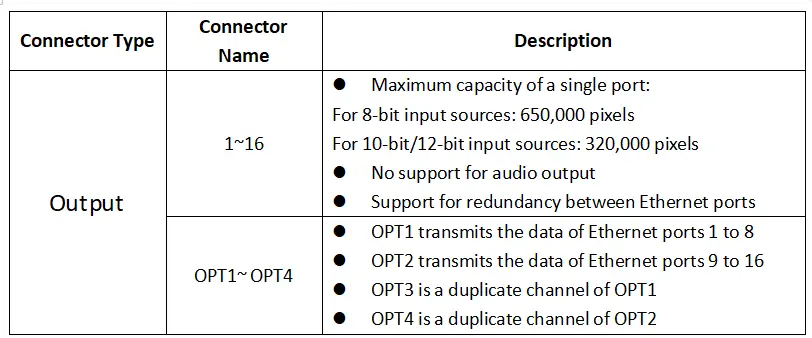
| Ethernet outputs | 16 Gigabit ports; 650,000 pixels each at 8-bit; 320,000 at 10/12-bit | Each cabinet chain and selected feature mode |
| Optical outputs | Four 10G ports with paired duplicate channels | Compatible converters, optics, and fiber type |
| Control connections | USB and dedicated control Ethernet | Keep control wiring distinct from display outputs |
| Power and size | AC 100–240 V, 50/60 Hz; rated 30 W; 482.6 × 372.0 × 88.1 mm; 4.6 kg | Allow cable clearance and mount horizontally |
| Operating environment | −20°C to +60°C; 10–90% RH, non-condensing | Provide a dry, ventilated equipment location |
Source: NovaStar’s MCTRL4K specification sheet, V1.2.1. The illustration below is an older reference. The manufacturer’s V1.2.2 specification, dated October 31, 2025, updates certification information; confirm the actual unit’s regional approvals. Use the document’s detailed limits when approving a configuration.
01. Calculate pixels before choosing the port layout
Start with the actual cabinet pixel dimensions, not just its physical size. For an illustrative wall using 192 × 192-pixel cabinets, a 20-column by 10-row layout contains 200 cabinets. Its resolution is 3840 × 1920, and its total load is 7,372,800 pixels. Pixel pitch helps determine viewing suitability, but controller loading follows the pixel count.
At the published 8-bit port ceiling, dividing 7,372,800 by 650,000 gives a theoretical minimum of 12 ports after rounding upward. That number is only an arithmetic floor. For example, two complete cabinet columns contain 20 cabinets, or 737,280 pixels, which exceeds one port’s ceiling. The final wiring therefore depends on how the wall can be partitioned into acceptable chains.
For the same wall at 320,000 pixels per port, the arithmetic floor becomes 24 ports. That exceeds the controller’s 16 physical Ethernet outputs, so this proposed high-bit-depth arrangement needs redesign. A NovaStar MCTRL4K quotation should include a port-by-port drawing rather than an assurance based solely on the phrase “4K controller.”
3. Input and Output Capabilities
The NovaStar MCTRL4K offers several connectors, but they are not interchangeable. Label video inputs, LED data outputs, computer-control ports, and synchronization cables separately. This small preparation step makes fault isolation much faster when a rack contains several identical units.
01. Input sources
HDMI and DisplayPort are the practical starting points for a contemporary 4K source. Dual-link DVI can support established production systems, but verify that both the source and cable support the required dual-link signal. A connector that physically fits is not evidence that an adapter can carry the intended timing.
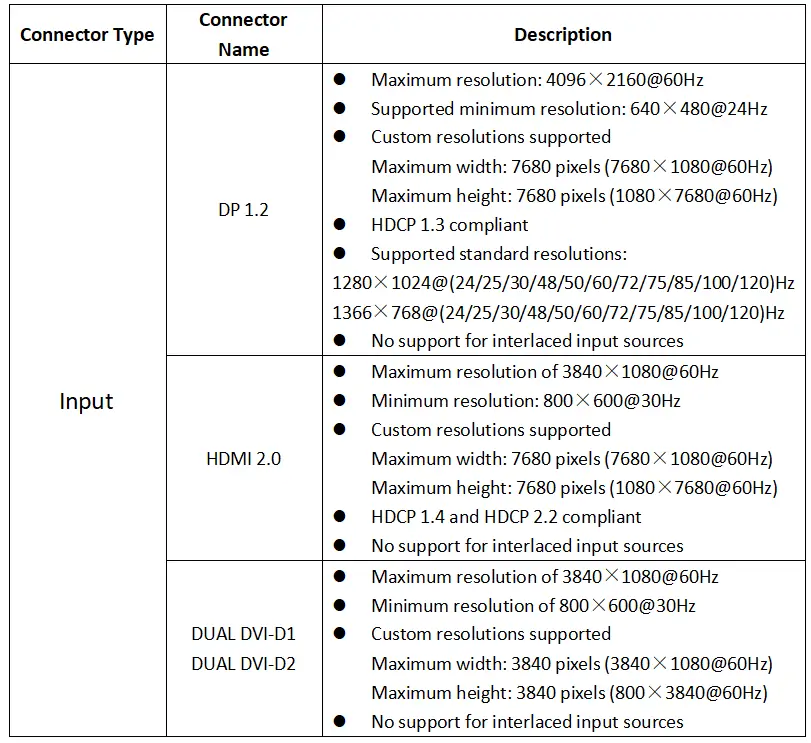
Record resolution, frame rate, bit depth and chroma format. At 8-bit, HDMI and DP accept up to 4096 × 2160 at 60 Hz; each dual-link DVI input accepts up to 3840 × 1080 at 60 Hz. With 10/12-bit RGB or YCbCr 4:4:4, HDMI/DP is limited to 3840 × 1080 at 60 Hz. To accept the listed 4K timings at these bit depths, use a supported chroma-subsampled format. All three input types require progressive signals. DP starts at 640 × 480 at 24 Hz. HDMI and DVI start at 800 × 600 at 30 Hz. DP supports HDCP 1.3; HDMI supports HDCP 1.4/2.2. Source: NovaStar’s specification, “Video Source Features” and rear-panel tables. For text, check fine colored edges at the intended sampling format. The retained input illustration incorrectly lists the HDMI maximum as 3840 × 1080; use the documented limits here instead.
02. Output options and fiber routing
On the NovaStar MCTRL4K, OPT1 carries the data associated with Ethernet ports 1–8 and OPT2 carries ports 9–16; OPT3 and OPT4 duplicate those respective channels. Four optical connectors therefore do not provide four independent banks of additional screen capacity. The Ethernet display outputs do not carry audio; plan a separate audio path. Source: NovaStar specifications, “Output.” Fiber extends the transmission path, while the underlying loading limits still apply.
Choose a compatible optical conversion system and confirm the exact transceivers, connector type, fiber mode, and supported distance. Do not promise a universal 10-kilometer link based only on the controller name. Distance depends on the installed optical components and the complete cable path, including connectors and patching.
For redundancy, document what is protected: a cable route, a sender, a source, or a power feed. Duplicating one connection leaves other failure points intact. Route primary and backup links separately where the design requires resilience, then test the intended failover during commissioning. A diagram labeled “backup” is not proof that a loss of signal will be handled correctly.
4. Control and Configuration
A dependable NovaStar MCTRL4K setup begins with a verified cabinet file and a connection drawing. Keep a record of the original settings before changing a working display. Use a controlled test source initially so that a content playback problem cannot be confused with a mapping fault.
01. NovaStar MCTRL4K setup workflow
- Document the wall. Record cabinet rows and columns, cabinet pixel dimensions, receiving-card model, scan configuration, and physical cable direction. Photograph cable labels and identify the first cabinet on every port.
- Confirm the video signal. Connect the chosen input and verify the resolution and frame rate detected by the controller. Establish a stable standard signal before attempting an unusual custom timing.
- Connect the control computer. Use the appropriate USB or control Ethernet connection and a compatible software version. Confirm that you are communicating with the intended controller, especially in a rack containing several units.
- Load the correct cabinet parameters. Use the RCFG or RCFGX receiving-card file supplied for that exact cabinet. Similar dimensions do not establish matching scan settings, driver chips or module wiring.
- Map the screen. Assign cabinets to outputs in the same order as the physical connections. Check every port’s pixel load and the position of each image area. Use NovaLCT for layouts that exceed the front-panel quick-configuration rules.
- Test, save, and record. Check numbered grids, moving video, flat colors, and low-gray content. Use Advanced Settings → Save to Hardware to retain screen parameters on the receiving cards, and keep a separate configuration backup (manual section 6.5.4). After a planned power cycle, confirm that the wall returns with the correct map.
Once a screen has been configured through NovaLCT, avoid reconfiguring it through the controller’s quick or advanced screen setup without reviewing the manual. Those methods can replace settings you intended to preserve. Assign one commissioning workflow and make changes systematically rather than alternating between interfaces during diagnosis.
02. USB cascading and GENLOCK
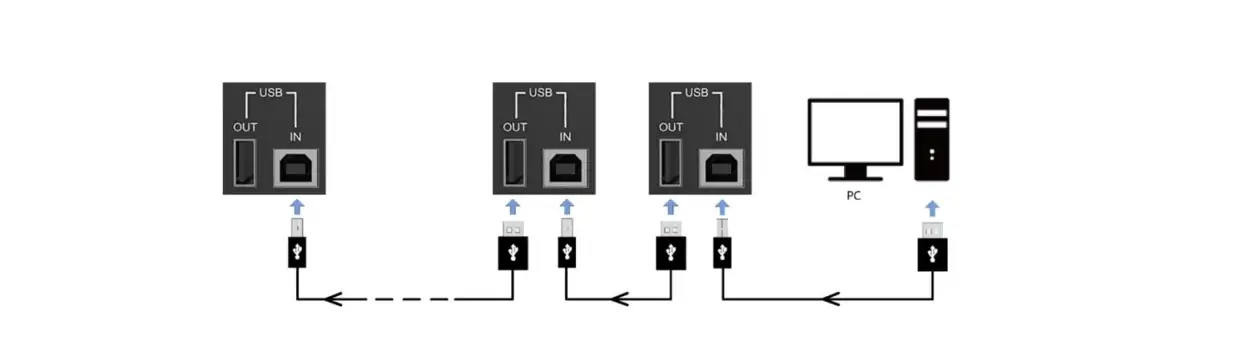
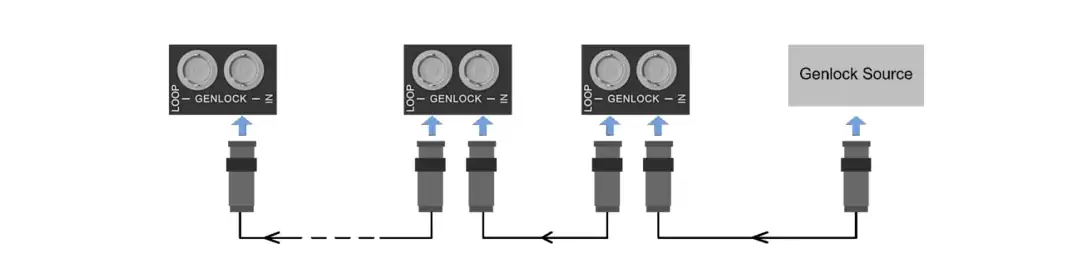
The diagrams show two separate chains: connect the PC to the first controller’s USB IN, then each USB OUT to the next USB IN for control. For synchronization, connect the reference source to GENLOCK IN, then GENLOCK LOOP to the next unit’s IN. NovaStar’s manual, chapter 4, documents up to ten units. Neither chain supplies video or LED data. Each controller still needs its source and output map.
For a multi-controller installation, prepare a drawing showing each unit’s canvas offset, source connection, synchronization route, and cabinet assignments. Use a moving pattern across controller boundaries to reveal discontinuities. For camera work, check the actual production camera and shutter settings; synchronization alone does not guarantee that every LED scan pattern will appear clean on camera.
03. Troubleshooting a NovaStar MCTRL4K installation
Change one variable at a time and record the result. The following checks help separate source faults from mapping and downstream hardware faults. Begin with a known working cable and test signal whenever possible.
| Symptom | First checks | Next useful test |
|---|---|---|
| Entire wall is black | Source detection, selected input, blackout state, cabinet power | Compare an internal test pattern with the external source |
| Only part of the image appears | Canvas dimensions, offsets, map, port limits | Display a numbered grid matching the intended wall resolution |
| Cabinets are out of order | Physical cable direction versus software sequence | Trace one port from its first cabinet to its last |
| One chain loses signal | Output cable, first receiver, downstream connections | Substitute a known working cable and isolate the first failing segment |
| Dark tones look washed out | Source range, HDR/SDR choice, gamma, calibration | Compare a grayscale ramp using a documented baseline |
| Backup does not take over | Redundancy configuration, input availability, backup map | Rehearse each designed failure condition before the event |
Escalate with useful evidence: controller and receiver versions, a port map, detected input format, photographs, and the exact condition that causes the fault. “The screen flickers” is less actionable than identifying whether it affects the whole wall, one output, one cabinet, or only the camera image.
5. NovaStar MCTRL4K Scaling and Resolution Settings
NovaStar MCTRL4K scaling is a common source of confusion: custom input resolution and cabinet mapping do not provide general-purpose video resizing. Plan scaling in the graphics output, media server, or upstream processor. This distinction matters when a standard 16:9 video must fill a wall with a different shape.
01. Match the content canvas to the LED wall
Consider an illustrative 2688 × 768-pixel display receiving a 3840 × 2160 desktop. Simply mapping 2688 × 768 pixels selects an image region; it does not make the entire desktop fit. The production team must decide whether to fit the whole picture with unused space, crop it to fill the wall, or create content specifically for the wall’s aspect ratio.
For a NovaStar MCTRL4K system, the cleanest content handoff includes a canvas drawing with pixel dimensions and safe areas. Give content designers the actual dimensions early. Keep logos and critical text away from intentional gaps, corners, and any area that will be cropped. Check the finished output at native resolution rather than judging only a laptop preview.
02. Custom EDID and wide-screen timing
EDID tells the source which display timings are available. Set the required input resolution using the documented procedure, then confirm that the graphics source actually outputs it. A changed EDID does not create additional bandwidth or additional physical LED pixels. It also does not guarantee that every adapter, splitter, or cable in the path accepts that timing.
The NovaStar MCTRL4K documentation gives wide and tall examples such as 7680 × 1080 and 1080 × 7680 at 60 Hz. These are bounded configurations, not permission to combine the maximum width and height. For unusual layouts, obtain a reviewed timing and loading plan; preserve a standard working output so the operator has a recovery path if the custom signal is rejected.
Before approving higher refresh rates or deeper color, repeat the capacity check. More data per frame or more frames per second can reduce the usable pixel load. Do not transfer a calculation made for an ordinary 8-bit workflow to HDR, 3D, or a high-frame-rate installation without checking the corresponding restrictions.
6. Application Scenarios
The NovaStar MCTRL4K is most useful when its transmission capacity matches the wall and the source system already provides the required content processing. Choose it around the operating workflow, not only the display’s physical dimensions or a feature count.
01. Rental, fixed, and multi-screen applications
For rental stages, prioritize repeatable mapping, clearly labeled cables, spare signal paths, and a saved configuration for each wall layout. For fixed retail displays, prioritize reliable restart behavior, service access, and a source that can run the required content schedule. The controller and the content player fulfill different roles in both cases.
For conference rooms, determine where presentation switching and picture resizing will happen. For control rooms, determine which upstream device combines multiple sources into the canvas. For camera-facing stages, test the complete camera and display chain. These requirements are more informative than broad claims that one controller suits every venue equally well.
The NovaStar MCTRL4K supports mosaic and multi-card operating arrangements. The gallery shows one 4K × 2K wall in mosaic mode and two separate 4K × 1K image areas in multi-card mode. For dual DVI, mosaic joins the inputs side-by-side or top-and-bottom; multi-card mode uses DVI1 and DVI2 as independent sending sections. Source: NovaStar user manual, chapter 3 and section 6.1.1. Plan source outputs and screen assignments explicitly; these modes do not provide arbitrary picture-in-picture scaling.
When comparing a smaller sending controller, start with pixel load and required connectors. EagerLED’s MCTRL600 guide provides a separate reference for that model. For a system requiring extensive multi-source composition, review the architecture in the NovaStar H9 guide before selecting a controller class.
02. NovaStar MCTRL4K price and quotation checklist
A useful NovaStar MCTRL4K price comparison must describe the same deliverable. A bare controller, a used unit, and a commissioned fiber-based system are different purchases. For the current EagerLED price and availability, request a dated quotation for your configuration. Historical listings may refer to a different package, hardware condition, or market.
Ask the quotation to identify hardware condition, included optical modules and converters, cable quantities, receiving-card compatibility, warranty terms, shipping, taxes, and commissioning support. If redundancy is required, specify whether the offer includes a second sender, backup video feed, and separate cable route. Otherwise, two prices may appear comparable while covering very different failure protection.
Send the supplier the wall’s pixel dimensions, cabinet count, source format, frame rate, desired bit depth, fiber distance, and any HDR or camera requirements. For a NovaStar MCTRL4K proposal, request a port map and acceptance criteria alongside the price. A clear technical scope reduces the chance of discovering missing accessories or insufficient capacity during installation.


7. NovaStar MCTRL4K Files Download
Use the NovaStar MCTRL4K manual for menu procedures and the specification sheet for interface and feature limits. Software, device firmware, and receiving-card configuration files are different resources; downloading one does not replace the others. The links below group the essential documents so installers can find the relevant reference before changing input settings, operating modes, or firmware.
- NovaStar MCTRL4K user manual PDF (local copy): input settings, mapping and configuration procedures. Check the cover and change history; the filename labels this copy V1.2.1, while NovaStar’s current download listing serves User Manual V1.2.0.
- NovaStar MCTRL4K specifications V1.2.1 (archived PDF): connector capabilities and restrictions. NovaStar’s current listed specification is V1.2.2; this retained copy is an earlier revision.
- MCTRL4K V1.2.9.0.STD release notes (PDF): notes for that firmware release, not a claim that it is the newest version.
- NovaStar software and firmware downloads: resources for NovaLCT, SmartLCT, and controller maintenance.
For NovaStar MCTRL4K software selection, match the release to the controller, receiving cards, operating system, and functions you need. Keep the currently working installer and configuration backup. Schedule firmware changes before a rehearsal or maintenance window, then repeat the acceptance checks. A newer version number alone is not a reason to change a stable event system immediately before use.
8. FAQs
These NovaStar MCTRL4K FAQs answer the main planning, setup, and purchasing questions. Expand a question to read its answer.
01. What is the NovaStar MCTRL4K used for?
The NovaStar MCTRL4K sends a live video source to compatible LED receiving cards. It suits large rental or fixed displays that need substantial pixel capacity and flexible signal distribution. A media player or computer supplies content; a separate processor is needed when the project requires scaling, switching, or multiple video layers.
02. Does NovaStar MCTRL4K scaling resize video automatically?
No. Plan image resizing in the media server, graphics card, or upstream video processor. Changing an input resolution or mapping cabinets does not automatically fit any picture to any wall. For a clean result, create a canvas matching the display, then verify the source output, offsets, and cabinet map together.
03. What is the NovaStar MCTRL4K port capacity?
The published Ethernet limits are 650,000 pixels per port for 8-bit input and 320,000 for 10-bit or 12-bit input. These are ceilings, not a guarantee for every cabinet arrangement. Apply the selected mode's restrictions and verify each receiving-card chain. Multiplying all port limits does not override the controller's overall input capacity.
04. Can the NovaStar MCTRL4K run 4K HDR at the same capacity as SDR?
Do not assume so. HDR requires a compatible 10-bit HDMI source and HDR-capable receiving cards, and reduces available loading capacity. Specify resolution, refresh rate, sampling format, receiver model, and port map together. Have the exact signal format and wall design checked before promising a full-resolution HDR installation.
05. What is the current NovaStar MCTRL4K price?
Request a dated quotation for the controller and the complete signal package. There is no verified EagerLED selling price stated in this guide. Compare equivalent hardware condition, optical accessories, warranty, shipping, taxes, and setup support. An old advertised price cannot establish today's delivered project cost or current stock availability.
06. Where can I download the NovaStar MCTRL4K manual and software?
Section 7 links to the user manual, specification sheet, release notes, and EagerLED's NovaStar software resources. Match the documentation to your installed firmware and receiving cards. Keep a copy of the working cabinet configuration and connection map before making changes, so you can restore a known working setup.
07. Is the NovaStar MCTRL4K suitable for outdoor LED screens?
It can form part of an outdoor display system when the controller is protected in an appropriate equipment location. An outdoor-rated LED cabinet does not make the controller weatherproof. Plan dry housing, ventilation, suitable cabling, and accessible service routes; confirm environmental requirements for every component in the installation.
08. Why does the LED wall show only part of the image?
Check source canvas size, screen dimensions, image offsets, cabinet mapping, and port loading in that order. A wall smaller than the source may display only its mapped area. Correct the upstream scaling or content layout, then test a numbered grid. Randomly changing cabinet files can introduce additional faults.
9. Conclusion
The NovaStar MCTRL4K can be a practical sending controller for a large LED wall when the source, receiving cards, and port map are designed together. The most important checks are actual pixel load, input format, scaling location, and the restrictions attached to HDR, 3D, or low-latency operation.
Before ordering, complete the screen drawing, verify every output chain, and define the tests that will demonstrate a successful installation. Before changing a working system, preserve its configuration. For a project-specific NovaStar MCTRL4K quotation, contact EagerLED with the wall resolution, cabinet details, signal requirements, and installation distance so the proposed equipment can be checked against the job.
 NovaStar MCTRL600: Specs, Manual, Software, Setup & FAQs
 NovaStar H9 Video Wall Splicer: Specs, Price & Manual
Related Posts

Fill In Your Needs In Detail
Fill in the screen usage scene and size you need in “Content”.You will get a quote.