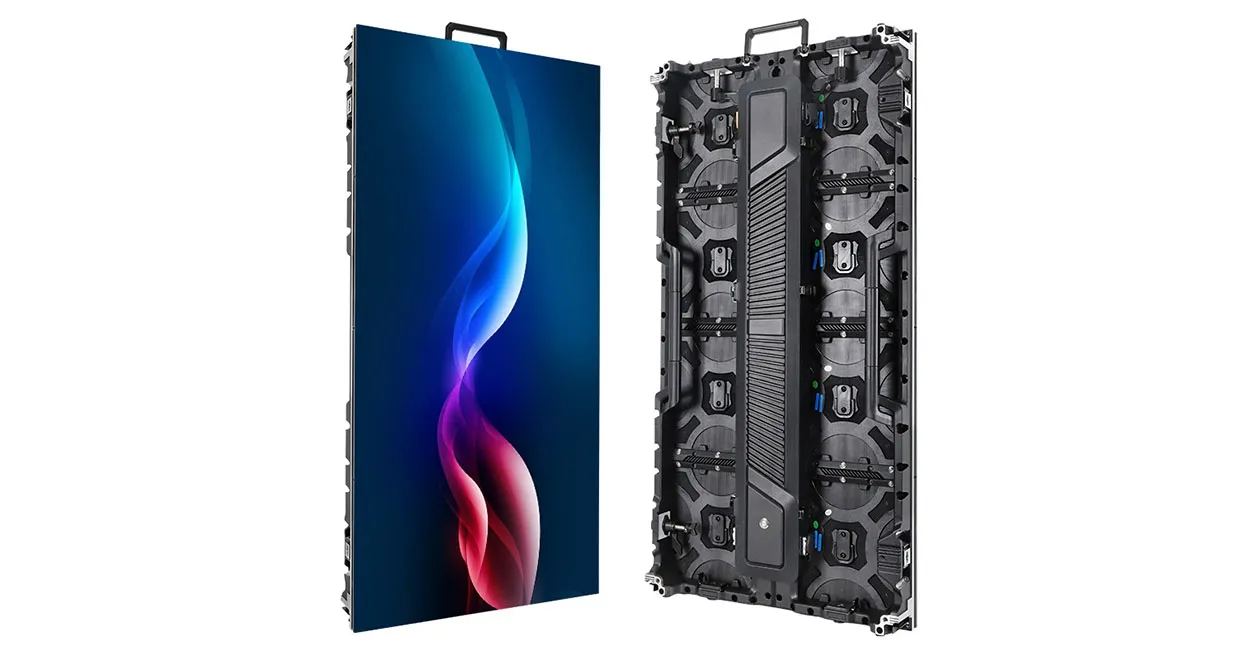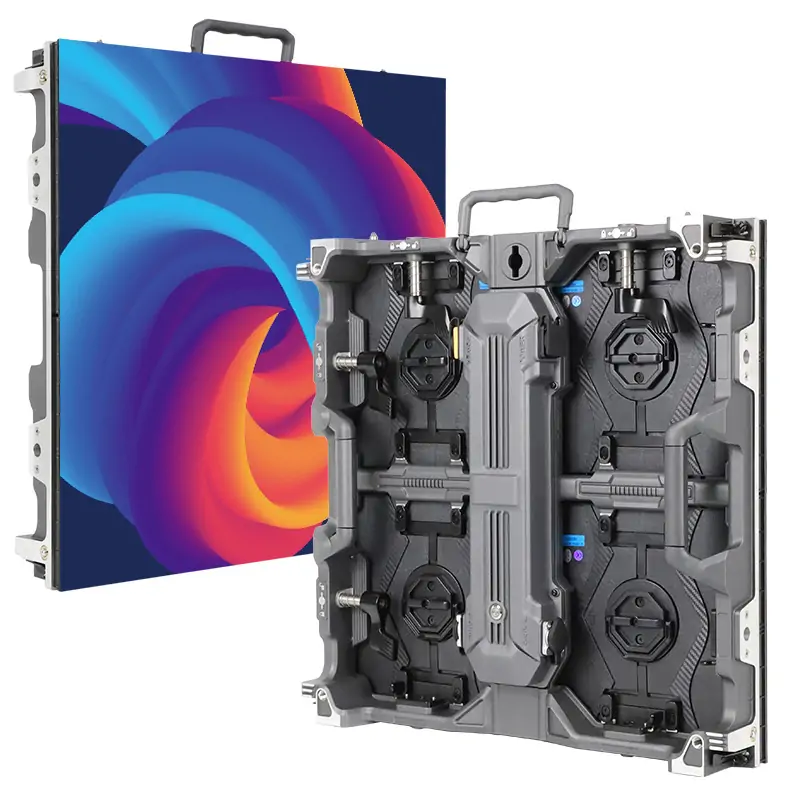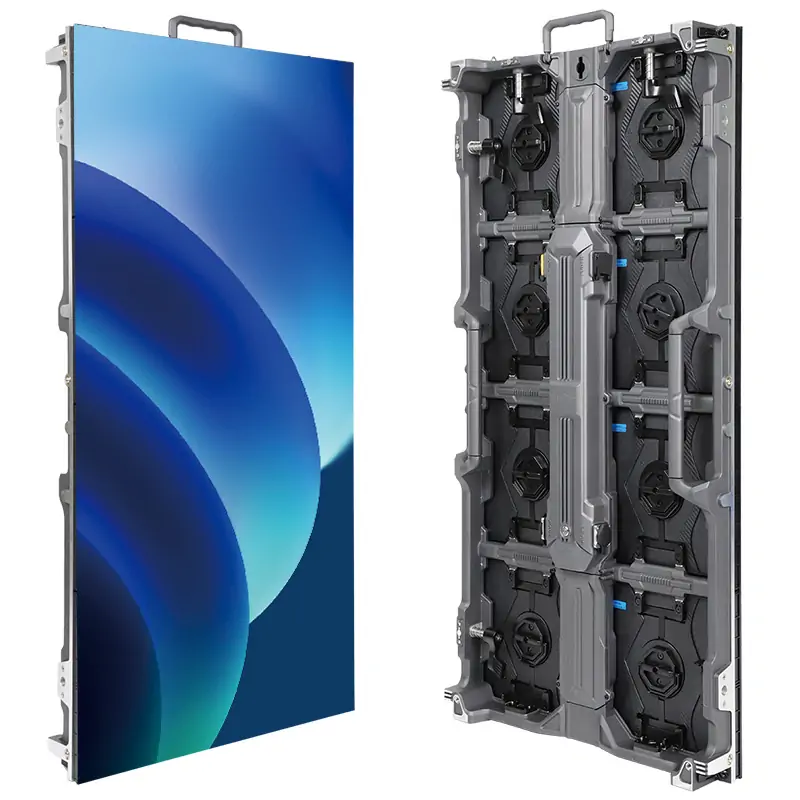
The NovaStar VX1000 Pro combines an LED video processor and sending controller in one chassis. It accepts up to 4096 × 2160 at 60 Hz through HDMI 2.0 and drives up to 6.5 million LED pixels across ten Gigabit Ethernet outputs. Each output supports up to 650,000 pixels at 8-bit output depth. For a rental stage, corporate venue, or fine pitch installation, the central question is whether its connectors, processing modes, and backup options fit the actual screen design.
This guide explains how to size and configure the NovaStar VX1000 Pro, where its limits apply, and which software to use. Input resolution, output canvas dimensions, and per-port loading are different constraints; treating them as one specification is a common cause of failed designs. The figures below follow NovaStar’s VX1000 Pro specification V1.2.0 (September 30, 2025) and should be checked against the installed firmware and receiving cards before a show.
For a quick decision, check the connector table in section 2, calculate the wall and port loads in section 3, then follow the setup sequence in section 5. Section 8 compares the standard VX1000; section 10 links the manuals and software resources. The sizing examples are calculations, not measured installation results.
1. What the NovaStar VX1000 Pro does
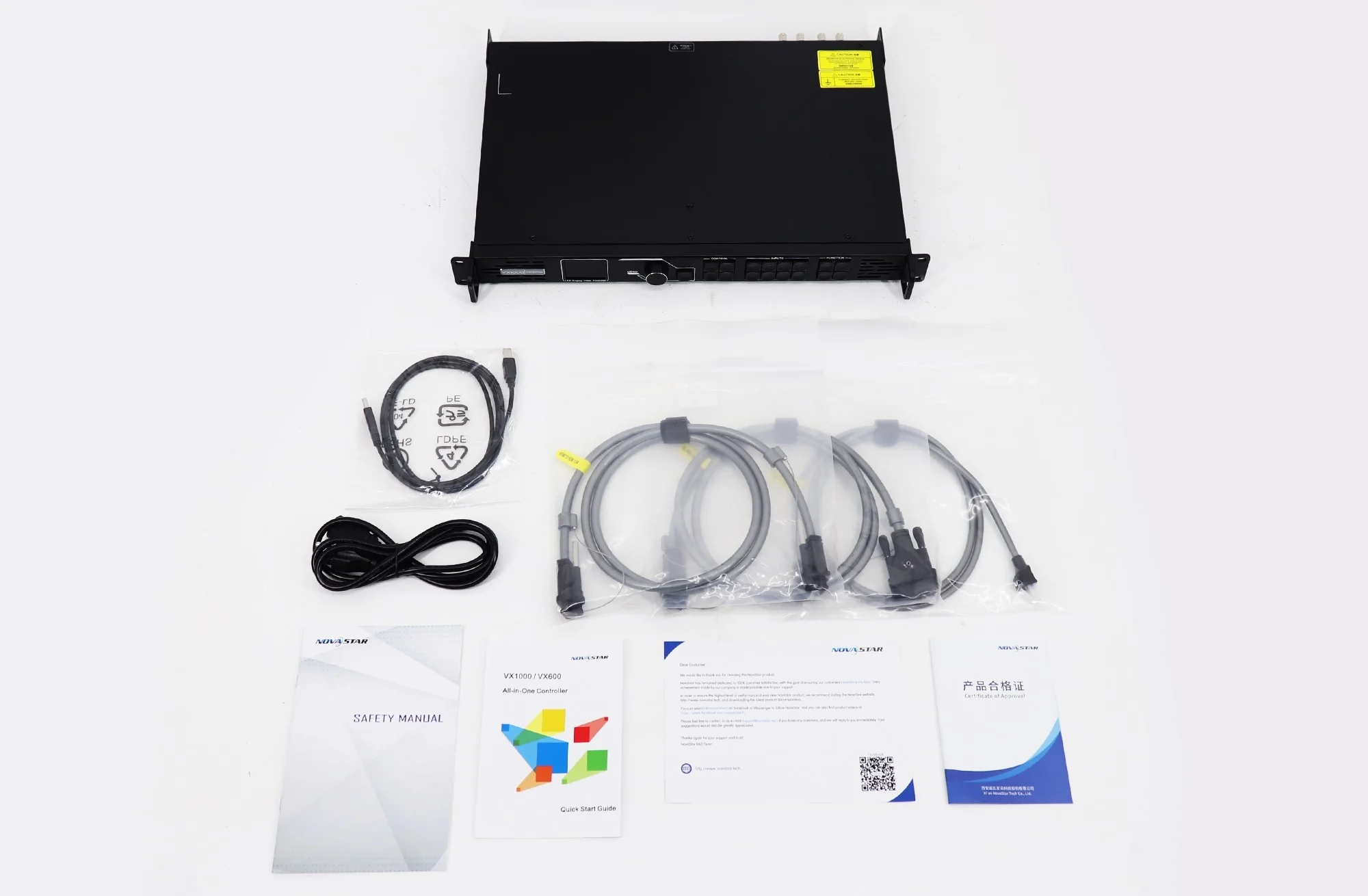
The NovaStar VX1000 Pro receives a video signal, scales and composes it, and sends pixel data to compatible LED receiving cards. Its ten numbered RJ45 outputs are Gigabit Ethernet LED data ports, not ordinary network switch ports. Two separate control Ethernet ports serve Unico control and firmware tasks. This distinction matters when labeling cables or investigating why a computer cannot discover the unit.
In its normal Video Controller mode, the NovaStar VX1000 Pro is both a processor and a sending device. The operator can select HDMI, SDI, optical, or USB media sources, position layers, recall presets, and adjust the image. Fiber Converter mode handles an optical link in a larger system. ByPass mode reduces processing and can achieve zero-frame device latency under the supported configuration. Choose the mode for the production workflow before committing to a cable diagram.
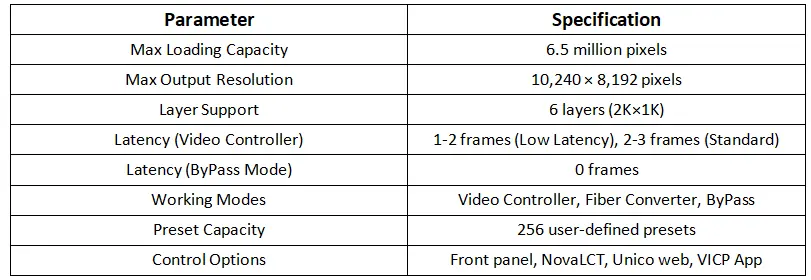
The headline 6.5 million pixel figure is the combined output load, not the capacity of every individual Ethernet run. Each port is rated for up to 650,000 pixels at 8-bit output. NovaStar also gives a maximum output width of 10,240 pixels and a maximum height of 8,192 pixels. These are independent dimensional ceilings: a 10,240 × 8,192 screen would exceed the total pixel budget many times over. A design has to meet all three limits at once.
Typical uses include a wide stage backdrop, a fine pitch conference wall, and a rental system whose content sources change during a show. The built-in preview output and presets help operators, while cabinet mapping and redundancy support the technician. The NovaStar VX1000 Pro does not remove the need for compatible receiving cards, appropriate optical modules, or a verified cabinet configuration file.
2. NovaStar VX1000 Pro specifications and connector limits
The table separates source inputs, LED data outputs, and monitoring. This is more useful than a single “4K” label: a 4K input does not mean a 4K image automatically maps to every wall size, and the monitoring output is not a second high-capacity LED output. NovaStar’s published limits also depend on frame rate, color sampling, and bit depth. Source: official connector specifications, pages 10–13.
| Interface or limit | Published capability | Practical implication |
|---|---|---|
| HDMI 2.0 input | One input and loop output; up to 4096 × 2160 at 60 Hz | Use this connector for a 4K 60 Hz source. Confirm the actual source timing and supported color format. |
| HDMI 1.3 inputs | Two inputs; up to 1920 × 1080 at 60 Hz | A 4K laptop plugged into one of these may negotiate a lower timing. |
| 3G-SDI input | One input and loop output; up to 1920 × 1080 at 60 Hz | Suitable for a camera or switcher feed within the supported SDI standard. |
| LED data outputs | Ten Gigabit Ethernet ports; 6.5 million pixels total, 650,000 per port at 8-bit | Check every cable chain as well as the complete screen. |
| Optical ports | Two 10G optical ports; OPT 1 is self-adaptive | Role and redundancy depend on mode and cabling. Modules are purchased separately. |
| Monitor output | HDMI 1.3, fixed 1920 × 1080 at 60 Hz | Use for a local confidence display, not as another LED data path. |
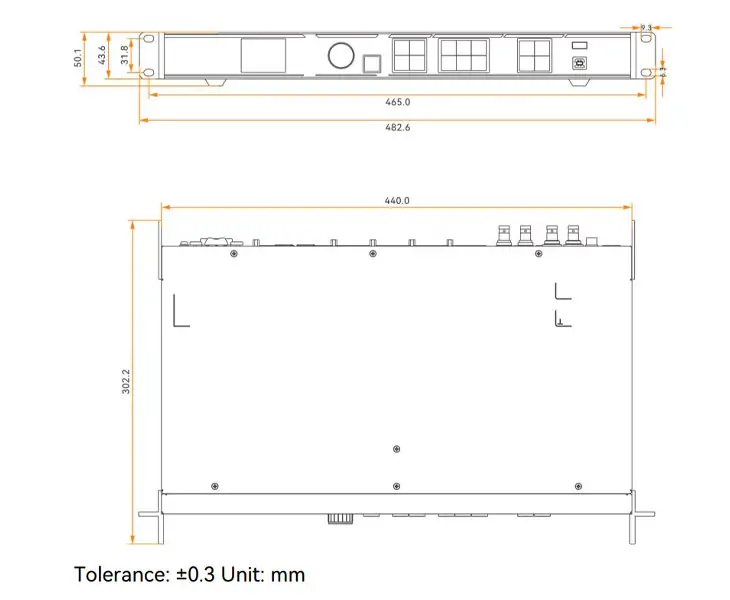
| Physical and power | 482.6 × 302.2 × 50.1 mm; 3.9 kg net; 44 W rated | Allow rack support, ventilation, and rear cable clearance. |
The NovaStar VX1000 Pro accepts custom timings on its HDMI 2.0 input, subject to connector capacity limits. Its maximum custom input width of 8,192 pixels and maximum output width of 10,240 pixels describe different stages of the signal path. For unusual canvases, confirm the precise timing, frame rate, and color format in the specification rather than interpreting a maximum width as an unrestricted rectangular resolution.
01. Input timing and source negotiation
Before adjusting scaling, read the incoming resolution and refresh rate from the controller. If a computer reports an unsupported mode or the image flashes, set a known supported timing on the source, inspect the HDMI cable and any adapter, and then configure EDID as needed. HDCP support differs by HDMI input: HDMI 2.0 supports HDCP 1.4 and 2.2, while HDMI 1.3 supports HDCP 1.4. Protected content must be handled according to its source and licensing requirements.
02. Output geometry and cable loading
The NovaStar VX1000 Pro output canvas represents the LED wall’s actual pixel dimensions. A screen 4,800 pixels wide by 1,200 high has 5.76 million pixels and fits the overall 6.5 million budget, assuming the per-port allocation, width, height, and mode constraints also fit. A screen of 5,000 × 1,400 has 7 million pixels and exceeds the overall budget, even if its shape seems modest.
3. Size the LED wall before choosing output ports
Begin with cabinet pixel dimensions, not the cabinet’s physical size or pixel pitch alone. Divide cabinet width in millimeters by pixel pitch in millimeters to estimate horizontal pixels, and do the same for height; then confirm the exact cabinet resolution supplied by the manufacturer. Multiply cabinet pixels by the number of cabinets. For a regular wall, the overall canvas is cabinets per row × cabinet pixel width by cabinets per column × cabinet pixel height.
A practical NovaStar VX1000 Pro port plan lists the cabinets in each daisy chain and the total pixels behind each numbered output. A chain with twelve 256 × 256 cabinets carries 786,432 pixels and would exceed the stated 650,000 pixel per-port rating at 8-bit. Ten such cabinets carry 655,360 pixels, also slightly over. Nine carry 589,824 pixels and leave some margin. This arithmetic is simple, but it prevents an installation that fits the total capacity while overloading one output.
| Example wall | Pixel calculation | VX1000 Pro design check |
|---|---|---|
| 4,800 × 1,200 stage wall | 5,760,000 pixels | Within overall limit; divide across ports so each carries no more than its rated load. |
| 5,000 × 1,400 wall | 7,000,000 pixels | Over 6.5 million; use a revised canvas or a different control architecture. |
| 9,600 × 600 ribbon | 5,760,000 pixels | Within width and overall limits; validate source timing and mapping. |
| 10,240 × 8,192 theoretical rectangle | 83,886,080 pixels | Far over the total load; maximum width and height cannot be combined. |
At higher output bit depths, higher refresh rates, or special operating modes, do not assume the 8-bit per-port number still applies unchanged. Side-by-Side or Top-and-Bottom 3D halves the device output capacity. Check NovaStar’s mode-specific documentation and software readout. Keep a port schedule with controller number, output number, first cabinet, chain direction, and backup path. It becomes the reference for mapping and fault isolation.
01. Receiving-card and cabinet files
The NovaStar VX1000 Pro sends data to receiving cards, but the card must know the cabinet’s scan and module parameters. Obtain the correct cabinet configuration from the LED cabinet supplier; do not substitute a file from a visually similar cabinet. Record the card model and firmware, send parameters to a test cabinet, then verify a grid, gradients, and colors before applying settings across the full wall.
02. Irregular and free-topology walls
NovaStar lists free-topology screen configuration for supported receiving cards, without a rectangular restriction on a single Ethernet port. The entire screen’s maximum circumscribed rectangle must still fit the controller’s loading capacity; adding only the lit pixels can understate the load of a wall with gaps. For a cutout, curved wall, or mixed-height stage design, draw the physical port path and the logical canvas separately. Verify each non-rectangular segment in NovaLCT before the venue is occupied.
4. Working modes and real latency
The NovaStar VX1000 Pro offers Video Controller, Fiber Converter, and ByPass modes. Video Controller mode is the normal choice when you need source selection, scaling, cropping, layers, and presets. Fiber Converter mode is for a compatible optical transport role. ByPass mode favors low delay but makes video-processing functions unavailable when the unit acts as an independent LED display controller. Select the mode against the show’s actual signal path.
NovaStar’s specification gives device latency ranges of 1–2 frames with low latency enabled in Video Controller mode and 2–3 frames without it. ByPass can be zero frames with low latency and one frame without it; Fiber Converter is listed at zero frames. See NovaStar’s latency table, page 7. These are device figures, not the complete camera-to-eye latency of a production. A camera, switcher, media server, display scan, frame conversion, and receiving cards can all add delay.
For low latency, NovaStar requires cabinets loaded by the Ethernet ports to align at the top of the circumscribed rectangle. In Video Controller mode, low latency and Genlock can coexist. In ByPass mode, low latency and Genlock cannot be enabled together. Test the exact combination needed for an xR stage or camera backdrop before promising a frame count to production.
Genlock synchronizes output across cascaded units to an external sync source or a supported video input. It does not repair mismatched content frame rates or poor cabinet mapping. Record which device is the sync reference, how the signal is looped, and what happens if the reference disappears. A controlled failover rehearsal is more reliable than assuming the output will remain seamless.
Reading the image below: its “10,240 × 8,192” entry represents separate maximum dimensions, not a supported full rectangle. Its zero-frame ByPass figure requires low latency to be enabled. Use the qualified limits above when designing a screen.
5. NovaStar VX1000 Pro setup: from cable plan to first image
A repeatable commissioning sequence is faster than adjusting layers at random. First record the controller firmware, receiving-card types, cabinet resolution, wall dimensions, and output-port route. Back up any existing project before sending new settings. Then connect power, one known-good video source, the PC control connection, and the first cabinet chain. Bring up a small, verified section before extending to the whole screen.
01. Connect and identify the hardware
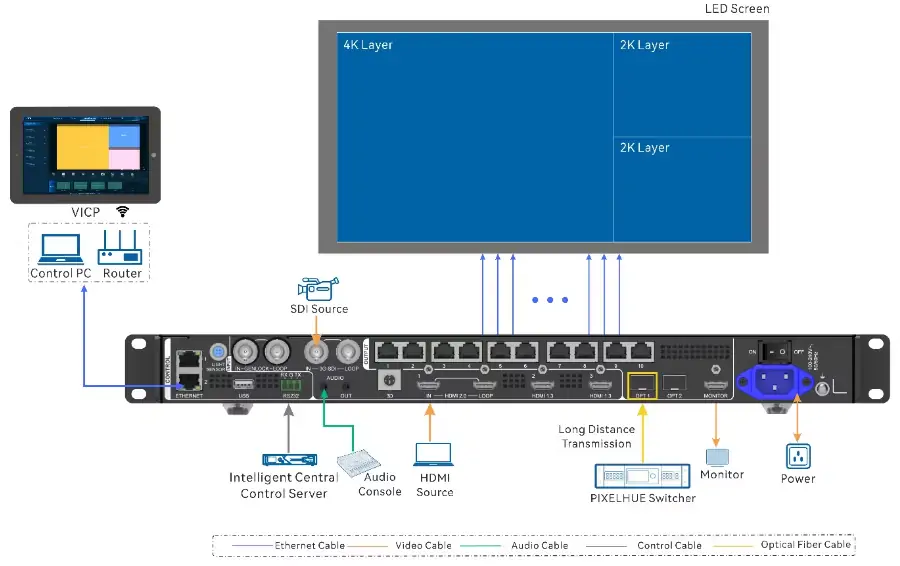
Use the numbered Gigabit outputs for receiving-card chains. Use the dedicated control Ethernet or USB connection for the configuration PC, as appropriate to the software. On the NovaStar VX1000 Pro, the front LCD and input button status reveal whether a source is detected. A blue input indicator means a signal is present; a flashing blue indicator can mean a selected source has no signal. Verify the intended input rather than assuming the current layer already uses it.
Label every cable at both ends and keep the port schedule beside the rack. Leave ventilation space and strain relief, especially when optical modules and multiple data cables are fitted. For an optical run, confirm module type, fiber type, connector, and link budget at both ends. NovaStar says the optical module is optional and is not factory installed, so a pair of empty cages does not provide a working fiber route.
02. Map and save the screen
Install a compatible NovaLCT release from the NovaStar software download guide and obtain the cabinet supplier’s receiving-card file. Load cabinet parameters, confirm the first test cabinet, then configure the screen connection in the same order as the physical cable path. Use a numbered grid or mapping test to reveal swapped cabinets, reversed snake directions, and port boundaries. A solid color is useful for finding dark cabinets but cannot prove the entire mapping order.
Send settings to the hardware and save them to the receiving cards using the documented operation. Keep a copy of the cabinet file, screen connection, controller configuration, firmware version, and cable diagram. Restart during planned test time to prove that the wall comes back correctly. A setup is complete only after its saved configuration survives a planned restart.
03. Configure source and monitor
After mapping, select HDMI 2.0 for a 4K 60 Hz test source and check the detected timing. Set the intended canvas and layer size, then use the HDMI monitoring output as a confidence display. The monitor feed is fixed at 1920 × 1080 at 60 Hz, so it is useful for content checks but should not be interpreted as a pixel-for-pixel view of an ultra-wide LED surface. Inspect the wall itself for crop edges and scaling artifacts.
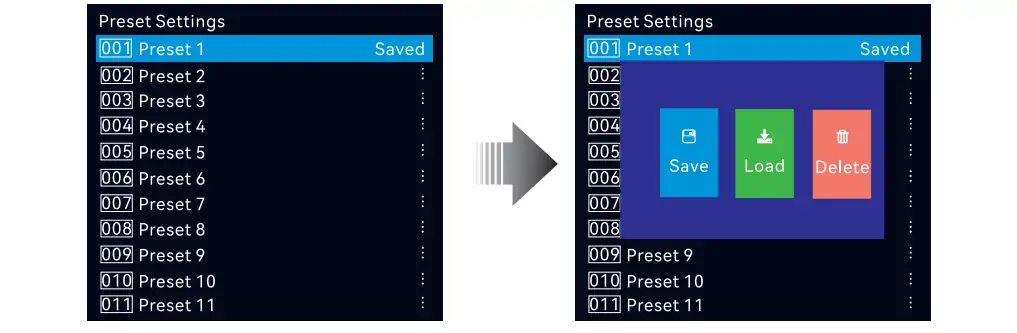
Before handover, save at least one simple fallback preset with a tested source. Walk through a power cycle, source loss, and one planned backup-path test. Train operators on the front-panel BACK, PRESET, FREEZE, TEST, and SCALE buttons. Pressing SCALE fills the screen with the lowest-priority layer; it does not change the cabinet map. A frozen output can look like a source failure, so mark the control state clearly.
6. Layers, scaling, color, and USB media
The NovaStar VX1000 Pro has six 2K × 1K layer resources, not necessarily six independent full-resolution 4K layers. A 4K × 2K layer consumes four resources, a 4K × 1K layer uses two, and a 2K × 1K layer uses one, depending on the connector capacity used. Budget layers as you would budget pixels: decide the size of every live source and whether the desired combination fits.
In practice, use one clean background for the main program and add smaller camera, logo, or presentation layers only where the show needs them. Check source crop, layer position, opacity, and priority after each change. Save named presets for the actual cue list. The NovaStar VX1000 Pro supports up to 256 user-defined presets, including preview of saved layer layouts, but a preset is not a substitute for a complete configuration backup.
Scaling modes include full screen, pixel-to-pixel, and custom. Pixel-to-pixel preserves source sampling when the content matches the wall area; full screen is fast for filling a canvas but can stretch a mismatched aspect ratio. Custom scaling and cropping are useful for media-server regions. Test fine text and one-pixel lines at the intended viewing distance. If the image is soft, check the source resolution and scaling chain before changing receiving-card settings.
Color adjustment includes brightness, contrast, saturation, and hue. Pixel-level brightness and chroma calibration requires the proper NovaStar calibration workflow and measurements; it is not achieved by casually moving a global saturation slider. Match the input color range and content specification, then inspect grayscale, skin tones, and near-black detail on the LED wall. Avoid using a highly processed preset to conceal cabinet inconsistency.
The USB 3.0 media input can play supported images and videos from a single-partition drive using NTFS, FAT32, or exFAT. NovaStar lists H.265 playback up to 3840 × 2160 at 60 fps and H.264 at 3840 × 2160 at 30 fps, within codec and bitrate limits (up to 100 Mbps for H.264/H.265 in this document revision). The USB source presented internally is fixed at 1920 × 1080 at 60 Hz, so “4K file support” should not be confused with a 4K source canvas. Test every file and transition before using USB playback as a show-critical fallback. Source: USB playback specifications, page 9.
7. Synchronization and backup that can be tested
NovaStar specifies backup between devices, input sources, Ethernet ports, optical and Ethernet paths, and dual receiving cards where supported. These are separate configurations. A spare cable in a flight case, or an exported configuration file, is useful for recovery but does not make a live signal path redundant. For each backup, document the primary path, backup path, trigger condition, and test result.
On the NovaStar VX1000 Pro, OPT 1 can be input or output depending on the connected device and selected mode. OPT 2 can copy or back up the ten Ethernet outputs, or participate in an optical loop arrangement. Do not assume that plugging in two fibers automatically establishes backup. Check the optical configuration, compatible modules, receiver, and software status. Test a planned failure before doors open, then restore the intended primary state.
For a live event, prepare a second source with matched resolution and frame rate, and verify source backup in rehearsal. For a critical fixed installation, consider whether power distribution, controller replacement, and the networked control PC also need a recovery plan. The NovaStar VX1000 Pro can restore saved parameters after power returns, but that does not guarantee an uninterrupted image during the outage itself.
8. VX1000 vs VX1000 Pro: what actually changes?
A common comparison error is to assign the standard VX1000 only 3.9 million pixels and six ports. NovaStar’s standard VX1000 specification V1.5.0 describes ten Gigabit outputs and up to 6.5 million pixels, so those figures alone do not justify an upgrade. Compare the precise hardware revision and firmware that your supplier offers, especially source connectors, control software, processing functions, and operational workflow.
| Decision point | Standard VX1000 | VX1000 Pro |
|---|---|---|
| LED load | Up to 6.5 million pixels; ten Gigabit outputs in published VX1000 documentation | Up to 6.5 million pixels; ten Gigabit outputs |
| High-resolution source | Published VX1000 HDMI/DVI input limits include 3840 × 2160 at 30 Hz | One HDMI 2.0 input supports up to 4096 × 2160 at 60 Hz |
| Operator functions | Use the exact VX1000 manual for its layers, presets, and control tools | Six 2K × 1K layer resources, 256 presets, USB media playback, Unico and VICP support |
| Best reason to choose | An existing compatible workflow that meets source and processing needs | When HDMI 2.0 4K 60, Pro media functions, or its workflow features are required |
The NovaStar VX1000 Pro may be the better fit for a 4K 60 Hz source and more flexible show control. It is not a blanket doubling of LED pixel capacity. Read the standard VX1000 setup guide and check the exact standard-model manual before comparing secondary features; online tables often mix different VX generations. If a project exceeds 6.5 million LED pixels, plan a larger or multi-controller system rather than expecting the “Pro” name to raise the output limit.
9. NovaStar VX1000 Pro troubleshooting checklist
No source signal: Confirm the source is on, the chosen input button matches the cable, and the detected timing falls within that connector’s limits. For 4K 60 Hz, use HDMI 2.0. Try a known-good unprotected test source, then examine cable length, adapter, EDID, and HDCP compatibility. The LED data mapping is not the first setting to change if the controller itself reports no incoming signal.
Black wall with a valid source: Confirm the correct layer is open and visible, opacity is above zero, FREEZE or fade-to-black is off, the output is mapped, and the cabinets have power. Use TEST to distinguish a receiving-card or cable problem from an input problem. If only one chain is dark, compare its port status, cable, first cabinet, and mapped cabinet count with the port schedule.
Repeated or scrambled image: Recheck cabinet resolution, receiving-card file, chain direction, and screen connection. Do not compensate for a wiring reversal by arbitrarily changing source resolution. A grid with cabinet numbers is more informative than a photograph. Save corrected settings to the hardware and receiving cards, then verify after a restart.
Latency or synchronization complaint: Measure the full signal chain, not just the controller. Confirm selected working mode, low-latency setting, Genlock reference, source frame rate, and receiving-card configuration. Remember that ByPass low latency and Genlock are mutually exclusive. Document the tested latency from the actual camera or media server to the visible wall.
10. Manual, software, and buying considerations
For the NovaStar VX1000 Pro, start with the manufacturer’s VX1000 Pro specification, the VX Pro user manual, and the quick start guide. Match the document revision to the installed firmware. See the NovaStar software download guide. Use NovaLCT for receiving-card and screen configuration; Unico client or web control and the VICP app serve supported operational control tasks. Download firmware only for the exact model and plan the upgrade outside a show window.
A NovaStar VX1000 Pro purchase should follow a checked screen design. Pricing varies with region, taxes, distributor, accessories, optical modules, and support. An old fixed price is less useful than a quote specifying the VX1000 Pro revision, warranty, included cables, and any modules or flight case. Ask the supplier to confirm receiving-card compatibility and the software release for the planned operating system. Include the commissioning and backup-test time in the project cost, not only the controller hardware. For a project-specific recommendation, contact EagerLED with your cabinet resolution, wall layout, input sources, and backup requirements.
11. NovaStar VX1000 Pro FAQ
01. How many pixels can one NovaStar VX1000 Pro drive?
Up to 6.5 million output pixels across ten Gigabit Ethernet ports, with a stated 650,000 pixels per port at 8-bit output. The maximum width of 10,240 and maximum height of 8,192 pixels are separate limits, not one full-size canvas.
02. Can the VX1000 Pro accept 4K at 60 Hz?
Yes. Its HDMI 2.0 input supports up to 4096 × 2160 at 60 Hz in supported formats. The HDMI 1.3 and 3G-SDI inputs top out at 1920 × 1080 at 60 Hz.
03. Which software configures the LED wall?
Use a compatible NovaLCT release to send cabinet parameters and map receiving cards. Unico client or web control and VICP can operate supported controller functions. Keep the cabinet supplier’s file and check software compatibility with firmware.
04. Is zero-frame latency available with Genlock?
NovaStar lists zero-frame device latency in ByPass with low latency enabled. In ByPass, low latency and Genlock cannot run simultaneously. In Video Controller mode they can coexist, but device latency is higher.
05. Does the VX1000 Pro have more LED output capacity than the VX1000?
The published standard VX1000 and VX1000 Pro specifications both state up to 6.5 million output pixels and ten Gigabit ports. Compare their input timing, processing, software, and workflow rather than assuming a larger LED canvas.
06. What should be checked before buying optical modules?
Confirm the optical role, compatible transceiver, single-mode or multimode fiber, connector, distance, and remote equipment. The modules are not factory installed. A second optical port must be configured and tested before relying on it as backup.
12. Conclusion
The NovaStar VX1000 Pro is a capable all-in-one controller for a wall that fits its 6.5 million pixel total, 650,000 pixel per-port rating, and dimensional limits. Its HDMI 2.0 input, flexible layers, presets, optical paths, and control options are valuable when matched to a specific production plan. The strongest purchasing decision starts with cabinet and source calculations, followed by a tested wiring, mapping, sync, and backup workflow.
For a durable NovaStar VX1000 Pro installation, use the official specification and manual as the reference for firmware-dependent details. Keep the project files and port diagram with the controller so the next technician can reproduce the tested setup.
 Surface-Mounted Device LED | Full Guide For Display Technology
 NovaStar MCTRL700 LED Controller: Specs, Setup & Capacity
Related Posts

Fill In Your Needs In Detail
Fill in the screen usage scene and size you need in “Content”.You will get a quote.