The Colorlight VX20 is a 4K LED video controller for processing sources and mapping them to an LED display. To configure it, connect the control PC, open the device’s current IP address, map the receiving cards, select a source, and test the output before saving presets. This guide covers ports, setup, operating limits, and troubleshooting.
1. What Is the Colorlight VX20 LED Video Controller?
The VX20 drives up to 13 million pixels at 8-bit/60 Hz, falling to 9.8 million at 10-bit/60 Hz. Its maximum width of 16,384 and height of 8,192 pixels are separate limits, not a combined canvas size. Higher frame rates reduce capacity further. See Colorlight’s VX20 specification V1.3, pages 7–9.
Choose the mode for the job:
- Video Processor: Enables scaling and composition; Colorlight specifies one frame of controller delay.
- Fiber Optic Transceiver: Receives fiber data and feeds 20 Ethernet outputs.
- Bypass: Sends one source pixel-for-pixel, with zero frames of controller processing delay. This does not mean zero end-to-end system latency.
Input depth can reach 8/10/12-bit, while output supports 8/10-bit. HDR and supported formats depend on the input port. Control is available through the touchscreen, iSet, or a web browser on Windows, macOS, and Linux.
2. Colorlight VX20 Hardware Overview
Check these VX20 hardware details before planning cables and rack space. Port functions below follow the current manufacturer specification.
2.1 Front Panel Features
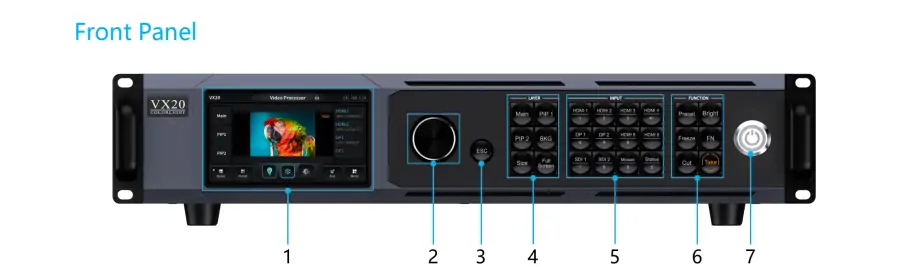
The front panel combines a 5-inch touchscreen, navigation knob, and dedicated source, layer, and transition buttons.
| Feature | Description |
|---|---|
| Touch Screen | Displays device status and provides menus for navigation and control. |
| Knob | Used for parameter tuning, menu navigation, and confirming selections. |
| ESC Button | Exits the current interface or returns to the previous one. |
| Layer Operation | Buttons like Main, PIP1, PIP2, BKG, SIZE, and Full Screen allow layer management. |
| Input Control | Buttons for HDMI, DP, SDI, Mosaic, and numeric entry enable quick source selection. |
| Function Buttons | Preset, Brightness, Freeze, FN, Cut, and Take buttons offer advanced controls. |
| Power Switch | Turns the device on or off. |
2.2 Rear Panel Features
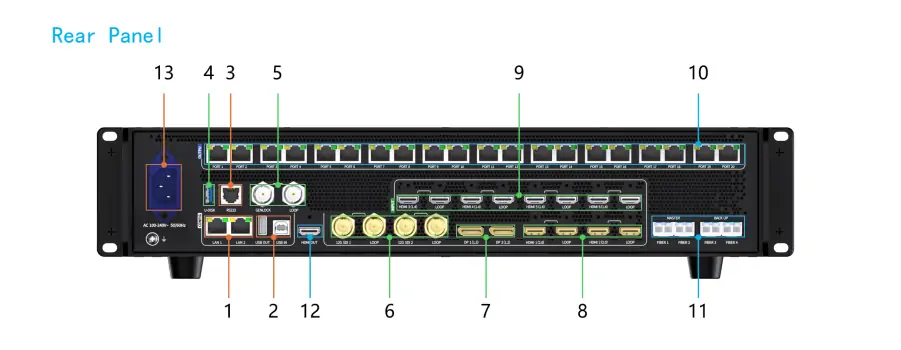
Use LAN1/LAN2 for control; the numbered Ethernet ports carry LED output data. They serve different purposes.
| Port | Functionality |
|---|---|
| LAN1/LAN2 | Gigabit Ethernet ports for PC connection and VLAN cascading. |
| USB IN / U-DISK | USB Type-B for PC configuration; U-DISK for importing configuration files. |
| RS-232 | RJ11 connector for central controller integration. |
| GENLOCK & LOOP | Sync signal input and loop-out via BNC connectors. |
| 12G-SDI | 2 inputs up to 4096 × 2160 at 60 Hz, with loop-outs; custom EDID is not supported. |
| DP 1.2 | 2 inputs up to 4096 × 2160 at 60 Hz; HDR10/HLG and custom EDID supported. |
| HDMI 2.0 | 2 inputs up to 4096 × 2160 at 60 Hz, with loop-outs; HDR10/HLG supported. |
| HDMI 1.4 | 4 inputs with loop-outs, up to 4096 × 2160 at 30 Hz; 8-bit, without HDR. |
| Ethernet Ports | 20 LED output ports; total 13 million pixels at 8-bit/60 Hz. |
| Fiber Ports | 4 × 10G ports; FIBER1/2 primary, FIBER3/4 backup or copy. Modules are optional. |
| HDMI OUT | Outputs 2K/4K images for previewing PVW/PGM content. |
| AC Power Input | Accepts universal voltage (100-240V, 50/60Hz). |
2.3 Dimensions and Weight
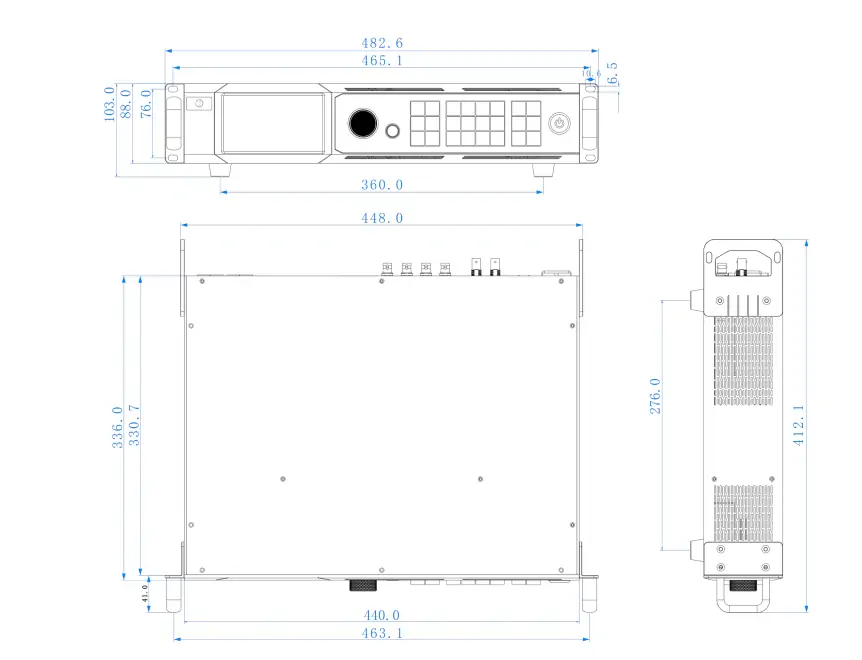
- Dimensions (W × H × D): 482.6 × 88.0 × 412.1 mm; 2U without rubber feet.
- Weight: 5.65 kg net; 9.10 kg gross.
2.4 Electrical Parameters
- Supply: AC 100–240 V, 50/60 Hz.
- Listed power consumption: 92 W; this excludes the LED wall.
Source: VX20 specification, page 17.
3. Step-by-Step VX20 Configuration Guide
Back up an existing configuration first. Record cabinet resolution, receiving-card type, and cable order. Menu labels may vary with firmware; use the matching manual from Colorlight’s downloads.
Step 1: Initial Setup
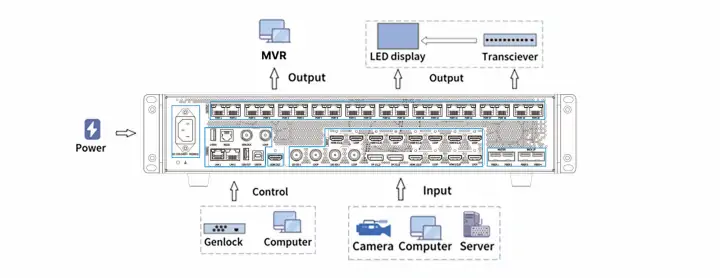
- Connect sources to HDMI, DP, or SDI inputs, and the screen to numbered Ethernet outputs or a compatible fiber transceiver.
- Connect a preview monitor to HDMI OUT and the control PC to LAN1/LAN2.
- Connect power last, switch on, and select the required work mode.
Step 2: Network Configuration
- Read the VX20’s current IP address on its touchscreen; do not assume a factory address.
- Put the PC on the same subnet with a different, unused IP address.
- Enter the VX20 address in the browser. If unreachable, check the control cable, subnet, and duplicate addresses.
Step 3: Input Signal Selection
- Select the input connected to the source.
- Match source resolution, frame rate, and color depth to the port’s supported formats.
- Confirm a stable input preview before assigning it to a layer. HDMI/DP support custom EDID; SDI does not.
Step 4: Output Configuration
- Load the cabinet supplier’s correct receiving-card parameters and map cabinets in physical cable order.
- Check each port’s load: up to 650,000 pixels at 8-bit/60 Hz. Recalculate for higher depth or frame rate.
- For fiber, FIBER1 maps ports 1–10 and FIBER2 maps 11–20. Check mapping with a test pattern.
Step 5: Advanced Image Processing
- Use HDR10/HLG only with compatible source content and equipment; HDMI 1.4 inputs do not support HDR.
- Crop and scale the selected layer to the screen, then add PiP if needed.
- Check the touchscreen’s Main/PIP status and preview; verify colors and edges on the physical display.
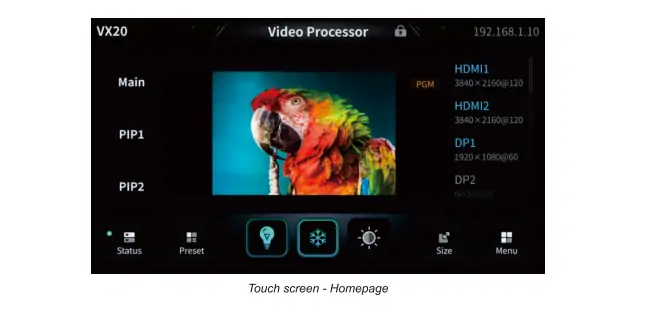
Step 6: Save Presets
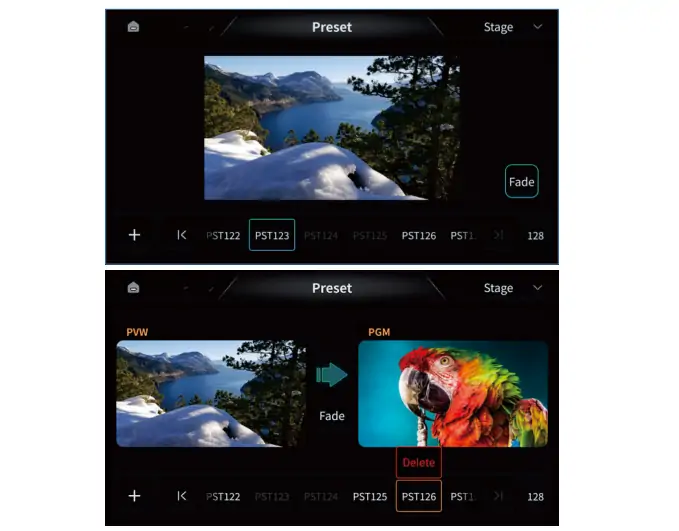
- Save the tested layout as a clearly named preset.
- Recall it in preview and check sources before using Cut or Take to send it to PGM.
- Export a configuration backup as well. A saved preset is not a substitute for a recoverable system configuration.
Step 7: Troubleshooting Tips
- No image: Check source preview, selected layer, brightness, Freeze/blackout state, and output cabling.
- Wrong cabinet order: Compare port mapping with physical wiring.
- Persistent fault: Record firmware and symptoms before contacting support. Back up before any approved update or factory reset.
4. Advanced Configuration Options of VX20 Video Processor
Configure and rehearse these functions before a live event.
1. Dual Canvas Views
- PVW & PGM: Edit in preview, then use Cut for an immediate switch or Take for a transition.
- PGM Only: Edits affect the live screen immediately.
2. Multi-Layer Display
Colorlight advertises three simultaneous 4K images; V1.3 describes six DL layers. Check the installed firmware and source formats before planning a composition. Official VX20 feature overview.
3. Customizable Display Elements
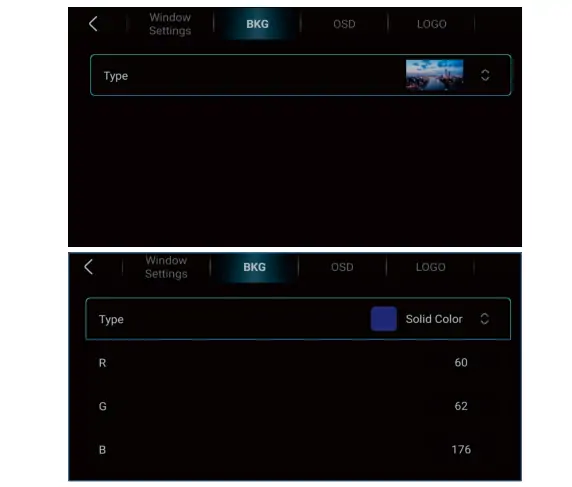
- BKG: Choose an image or Solid Color, then set RGB values as illustrated below.
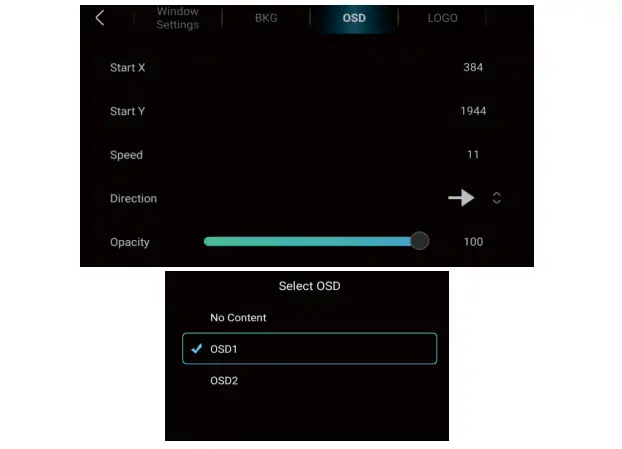
- OSD: Select stored text, then adjust Start X/Y, speed, direction, and opacity. Screenshot values are examples, not required settings.
- Logo: Overlay a PNG logo up to 512 × 512 pixels and adjust transparency.
4. Redundancy Solutions
- Ethernet loop: Configure and test the backup route.
- Fiber: FIBER3/4 back up or copy FIBER1/2. Match optical modules and test failover; redundancy does not guarantee uninterrupted operation.
5. Applications of Colorlight VX20 LED Video Controller
These are potential uses; confirm source compatibility and screen capacity for each project:
- Stage rentals: Rehearsed presets for concerts and performances.
- Commercial events: Presentations with preview before switching.
- Exhibitions: Multiple sources and custom screen layouts.
- Broadcast studios: SDI sources and genlock where required.
- Retail: Content from an external playback source.
- Sports arenas: Video feeds and LED advertising displays; score generation requires a separate source.
6. FAQs
7. Conclusion
A successful VX20 setup starts with verified receiving-card parameters, correct port mapping, and compatible input formats. Test presets and backup paths before going live. For software selection, see our Colorlight software download guide and confirm compatibility with your device firmware.
 NovaStar TB20 Plus Review: Specs, Setup & TB10 Comparison
 Novastar TCC160 Sending Card: Full Feature Review
Related Posts
Fill In Your Needs In Detail
Fill in the screen usage scene and size you need in “Content”.You will get a quote.