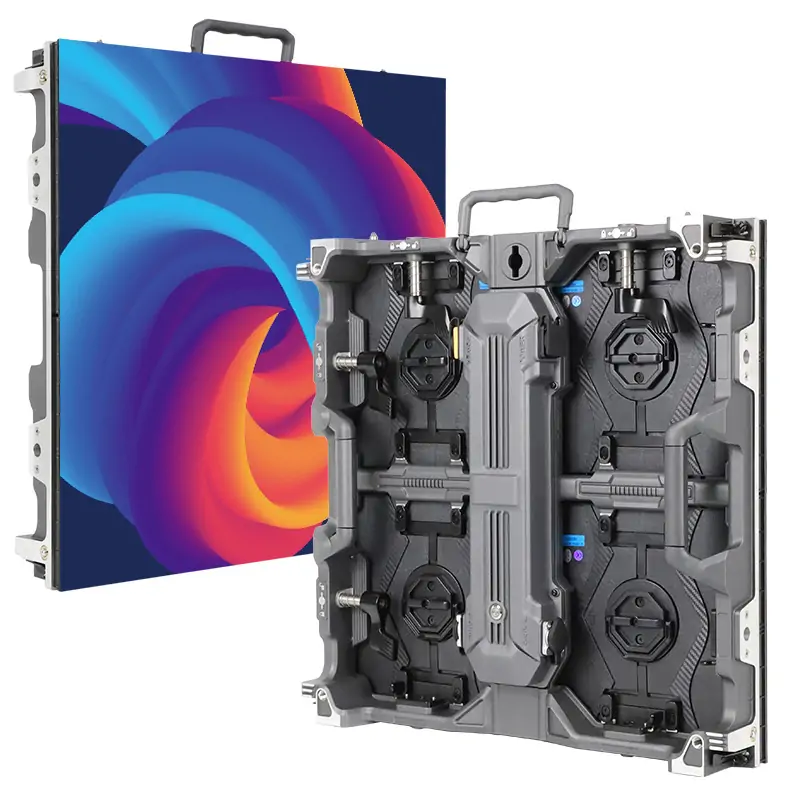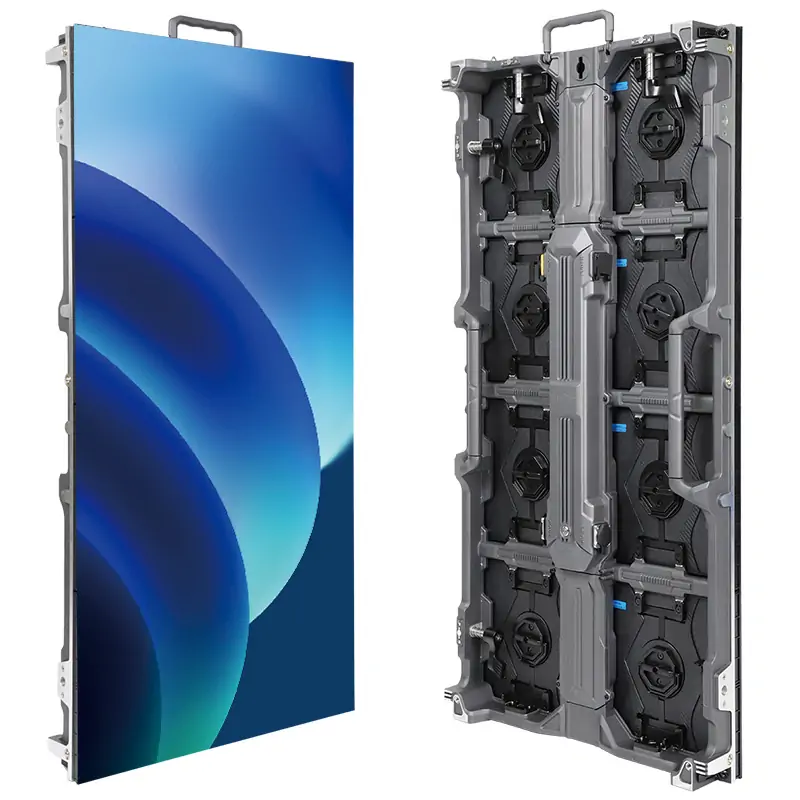
The NovaStar MX6000 Pro is a modular 6U LED display controller in NovaStar’s COEX family. It is built for large rental walls, broadcast sets, fixed installations and virtual production stages where several video sources, precise synchronization and resilient fiber distribution matter. Its headline 141 million pixel loading figure is a maximum system figure, not a promise that any single cable, receiving card or source can drive a wall of that size.
This NovaStar MX6000 Pro guide explains what to verify before buying and how to commission the controller. It covers input and output cards, 1G versus 5G receiving systems, pixel calculations, VMP setup, HDR, genlock, redundancy, troubleshooting, and the official manual. It also compares the NovaStar MX6000 Pro with the smaller MX2000 Pro so the choice follows the actual LED wall design.
Start with four pieces of project data: the wall’s native pixel dimensions, its receiving card model and configuration file, the required source formats, and the physical fiber and Ethernet routes. A controller can satisfy the overall pixel limit while a single port or input card becomes the real bottleneck. The specifications below are based on NovaStar’s current product material and user manual; confirm the installed card and firmware versions before final procurement.
1. What Does the NovaStar MX6000 Pro Do?
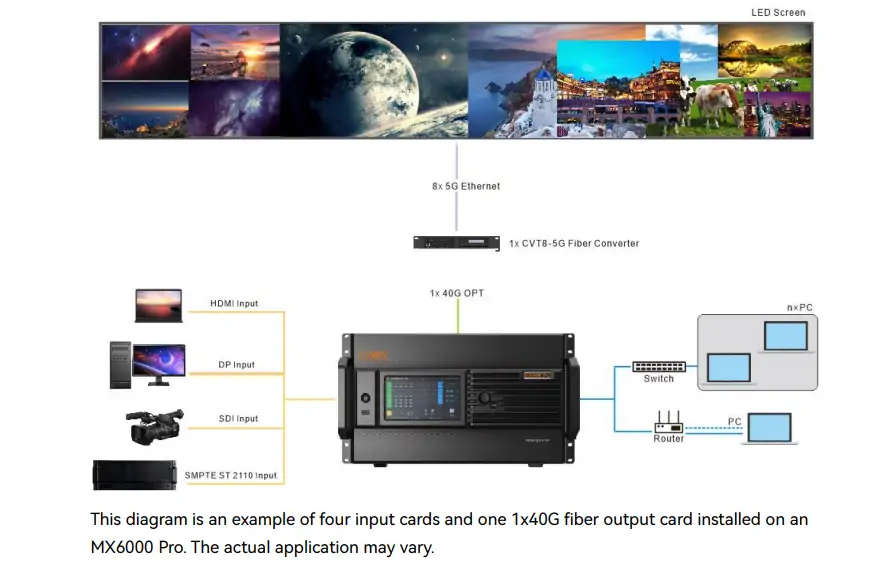
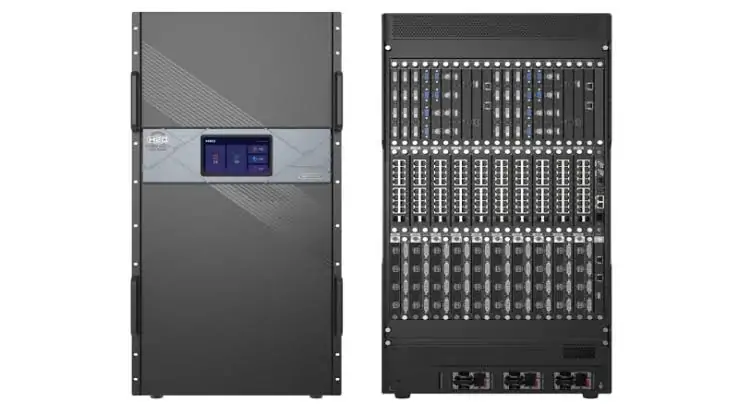
The NovaStar MX6000 Pro receives video on modular input cards, composes and scales screens in the controller, and sends LED data through modular output cards. A typical path is media server or camera system → input card → MX6000 Pro processing → fiber output → optical converter → receiving cards → LED modules. The optical converter and receiving cards are separate items; buying the chassis alone does not complete that chain.
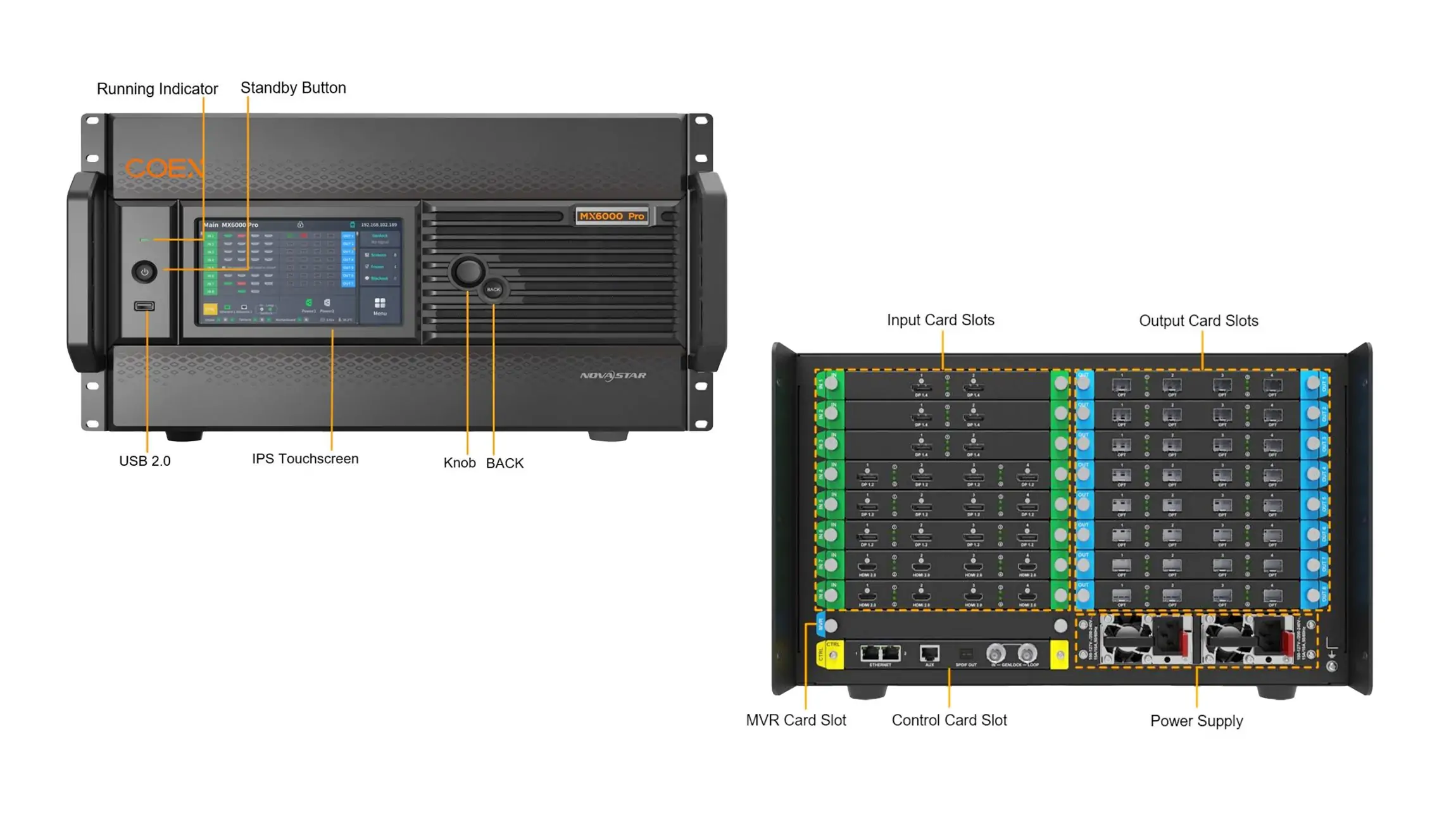
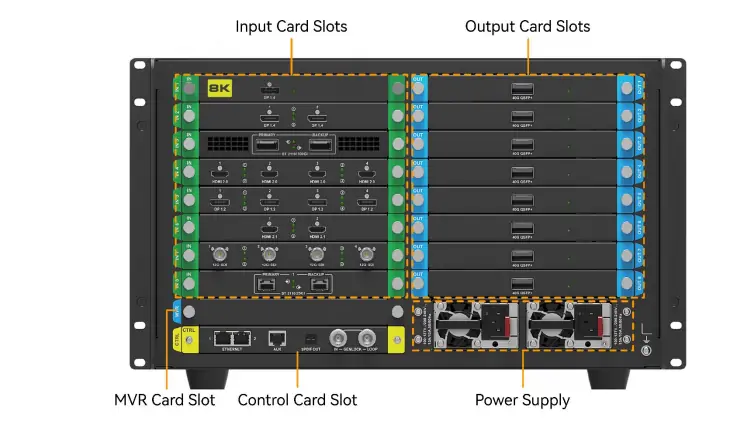
The controller supports a maximum of eight input cards and eight output cards. Card slots marked IN and OUT are dedicated to those functions, so a purchase order should name the card type and quantity as well as the chassis. NovaStar lists a maximum 141 million pixel load and a 16,384 pixel maximum width and height. Those are separate constraints. A 16,384 × 16,384 wall would have about 268 million pixels and therefore cannot be inferred from the dimension limits.
The NovaStar MX6000 Pro is intended for a professional LED display system with known receiving cards and a verified cabinet file. It does not create pixels or repair an incorrect scan configuration. If one cabinet displays scrambled rows, check that cabinet’s receiving card data and cable order before changing color settings on the controller. If a whole canvas is in the wrong place, inspect screen mapping and source assignment in VMP.
NovaStar describes capabilities such as HDR10/HLG, 12-bit input processing, high frame rates and low latency. Their availability depends on the card, signal format, firmware and LED driver chain. For example, an HDMI 2.1 input card’s published 8K mode differs from a 4K HDMI 2.0 card’s mode; neither says every source can operate at 8K and 60 Hz. Treat the manual’s per-card table as the authority for a proposed signal.
2. NovaStar MX6000 Pro Specifications and Capacity Limits
The following table summarizes planning facts for the NovaStar MX6000 Pro. It is a selection aid, not a replacement for NovaStar’s specification and card data sheets. The maximum load assumes the stated operating conditions; color depth, refresh rate, chosen output solution and topology can lower the practical number of pixels per link.
| Planning item | Published MX6000 Pro figure | Project check |
|---|---|---|
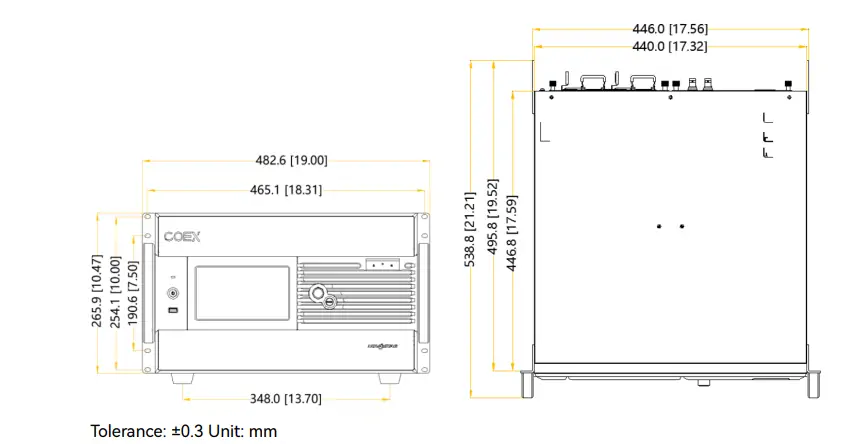
| Chassis | 6U modular controller; up to 8 input and 8 output cards | Rack depth, ventilation and installed card list |
| Maximum system load | Up to 141 million pixels | Native wall pixels plus every output’s individual limit |
| Maximum canvas dimension | 16,384 pixels wide or high | Both dimensions and total pixels must pass |
| Video layers | Up to 32 × 4K layers; 4 × 4K per output card | Screen allocation, source formats and layer plan |
| Output systems | 4 × 10G fiber card for 1G; 1 × 40G fiber card for 5G | Converter, transceiver and receiving card compatibility |
| Control | 7-inch touch display and VMP software | Service PC network and saved configuration |
| Power and environment | Up to 820 W fully configured; −5°C to +45°C operation | Actual card draw, UPS and rack cooling |
Compute the native canvas first. A 7,680 × 4,320 wall has 33,177,600 pixels. That is below the 141 million headline capacity, but its design still needs enough output cards and sufficiently short, compatible receiving card chains. A wall with several separate screens also needs a screen and layer plan: adding all pixel areas tells you the total load, while the individual dimensions tell you whether each screen can be mapped.
Pixel capacity is often quoted at 8-bit, 60 Hz. Increasing bit depth or refresh rate consumes more link bandwidth, and enabling a feature can impose its own constraints. A conservative design leaves margin below published link limits rather than filling every output exactly to its maximum. Record the intended operating mode next to each port in the drawings so future changes do not silently exceed capacity.
The maximum 820 W figure is for a fully configured unit; it is not a typical fixed consumption. NovaStar lists 100–127 V or 200–240 V input ranges and a chassis-only net weight of 21.5 kg. Allow for installed card weight, fiber service loops and unobstructed airflow. These practical rack details are easy to miss when the purchase decision focuses only on pixels.
3. Choose NovaStar MX6000 Pro Input and Output Cards
01. Match the input card to the source
For a standard presentation or media server feed, an HDMI 2.0 or DisplayPort 1.2 card may be sufficient. For higher-resolution source feeds, look at the HDMI 2.1, DP 1.4 or dedicated 8K DP option and read the exact card’s supported resolution, frame rate, chroma format and bit depth together. Broadcast installations may need 12G-SDI. IP production may need ST 2110 with the documented PTP, NMOS, multicast and switch design. An input connector name alone cannot establish the complete video mode.
NovaStar’s current manual lists the two-port HDMI 2.1 card at up to 8192 × 4320 at 30 Hz in its forced mode, while the dedicated DP 1.4 8K input card lists 7680 × 4320 at 60 Hz. The 12G-SDI card supports interlaced formats that the HDMI and DP cards do not. If a production feed is 1080i, do not specify an HDMI card solely because it has sufficient pixel bandwidth. Confirm the precise signal and HDCP behavior in the manual and test with the actual source.
02. Select 1G or 5G output architecture
The 4 × 10G fiber output card is used in a 1G receiving system, typically with a compatible CVT converter and Armor-series receiving cards. The 1 × 40G fiber output card is used for a 5G system with the appropriate converter and 5G receiving cards. The optical socket is not an Ethernet port for a cabinet: fiber must be converted and distributed in the topology NovaStar specifies.
| Decision | 1G system | 5G system |
|---|---|---|
| Controller output card | MX 4 × 10G fiber | MX 1 × 40G fiber |
| Typical converter | CVT10 or CVT10 Pro | CVT8-5G |
| Example receiving card | A10s Pro | XA50 Pro |
| Best first use | Existing 1G cabinet inventory and familiar port topology | 5G receiving cards and higher per-port load requirement |
| Critical compatibility check | 1G load by port, bit depth and refresh rate | 5G converter, receiving card and cable specification |
NovaStar states that different output card types can be installed in one controller, but 1G and 5G bandwidth outputs cannot load the same screen. In a mixed estate, draw each screen separately and document which output solution serves it. Never assume a 1G receiving card becomes 5G capable because a higher-bandwidth output card is present upstream.
4. Plan a NovaStar MX6000 Pro LED Wall Before Cabling
01. Calculate pixels and divide the load
For each screen, multiply the native pixel width by the native height. Then calculate the cabinets on every physical output run, not just the system total. A 960 × 540 cabinet contains 518,400 pixels; two such cabinets on one run contain 1,036,800 pixels. Whether that run is valid depends on the specific receiving system, refresh rate and bit depth, not the chassis’s 141 million pixel rating. Build a port schedule that records first cabinet, cable direction, last cabinet and native area.
Check unusual canvases separately. A 12,000 × 1,000 ribbon uses 12 million pixels and can be easier on total loading than a shorter but much taller wall, yet source EDID and custom resolution support may control how it is fed. A multi-screen show may require several independent screen mappings and layer assignments. Draw the source-to-screen matrix before deciding how many cards to buy.
02. Validate receiving card and fiber compatibility
Request the cabinet maker’s receiving card model, firmware, cabinet configuration file and approved port load. On 1G installations, check whether the receiving card supports the chosen COEX image features. On 5G installations, specify the 5G receiving card and optical conversion path as a system. Record transceiver type, fiber type, connector and approved distance for each link. A fiber link that lights up is not proof that it has enough reliable bandwidth under the final show mode.
For live events, label primary and backup routes at both ends, and keep a spare receiving card and tested optical module for the installed design. If a cabinet is swapped, verify its hardware and configuration match the rest of the chain before sending the full screen program. This avoids a fault that appears to be a controller problem but is actually a mismatched cabinet.
03. Leave operational headroom
Calculate capacity for the intended high-quality mode, then test the final content and switching plan. Higher bit depth, frame multiplication and HDR can change requirements across the video chain. A specification that says “up to 480 Hz” describes a supported capability under conditions; it is not a blanket promise for every input mode and LED wall. Build in headroom for a source format change, a different cabinet map and backup switching.
5. NovaStar MX6000 Pro Setup With VMP
01. Connect, discover and document
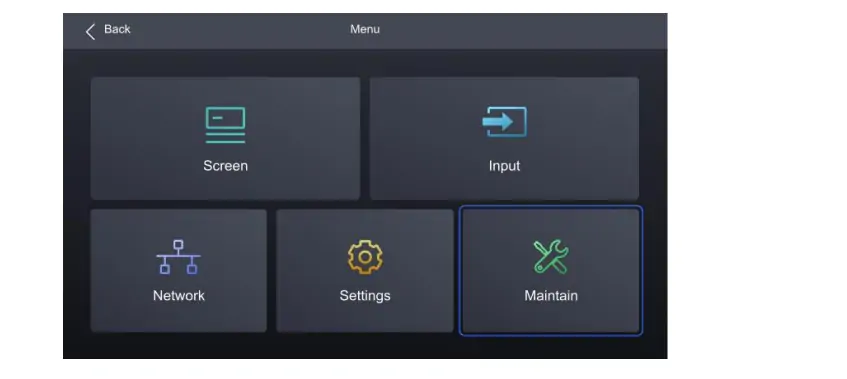
Install the specified cards with power isolated, then connect the source, fiber outputs, control network and redundant power according to the approved system drawing. Identify every chassis slot and converter. The front panel shows card and power status; a green normal-running indicator is a starting check, not proof that the mapped LED wall is correct. NovaStar’s VMP, or Vision Management Platform, handles project, source, screen, calibration, preset and maintenance functions beyond the basic front-panel controls.
Connect the VMP computer to the control network using the IP plan agreed with venue IT. If VMP cannot find the NovaStar MX6000 Pro, verify the physical control port, controller IP address, computer subnet and any firewall or VLAN separation before resetting the controller. Record current chassis, input-card and output-card firmware versions. Save an offline copy of a known-good configuration before changing a live system.
02. Configure inputs, EDID and screens
In the controller menu, inspect each input’s detected resolution, frame rate and status. The user manual describes setting EDID from the input’s EDID tab and selecting a resolution and frame rate before applying it. Use a format the exact card and source both support. If a computer refuses a custom format, start with a known standard mode and confirm a stable image; then change one parameter at a time.
In VMP, define the actual screen canvas and cabinet layout. Import the receiving card configuration supplied for the LED modules, assign output paths in cable order, and use a numbered grid to validate cabinet positions. Test solid red, green, blue, white and black as well as moving content. A correct picture on only one section does not prove every redundant or spare route. Export the screen map and keep the cabinet file with the event or installation handover.
03. Test the complete operating sequence
Set the source switch and preset workflow that operators will use, including the preferred recovery scene. Power-cycle the system during commissioning and confirm the correct screen returns. Test network disconnection, source loss and a planned output failover only within a safe maintenance window. Confirm that brightness, gamma, color temperature and freeze or blackout controls affect the intended screen, not another display.
When the source is HDR, choose the correct HDR10, HLG, Auto or Off setting and verify the display’s brightness capability. Incorrect HDR metadata or tone mapping can make a wall look washed out or clip highlights even though the signal is present. For camera-facing walls, test with the actual camera shutter and frame rate, then record the working synchronization settings.
6. Image Quality, Genlock and Latency
The NovaStar MX6000 Pro supports color management options such as curves, color correction and 3D LUT workflows. Those tools cannot replace a good cabinet calibration. Begin with matching LED modules, correct receiving card files and measured uniformity; then apply processing adjustments to the completed wall. A global color change should not be used to conceal a single cabinet with a wrong scan or calibration file.
HDR10 and HLG support depend on compatible input cards, source metadata and downstream display behavior. For HDR10, the manual provides PQ and mapping controls, including MaxCLL override. Establish an SDR baseline first, then compare known HDR test content on the actual wall. Record peak brightness and color settings so a visiting content team does not have to infer them from the picture.
Genlock aligns the display timing to a reference, which matters when cameras capture an LED volume or broadcast set. Feed the approved tri-level or black-burst reference, verify that all source and display devices agree on frame rate, and check for tearing or rolling bands with the production camera. LED refresh, camera shutter, source frame rate and genlock are related but different controls. A high LED refresh specification by itself does not guarantee a band-free camera image.
NovaStar describes a low-latency or zero-frame mode for the COEX platform. That refers to a defined controller processing path. End-to-end delay also includes camera, render engine, media server, input conversion, receiving card and LED scan time. For interactive or tracked virtual production, measure the complete system with the final source and wall rather than quoting a sub-1 ms controller statement as overall display latency. EagerLED’s LED wall versus green screen guide explains the wider production workflow in which controller synchronization is only one part.
7. Redundancy, Monitoring and Maintenance
The NovaStar MX6000 Pro can be configured for backup at device, output-card and Ethernet-port levels. Redundancy must be wired and tested; simply having a spare chassis in the rack does not create an automatic backup. Draw primary and backup paths separately, confirm that they do not share an avoidable single point of failure, and test switching with the actual cabinet chain. Record what operators should see during a failover and how to restore the primary route afterward.
The controller reports fan speed, temperature, voltage and card or port status. Its front screen provides basic status and settings, while VMP supports wider monitoring and maintenance. Set a practical alarm response: identify who receives an alert, what they check first, and whether the show can continue on the backup route. A monitoring feature only improves uptime when someone owns that response.
Before a firmware update, export the current VMP project, record firmware versions and read NovaStar’s release notes for the chassis and installed cards. Use stable power and schedule the update outside a live event. Afterward, test source detection, EDID, screen mapping, presets, synchronization and every backup path. The user manual describes exporting diagnostics and logs through the front USB port; keep those files with a precise description of the fault if vendor support is needed.
Use the official NovaStar MX6000 Pro download page for the current manual, specifications, firmware and release notes. A manual for another COEX model may describe a similar menu but a different card count or pixel ceiling. Match the file version to the installed hardware before making service decisions.
8. NovaStar MX6000 Pro vs MX2000 Pro
Both models belong to NovaStar’s COEX family, but their scale differs sharply. NovaStar’s product comparison lists the NovaStar MX6000 Pro as a 6U chassis with up to eight input and eight output cards, 141 million pixels and up to 32 × 4K layers. It lists the MX2000 Pro as 2U, up to two cards in each category, 35.38 million pixels and up to eight × 4K layers. These are maximum platform figures; the actual design still depends on installed cards and receiving equipment.
| Selection factor | MX6000 Pro | MX2000 Pro |
|---|---|---|
| Rack height | 6U | 2U |
| Maximum input/output cards | 8 / 8 | 2 / 2 |
| Maximum loading capacity | 141 million pixels | 35.38 million pixels |
| Maximum 4K layers | 32 | 8 |
| Typical decision | Many sources, screens or output routes | Smaller COEX systems that fit two-card limits |
Choose the MX2000 Pro when its card count, layer count, output links and loading limit cover the complete current design with suitable margin. Choose the NovaStar MX6000 Pro when the production requires substantially more independent sources, more screen area, more output cards or greater expansion capacity. The larger chassis does not improve the picture automatically; receiving card quality, calibration, content and operating mode still control the visible result.
Do not compare price by chassis alone. Include input and output cards, converters, optical modules, receiving cards, rack space, power, spares and integration labor. A smaller unit with the wrong port topology can cost more to re-engineer later than an initially well-specified modular system.
9. Applications, Price and Buying Checklist
The NovaStar MX6000 Pro is a strong fit for large rental stages, multi-screen exhibitions, television sets and virtual production LED volumes. In rental use, the key benefits are card flexibility, saved show presets and planned backup paths. In a fixed installation, service access, monitoring and long-term configuration records may matter more than the highest advertised frame rate. For an LED volume, source timing, camera tests, color calibration and rendering workflow become part of the acceptance criteria.
There is no reliable universal NovaStar MX6000 Pro price. The chassis quote may omit cards and the optical distribution equipment that actually connect it to the wall. Ask for an itemized, dated quote that names every input card, output card, converter, transceiver, receiving card, cable specification, firmware scope and support commitment. Include a spare strategy and specify whether commissioning and operator training are included.
Give the supplier the wall’s native resolution, cabinet dimensions, receiving card model and configuration file, number of independent screens, source formats, target bit depth and refresh rate, cable lengths, rack plan and backup requirements. Ask them to confirm total and per-port capacity in writing. If a source must deliver an unusual wide format, include its EDID and graphics card output requirements. If the project uses ST 2110, involve the broadcast network team before ordering switches or optics.
For the display side, compare cabinet pitch, viewing distance, brightness, maintenance access and camera performance alongside the controller. EagerLED’s virtual production LED wall guide
10. NovaStar MX6000 Pro FAQ
These answers address common manual, setup, compatibility and buying questions. Check NovaStar’s current documentation for card-specific limits and firmware changes.
01. What is the NovaStar MX6000 Pro maximum loading capacity?
NovaStar lists up to 141 million pixels for the MX6000 Pro system. Check the maximum width and height, installed output cards, each Ethernet run, receiving card, bit depth and refresh rate as separate limits. The headline figure is not a per-port allowance.
02. Where can I download the NovaStar MX6000 Pro manual?
Use NovaStar's official COEX product download page for the current MX6000 Pro user manual, specifications, firmware and release notes. Match the version to the hardware and card firmware in the rack.
03. Does the MX6000 Pro support 8K at 60 Hz?
It depends on the installed input card. NovaStar lists 7680 × 4320 at 60 Hz for its dedicated DP 1.4 8K card, while the two-port HDMI 2.1 card lists an 8192 × 4320 at 30 Hz forced mode. Confirm the source format and output capacity separately.
04. Which receiving cards work with the MX6000 Pro?
Use receiving cards approved for the chosen output solution. NovaStar gives A10s Pro as a 1G example and XA50 Pro as a 5G example. Check the exact card, cabinet file, converter and firmware rather than assuming all COEX receiving cards are interchangeable.
05. Can 1G and 5G output cards share one screen?
No. NovaStar says different output cards can be installed in the same MX6000 Pro, but outputs with different Ethernet bandwidths cannot be used to load the same screen. Put each receiving system on its own documented screen path.
06. Why does VMP not discover the controller?
Check the control cable and port, controller IP address, service computer subnet, VLAN and firewall. Confirm power and card status on the front panel. Save diagnostics before a reset so the original fault remains traceable.
07. Is the MX6000 Pro suitable for virtual production?
It supports professional synchronization, color and low-latency workflows used in LED volumes. Final camera performance depends on the source, genlock, rendering system, receiving cards, LED scan and camera settings. Test the entire chain with the production camera.
08. How much does a NovaStar MX6000 Pro cost?
The delivered price varies by card configuration, region, converter, optics, receiving cards and service scope. Ask for a current itemized quote and compare complete systems, including spares and commissioning.
11. Conclusion: Is the NovaStar MX6000 Pro Right for Your Wall?
The NovaStar MX6000 Pro is designed for LED systems whose size, source count or redundancy requirements exceed a compact controller. Its 141 million pixel headline, 6U modular chassis and COEX processing are useful only when the installed input cards, output cards, converters and receiving cards match the actual wall and operating mode. Start with a cabinet map and port schedule, then verify source formats, bit depth, refresh rate and backup paths.
For a smaller project, compare the MX2000 Pro on the same complete system plan. For a large show or camera-facing installation, commission the NovaStar MX6000 Pro with VMP, test the final content and camera, save the configuration, and keep the official manual and release notes with the handover. That evidence makes future operation and troubleshooting far more dependable than relying on a headline specification.
 NovaStar TU20 Pro: Specs, Setup, Manual & Price Guide
 NovaStar TU40 Pro: Specs, Setup and Buying Guide
Related Posts

Fill In Your Needs In Detail
Fill in the screen usage scene and size you need in “Content”.You will get a quote.