The NovaStar TU15 Pro is an Android playback controller for indoor LED screens, with four Gigabit LED outputs and a total capacity of 2.6 million pixels (NovaStar specifications). It supports local media, HDMI presentations and wireless screen mirroring. It is a practical candidate for meeting rooms, reception areas and showrooms when the cabinet layout fits its output limits. Choosing it correctly means checking the actual screen resolution, signal sources and operating workflow before comparing prices.
This NovaStar TU15 Pro guide explains specifications, pixel calculations, wireless presentation, setup and troubleshooting. Download the official TU15 Pro manual PDF (if direct access is blocked, select User Manual on NovaStar’s TU Series downloads page), or use this guide to distinguish capabilities that are often confused: decoding a 4K media file, accepting an HDMI signal and driving a native 4K LED wall are different tasks. Start with your screen’s pixel map, then use the sections below to build a configuration and quotation checklist.
1. What Is the NovaStar TU15 Pro?
The NovaStar TU15 Pro serves two jobs in the signal chain: selecting or playing content and delivering display data to compatible receiving cards. Those receiving cards remain inside the LED cabinets. The processor does not replace cabinet power supplies, LED modules, the receiving system or the screen’s mechanical installation.
For an indoor LED screen, the first question is what staff need to do every day. A receptionist may need a dependable welcome loop. A presenter may need to connect a laptop quickly. An installer needs access to cabinet configuration and mapping. Separating these roles helps avoid giving everyday operators settings that can disrupt the wall.
Consider the NovaStar TU15 Pro when one room needs both local media and live presentations. Assess alternatives when the project requires a much larger canvas, complex event switching or features specified elsewhere in the signal chain. A controller should be selected against a written requirement, including acceptable interruption time and the expected response if a source fails.
Before replacing an existing controller, record the receiving-card model, cabinet pixel dimensions, connection order and saved configuration. An RJ45 connector alone does not establish compatibility. Ask the screen supplier to confirm the complete combination, especially if the wall mixes cabinet batches or uses an unusual scan arrangement.
2. Key Features of the NovaStar TU15 Pro LED Processor
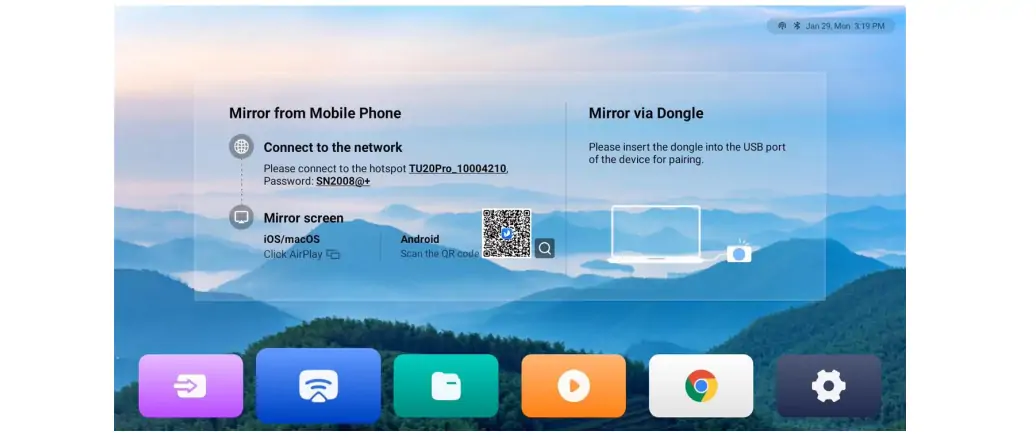
01. NovaStar TU15 Pro wireless screen mirroring
Wireless sharing makes guest presentations easier, but performance depends on the room. Test the actual presenter devices from their intended seating positions, with the room’s normal wireless traffic present. Keep a wired connection available for important meetings, particularly where a failed demonstration would interrupt a scheduled session.
The manufacturer manual describes mirroring from Windows, macOS, iOS and Android, with a stated 1080p benchmark of up to 60 fps and latency of no more than 80 ms at eight metres. Treat this as a documented test condition, not a guaranteed result through walls or on every corporate network. See the official NovaStar TU Series documentation and the user manual’s mirroring benchmark.
02. Local playback and Android applications
The NovaStar TU15 Pro can support a room workflow that continues without leaving a presenter’s laptop connected. Prepare approved media in advance and test the exact files used by the client. For USB playback, choose plug and play to read media from the drive, or copy and play to store it on the processor. Keep the drive connected for plug and play. File extension, codec, frame rate and bitrate must all match the supported media specifications.
For third-party Android applications, verify the installation method, account requirements, remote-control usability and peripheral support before promising a feature. A meeting application that launches successfully may still need additional testing for camera selection, microphone pickup, audio routing and sign-in recovery. Keep the final acceptance test focused on the actual meeting workflow.
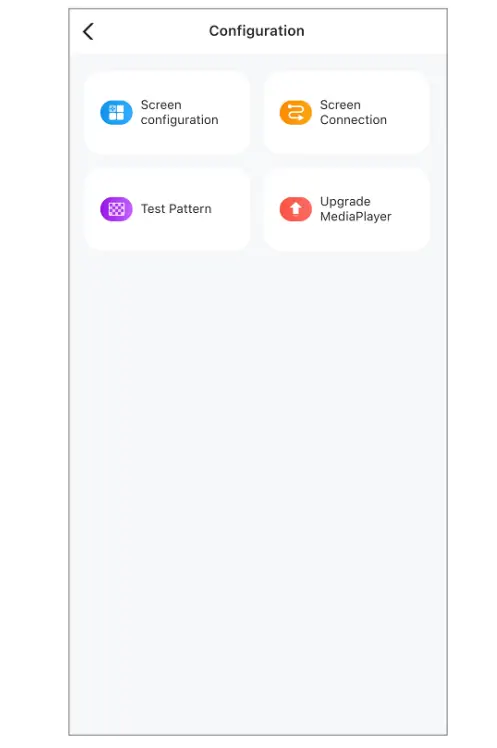
03. ViPlex Handy, VNNOX Care and daily control
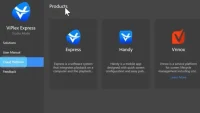
Use ViPlex Handy for content publishing, playback and screen mirroring; use VNNOX Care for screen configuration, topology and configuration backup (official app roles). This distinction matters when a user asks for “NovaStar TU15 Pro software”: content publishing and cabinet commissioning are different jobs. Keep a record of the installed app versions alongside the processor firmware.
Give operators a short room-specific guide showing source selection, volume, approved media and shutdown. Label the controller and its cables consistently with that guide. A clear handover usually prevents more operational mistakes than a long list of features that nobody has practised using.
04. Picture adjustment, eye comfort and interaction
Judge picture adjustments with representative material: small spreadsheet text, faces, neutral gray gradients and the customer’s brand colours. Avoid evaluating a wall only with a vivid demonstration video. Excessive sharpening may make text outlines look harsh, while aggressive contrast can hide information in dark or bright regions.
Set brightness for the room and viewing distance. A warmer eye-comfort appearance is a viewing preference, not a substitute for appropriate brightness or a guarantee about health. For colour-critical presentations, compare the chosen settings against a reference and document any deliberate change.
Interactive whiteboard use also needs a compatibility check. Confirm the touch hardware, calibration, software activation and user interaction before ordering. The NovaStar TU15 Pro should be demonstrated as a complete system; the presence of a whiteboard option does not make an ordinary LED cabinet touch-sensitive.
3. NovaStar TU15 Pro Specifications and Resolution Limits
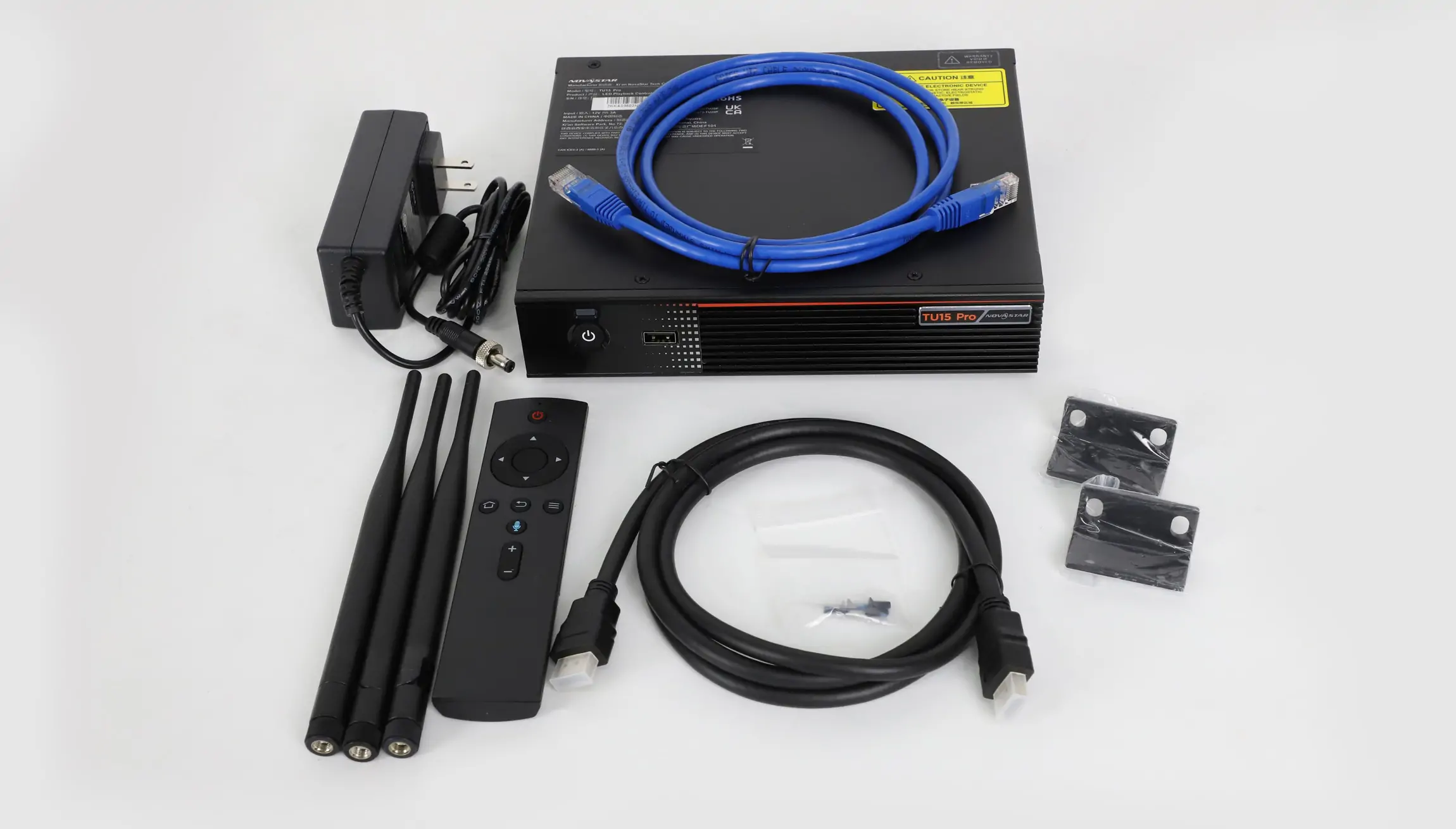
Use the NovaStar TU15 Pro specifications as several independent limits. The total pixel budget, permitted dimensions and input timing all have to work together. The following compact reference uses NovaStar’s current TU15 Pro specification V1.6.4, dated September 24, 2026. Confirm the installed firmware before relying on features added in later revisions.
| Item | Published specification |
|---|---|
| LED load | 2.6 million pixels |
| Scaling dimensions | 64–4096 pixels wide; 64–1920 high; total load still applies |
| Video connections | Two HDMI 1.3 inputs; four Gigabit LED outputs; 1080p HDMI output |
| Standard HDMI input maximum | 2048 × 1152 at 60 Hz |
| System | Android 11; 4 GB RAM; 32 GB storage |
| USB | Three USB 2.0 ports; FAT32 or NTFS; exFAT and FAT16 unsupported |
| Decoding | H.264: 4K at 30 Hz; H.265: 4K at 60 Hz |
| Playback streams | 2 × 4K, 5 × 1080p, 5 × 720p, 8 × 480p or 10 × 360p |
| Power and size | 12 V DC, 3 A adapter input; 21 W rated; 211.7 × 185.0 × 50.6 mm |
Source: NovaStar TU15 Pro specifications PDF, V1.6.4. Stream counts describe alternatives, not simultaneous totals across all resolutions.
01. Calculate the screen load before choosing a controller
Calculate width in pixels multiplied by height in pixels. Use the cabinet manufacturer’s pixel dimensions rather than rounding a physical measurement divided by nominal pixel pitch. A cabinet grid is discrete: a small measurement error can produce a different pixel count and an incorrect connection plan.
| Canvas | Calculation | Initial capacity check |
|---|---|---|
| Full HD | 1920 × 1080 = 2,073,600 | Below 2.6 million |
| Wide presentation wall | 2560 × 960 = 2,457,600 | Below 2.6 million |
| Larger canvas | 2560 × 1080 = 2,764,800 | Exceeds TU15 Pro total |
| Ultra HD | 3840 × 2160 = 8,294,400 | Exceeds TU15 Pro total and scaling height |
These are arithmetic examples, not approved wiring plans. A passing total does not prove that every port can carry its assigned cabinets. For instance, a 2560 × 960 wall divided into four equal 640 × 960 regions assigns 614,400 pixels to each output. The installer still needs to verify port limits, receiving-card constraints and the selected operating settings.
Do not multiply the maximum listed width by the maximum listed height and treat the result as available capacity. A 4096 × 1920 rectangle contains 7,864,320 pixels, which exceeds the NovaStar TU15 Pro total. Dimension limits describe allowable shapes within the relevant operating mode; they are not a promise to fill the largest possible rectangle.
02. Separate decoding, input and output resolution
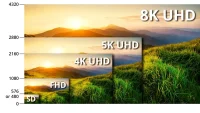
A 4K file can be decoded and then scaled to a smaller wall. That does not make the physical wall a 4K display, nor does it mean a laptop can send any 4K HDMI timing to the controller. For a NovaStar TU15 Pro installation, specify source timing and destination canvas separately. The HDMI input specification lists 8-bit progressive signals at 30, 50 or 60 Hz. Its forced custom dimension ranges do not establish that every width/height combination will work; confirm the proposed timing with the source device and NovaStar.
For detailed spreadsheets or control-room text, test readability at the final scaling ratio. Fine lines and small type may change when source pixels are resampled. If exact pixel correspondence is essential, include that requirement in the purchase specification instead of relying on a generic “supports 4K” description.
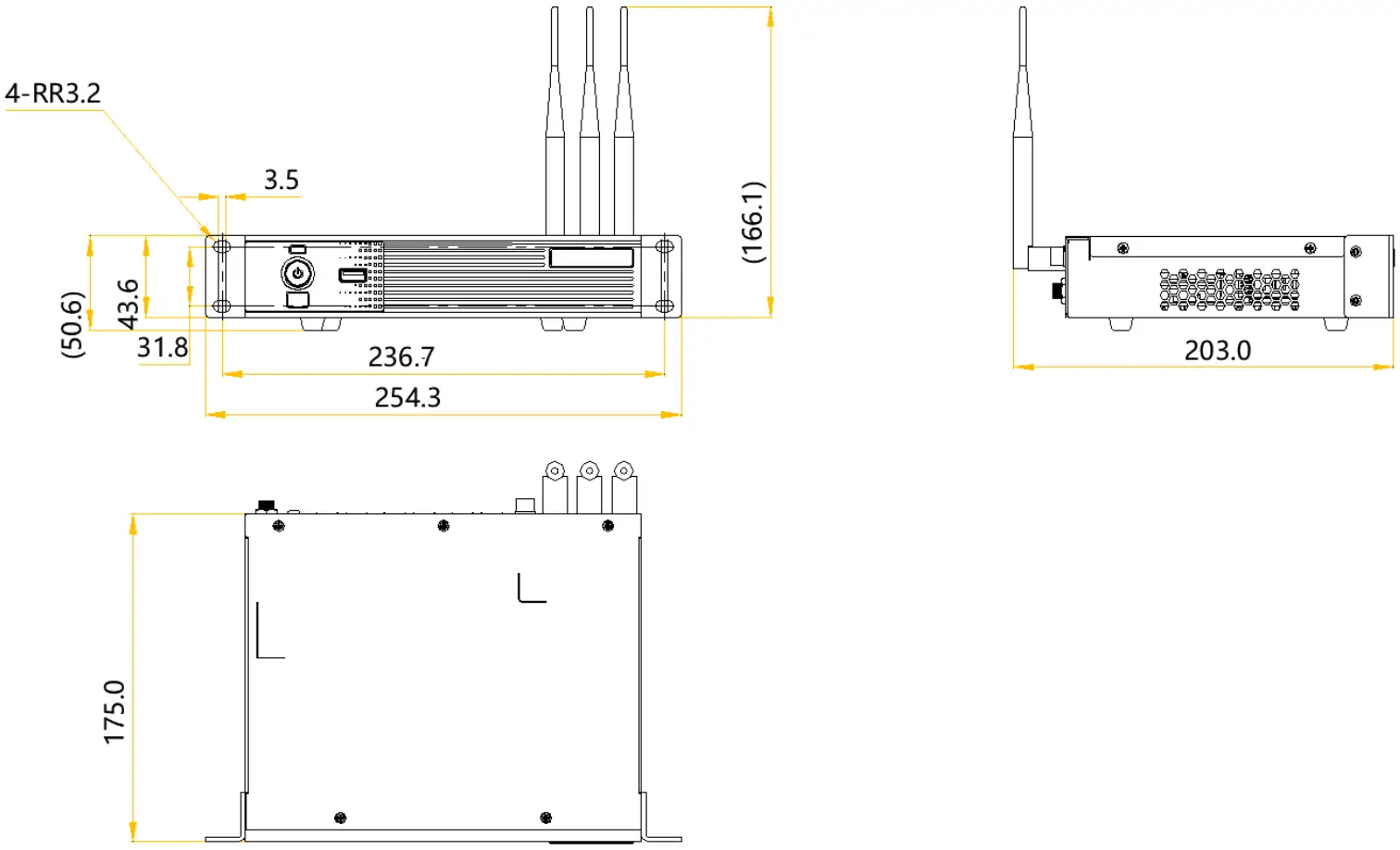
The installation drawing labels 254.3 mm across the brackets, 166.1 mm including antennas and 203.0 mm in the side view. These installation measurements are separate from the chassis size in the table. Check the dimensional drawings for your unit revision before drilling or setting rack clearances.
4. NovaStar TU15 Pro vs TU20 Pro LED Media Player
The NovaStar TU15 Pro vs TU20 Pro decision mainly concerns output capacity and the intended display mode. The TU20 Pro offers more LED output ports, but its advertised scaling capacity should not be confused with its pixel-to-pixel capacity. Both models require a checked cabinet map and a compatible receiving system.
| Selection factor | TU15 Pro | TU20 Pro |
|---|---|---|
| LED Ethernet outputs | 4 | 6 |
| Maximum load with scaling | 2.6 million pixels | 3.9 million pixels |
| Maximum pixel-to-pixel load | 2.6 million pixels | 2.88 million pixels |
| Published chassis dimensions | 211.7 × 185.0 × 50.6 mm | 211.7 × 185.0 × 50.6 mm |
| Best reason to choose | The planned wall fits four outputs and its capacity | The planned wall needs more outputs or scaling capacity |
Comparison source: the TU15 Pro PDF above and NovaStar TU20 Pro specifications V1.6.4. The two published chassis dimensions are the same; additional outputs do not imply a larger case.
01. Match the model to the cabinet map
Start with the final cable routing, not just screen area. Two walls with the same pixel total can have different installation constraints because their cabinet arrangement, service access and cable entry points differ. Ask for a drawing identifying each output and the sequence of receiving cards connected to it.
The NovaStar TU15 Pro remains a reasonable candidate when the complete map fits its limits and the desired sources are supported. If expansion is planned, calculate the expanded wall now. Spare capacity has value only when it addresses a defined future requirement, such as an additional cabinet column or a change in pixel pitch.
02. Know when the comparison needs a larger model
A native Ultra HD wall exceeds both models’ headline pixel budgets. A larger controller must then be assessed against input interfaces, output topology and required image processing. For broader model selection, read our TU15 Pro, TU20 Pro and TU4K Pro comparison. This guide focuses on operating and commissioning the TU15 Pro.
Do not select a larger model solely because its number is higher. Compare the cost of the complete installed system, including accessories, configuration work and support. A verified NovaStar TU15 Pro setup can be more useful than excess capacity paired with an unclear handover or incompatible source equipment.
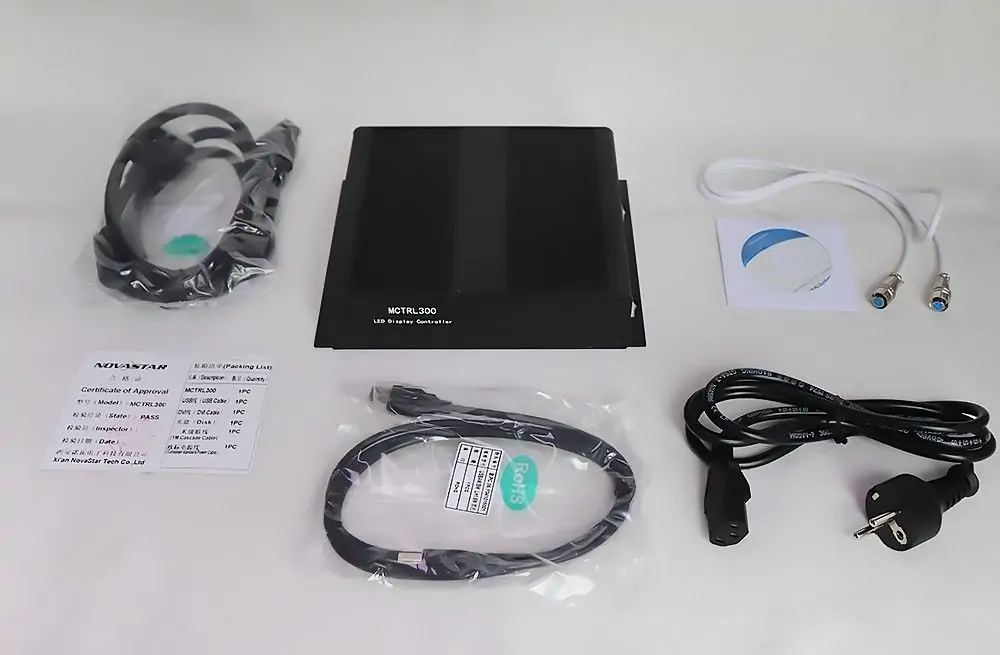
Existing illustration: NovaStar MCTRL300 kit, a different controller model; it does not represent the TU15 Pro package.
5. NovaStar TU15 Pro Price and Purchase Checklist
For the NovaStar TU15 Pro price, request a dated quotation that specifies currency, delivery destination and included items. A single online number is not a reliable installed cost. Regional supply, taxes, freight, optional accessories and commissioning can change what two apparently similar offers actually cover.
Ask the supplier to separate hardware from service. The hardware quotation should identify the exact model and any required options. The service quotation should explain who prepares the receiving-card configuration, tests sources, trains operators and supports the system after delivery. This makes a NovaStar TU15 Pro quotation easier to compare without guessing which tasks are excluded.
- Screen information: cabinet model, receiving cards, cabinet grid and total pixel dimensions.
- Content: laptop presentations, local loops, wireless sharing or a combination.
- Accessories: mirroring dongle, touch hardware and any activation codes needed for the proposed workflow.
- Delivery: stock status, shipping, taxes, regional power accessories and lead time.
- Support: warranty terms, commissioning responsibility and a configuration backup.
Do not assume optional mirroring or whiteboard features are included merely because they appear in a demonstration. NovaStar lists the PTB1307 dongle, additional split-screen activation and whiteboard activation separately. Obtain written confirmation of the exact package when comparing NovaStar TU15 Pro prices.
Send your pixel map and source list through our LED display project enquiry page for a configuration review. A useful request includes a photo of the existing controller connections and the receiving-card model. Avoid ordering a replacement solely from the appearance of the front panel.
6. NovaStar TU15 Pro Manual, Downloads and Setup
The NovaStar TU15 Pro manual should be your reference for menu names and model-specific operations. Keep a local copy with the project handover files so an installer can consult it even if the room has no Internet connection. Record the firmware version next to the document revision. NovaStar’s PDF host may restrict external referrals. If a direct specification or manual link shows AccessDenied, open the manufacturer downloads page and select the relevant model’s file.
01. NovaStar TU15 Pro manual and software downloads
- Official TU20 Pro and TU15 Pro user manual V1.6.2: operation, sources, media and settings.
- NovaStar TU Series downloads: manufacturer specifications, firmware and release notes.
- NovaStar software download guide: help finding the correct software family.
- RCFG and RCFGX receiving-card configuration guide: background on RCFG and RCFGX files.
A configuration file must match the actual module and receiving hardware. Treat a downloaded example as a reference, not permission to overwrite a working screen. Preserve the original file and document its source before making changes. This is particularly important when an installation has replacement modules from a different production batch.
02. Prepare and connect the NovaStar TU15 Pro
Before commissioning, draw the cabinet grid and label the intended cable runs. Confirm that the physical screen, receiving-card inventory and quotation agree. Photograph existing connections and retain the known working configuration. These records reduce recovery time if a cable is moved or a cabinet is replaced later.
Connect the LED data runs to the numbered display outputs. Keep the network control connection clearly labelled so it is not confused with an LED output. Position the controller where its connections can be serviced and its ventilation remains unobstructed. Route cables to avoid strain on connectors when access panels are opened.
In VNNOX Care, open Local Config → Connect to Hotspot, join the processor’s hotspot, then return to Local Config → Quick Start and follow the configuration prompts. The app’s Profile → User Manual provides detailed help (manufacturer setup steps). Initialise the room’s language, time zone and network settings, then give the device a recognisable room name. Menu details may differ from older screenshots in circulated manuals.
03. Verify mapping and content before handover
Test the NovaStar TU15 Pro installation with simple patterns before playing promotional video. A numbered cabinet grid helps expose reversed connection order, while lines crossing cabinet boundaries reveal alignment mistakes. Check each output region independently, then inspect the complete wall from the normal viewing position.
Next, test every contracted source. Use an approved laptop and a known working HDMI cable, then repeat with the client’s adapters. Check text, motion and audio. Test the local playlist from start to finish and confirm the intended startup behaviour after a controlled restart. Set Settings → Playback → Play Program at Startup if the room needs an automatic welcome loop, then verify it after restarting (startup playback instructions).
For wireless use, rehearse joining, presenting, disconnecting and handing control to the next presenter. Check the room’s normal network restrictions with its administrator. Record an alternative wired procedure in the operator guide so a guest does not have to diagnose networking during a meeting.
04. Troubleshoot by symptom
When the NovaStar TU15 Pro does not behave as expected, change one variable at a time and record the result. Distinguish a source problem from a mapping problem before modifying receiving-card settings. A photograph of the whole wall and a close view of the affected area are often more useful than “the screen is broken.”
| Symptom | First checks | Useful isolation test |
|---|---|---|
| Entire wall blank | Power, standby, selected source and output connections | Try a known working local image, then a wired source |
| One region missing | Cable path and first affected cabinet | Test a known working cable on the same path |
| Cabinets out of order | Physical connection sequence and topology | Display a labelled grid and compare it with the drawing |
| USB media will not play | Drive format, codec and file integrity | Try a short supported file on a known working drive |
| Wireless sharing unstable | Distance, network congestion and device discovery | Compare with wired HDMI from the same laptop |
| Picture present but no sound | Source audio, mute state and output routing | Test one audio path at a time |
Keep firmware work separate from urgent fault isolation unless support identifies a relevant fix. Read release notes, back up the working configuration and schedule a maintenance window. After any approved update, repeat the source and restart checks. Avoid a factory reset as the first response to an unknown fault.
7. NovaStar TU15 Pro FAQs
01. What is the maximum resolution of the NovaStar TU15 Pro?
The TU15 Pro supports up to 2.6 million pixels. With scaling, the published dimensions are 64–4096 pixels wide and 64–1920 high, while the total pixel limit still applies. A 1920 × 1080 canvas contains 2,073,600 pixels; a 2560 × 1080 canvas contains 2,764,800 and exceeds the 2.6-million budget. Confirm the final port allocation as well as the total before ordering.
02. Can the NovaStar TU15 Pro drive a native 4K LED wall?
No. A 3840 × 2160 wall has 8,294,400 pixels. Decoding a 4K file for scaled playback is different from driving that many physical LED pixels. Select a controller with a verified output budget and source interface for the full canvas.
03. Where can I download the NovaStar TU15 Pro manual?
Use the official joint TU20 Pro and TU15 Pro manual linked in section 6. The manufacturer download page also provides specifications and release notes. Match the document to your firmware and keep a copy with the cabinet map and configuration backup.
04. Which app should I use for the NovaStar TU15 Pro?
Choose the app according to the job: ViPlex Handy for playback and content tasks, and VNNOX Care for screen configuration and topology. Confirm the relevant workflow with the installed versions rather than assuming every NovaStar program serves the same purpose.
05. Why is a USB drive or video not recognised?
Use FAT32 or NTFS; the TU15 Pro does not support exFAT or FAT16. Check the video codec, resolution, frame rate and bitrate against the specification in section 3. Try a known working drive and a short test file before changing the controller configuration. Back up the drive before reformatting it, since formatting removes its existing contents.
06. What should a NovaStar TU15 Pro quotation include?
Ask for the exact device, required accessories, activation options, shipping, taxes and support scope. State the screen resolution and intended sources. Request written confirmation of what the supplier will configure and demonstrate before the system is accepted.
8. Conclusion: Is the NovaStar TU15 Pro Right for Your Screen?
The NovaStar TU15 Pro is worth considering when its pixel budget, output layout and source support match a clearly defined indoor display project. Make the decision from the cabinet map and everyday operating needs, then confirm the accessories and support included in the quotation.
A successful NovaStar TU15 Pro installation ends with verified sources, readable content, a saved configuration and a handover that staff can follow. Use the official manual for the installed version, preserve your commissioning records and test the complete workflow before relying on the wall for a live presentation.
 NovaStar H9 Video Wall Splicer: Specs, Price & Manual
 NovaStar TB40 LED Controller: Specs, Setup & Manual
Related Posts
Fill In Your Needs In Detail
Fill in the screen usage scene and size you need in “Content”.You will get a quote.