NovaStar Vunit 3000 is a programmable central control processor for coordinating audiovisual equipment and room controls. It combines serial, I/O, relay and infrared control; its HDMI card provides a four-input, three-output matrix. This guide explains the connections, BCTools setup and checks to make before specifying a system.
1. What is the Novastar Vunit 3000 Central Control Server?
The Vunit 3000 uses plug-in cards to connect different equipment types. A control project defines what each command does, so one operator interface can coordinate several devices. Confirm the installed cards and required commands before ordering.
For a meeting room or exhibition with flexible LED video walls, plan the control path separately from the video path. List the sources, display processor, audio equipment and room devices, then identify how each will be controlled.
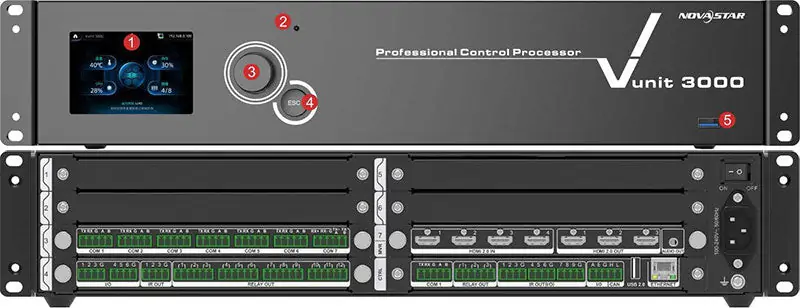
2. Vunit 3000 Control Processor Overview
Start with the required functions, then check the card configuration. The following overview summarizes the capabilities documented in NovaStar’s Vunit 3000 specifications:
- Serial: RS232, RS422 and RS485 support varies by connector.
- I/O: programmable input and output signals.
- Relays: low-voltage switching rated at 30V DC, 3A.
- Infrared: learn, store and transmit remote-control commands.
- HDMI card: four inputs and three outputs, up to 3840 × 2160 at 60Hz.
- Audio: independent 3.5mm output.
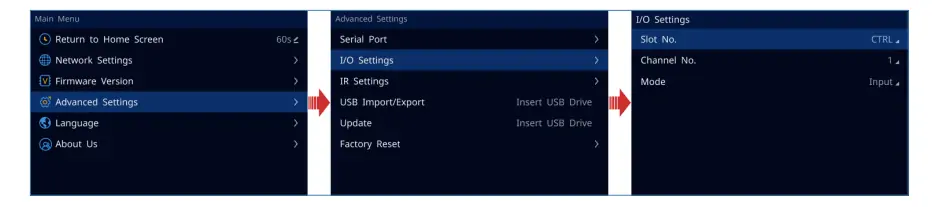
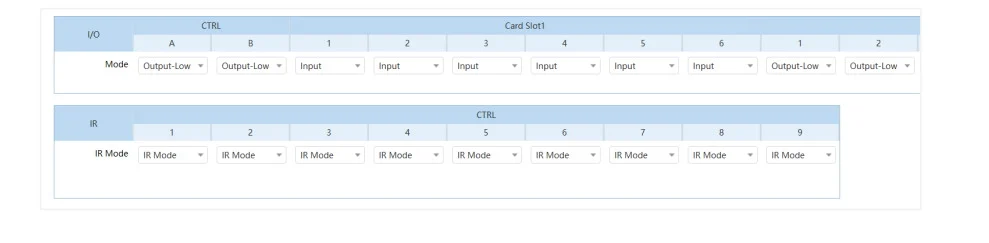
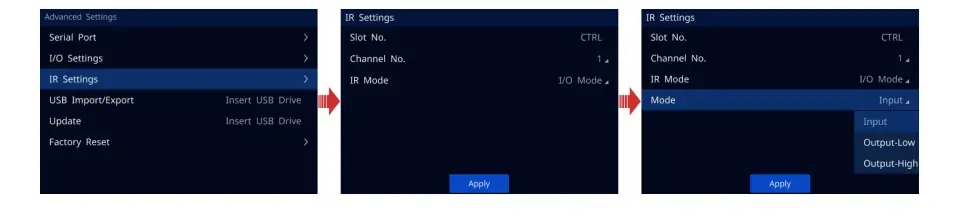
The front LCD, knob and ESC button provide local operation. USB supports firmware and project-file transfer. When reading the I/O screenshot below, distinguish the card slot from the channel: choosing the correct channel matters as much as choosing its mode.
3. Vunit 3000 Professional Control Processor Features
3.1 Powerful Performance
NovaStar specifies a 32-bit ARM Cortex industrial-grade CPU. For project planning, evaluate the complete command sequence under realistic conditions; a processor specification alone does not establish how quickly connected equipment will respond.
3.2 Comprehensive Connectivity
Use the official card and connector list to prepare a port schedule:
- Control card: COM, relay, I/O, IR, CAN, USB and Ethernet.
- COM expansion: seven serial ports.
- Relay/I/O/IR expansion: 12 relays, six I/O and three IR outputs.
- HDMI card: four HDMI inputs, three HDMI outputs and audio output.
Label the physical port, destination and command format in your project notes.
3.3 Flexible Control Options
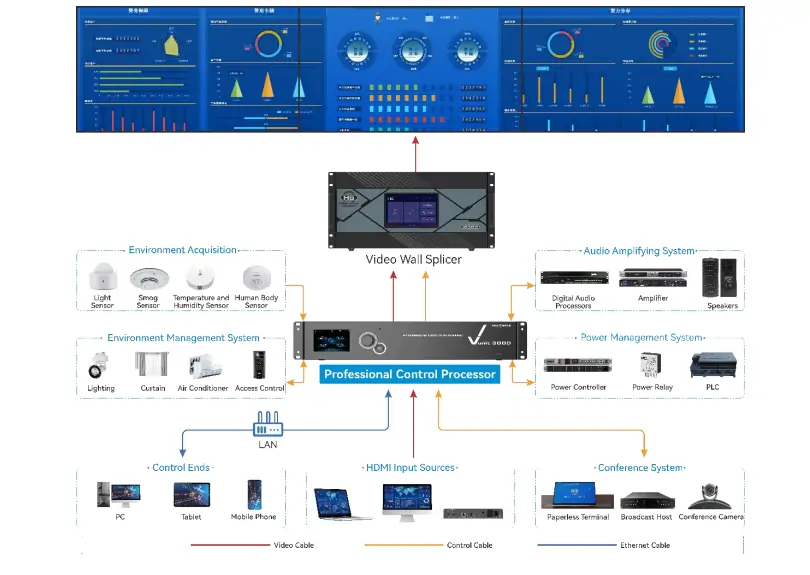
Supported control platforms include iOS, Android, HarmonyOS and Windows. The connection diagram illustrates a central processor coordinating control clients and connected systems. For deployment, draw your own diagram showing the network, video sources, display processing, audio and room controls.
3.4 Customizable Interface
A visual UI design tool supports custom images, icons and fonts. Keep operator buttons descriptive, group them by task and make the current selection obvious. Test the interface with the person who will run the room.
3.5 Reliable and Stable
Reliability depends on installation and commissioning as well as the controller. Test recovery after a power or network interruption, document a manual operating procedure and retain a known working project backup. Avoid promising uninterrupted service without system-level evidence.
4. Novastar Vunit 3000 Connectivity Explained
Match each connection to the actual device and card. Before requesting a quote, provide a port count and control requirements; there is no verified price estimate in this guide. The sections below explain the main interfaces.
4.1 Serial Communication
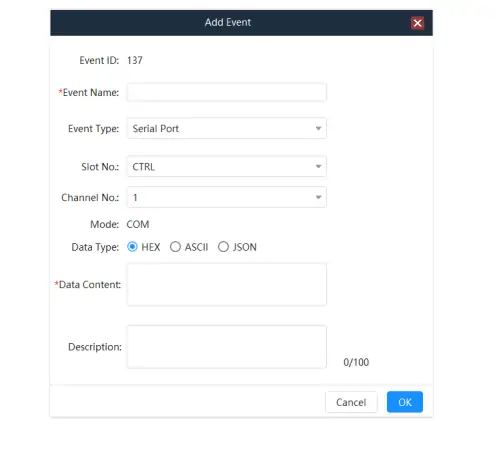
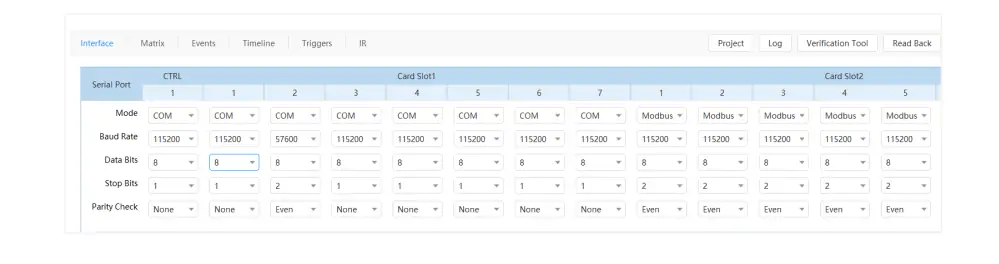
On the seven-port COM card, COM1–6 support RS232/RS485; COM7 supports RS422/RS485. The NovaStar card list also specifies Modbus RTU, ASCII and TCP, plus DMX512 output on RS485 ports. Match the device protocol, baud rate, data bits, stop bits and parity.
4.2 Programmable I/O Connectors
I/O operates at 5V. The illustrated modes are Input, Output-High and Output-Low. Choose the mode required by the connected device; do not treat an input channel as a power supply. See the user manual, section 5.2.
4.3 Relay Modules
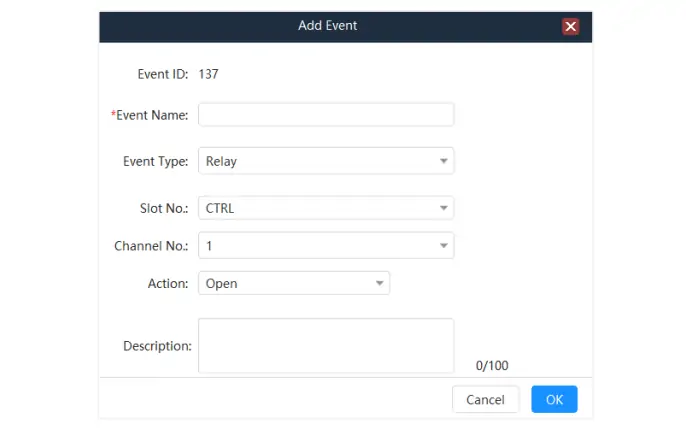
Relay contacts are rated at 30V DC and 3A. Verify the load and wiring before connection. The relay configuration controls contact state; give each channel a clear device name so an operator can identify what will switch.
4.4 IR Learning and Emission
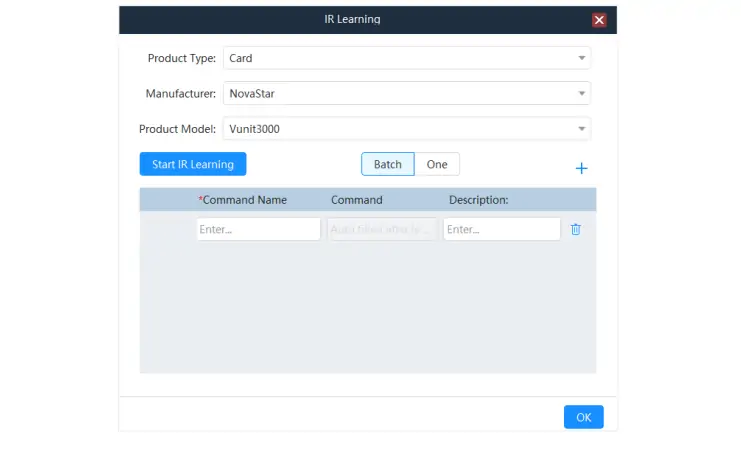
IR learning records commands from a remote for later emission. Name each learned command by its action, then test it against the actual equipment. Check emitter placement when a command works intermittently. See manual section 5.7.
4.5 HDMI Matrix Switching
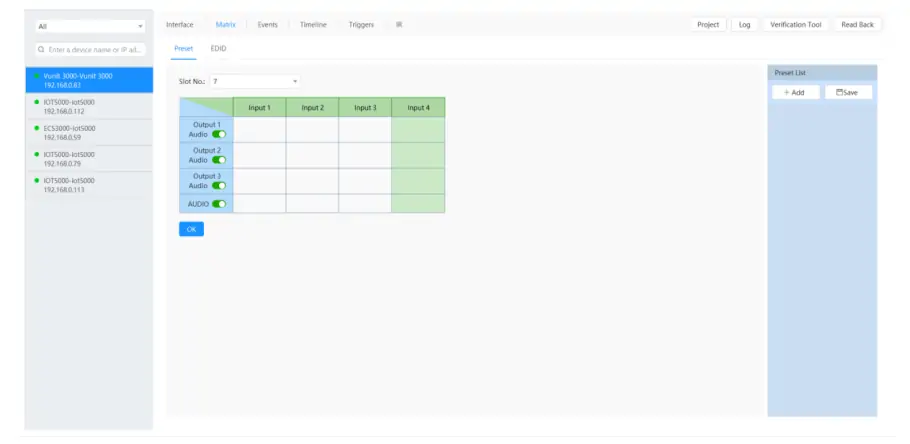
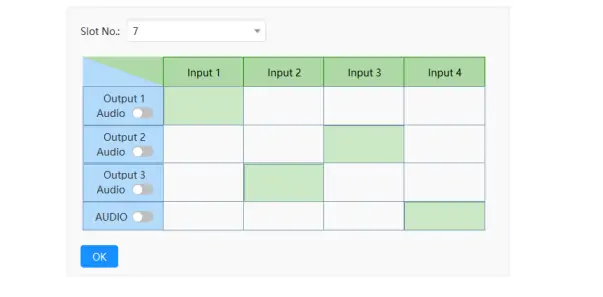
The VIT_4xHDMI2.0 IN + 3x HDMI2.0 OUT card routes four sources to three outputs. Output resolution follows the selected input, up to 3840 × 2160 at 60Hz; plan downstream scaling separately. See specifications, HDMI card section. In the matrix screenshot, a selected cell links an input to an output.
4.6 Independent Audio Output
The 3.5mm output can select audio independently. The AUDIO row in the matrix chooses its source. Test sound and picture together after switching, especially when a presentation needs audio from a different input.
5. Novastar Vunit 3000 Setup and Configuration Guide
Use this commissioning checklist alongside the Vunit 3000 user manual. Menu names below follow manual V1.0.0; confirm the software and firmware versions supplied for your unit.
5.1 Hardware Installation
- Secure the processor in its rack and allow access for cabling and maintenance.
- Label Ethernet, video and control cables against the port schedule before testing.
5.2 Software Installation
- Obtain BCTools from your device provider or NovaStar support.
- The manual lists Windows 7 or later. Confirm compatibility with your current supported Windows environment before installation.
5.3 Network Configuration
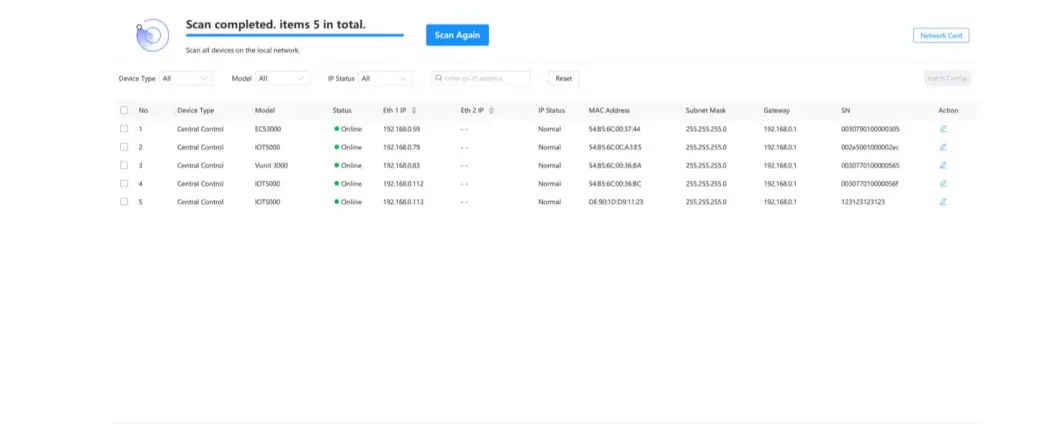
- Place the processor and control PC on the same subnet.
- In BCTools, select the correct network adapter and use Start Scan. Assign an IP address that does not conflict with another device.
5.4 Device Configuration
- Record firmware versions and back up the project before an update.
- Configure and test one device at a time. In the illustrated IR settings, select the intended card slot and channel before changing its mode.
5.5 Testing and Validation
- Test each command, input/output route and operator button against an acceptance checklist.
- Save the working project and retain diagnostic results for support.
For the full workflow, see manual sections 3–5. Record any site-specific settings for the next technician.
6. Novastar Vunit 3000 Applications and Use Cases
The following are practical planning examples, not guarantees of compatibility or availability. Each needs a validated device list and control project.
6.1 Intelligent Video Conferencing
Build a meeting-start routine around the required source, display and audio settings. Check that each device reaches the intended state before adding further automation.
6.2 Exhibition Centers
Plan source selection for exhibition indoor advertising LED displays. Keep a fallback presentation ready and give staff a simple way to return to it.
6.3 Command Centers
Document which displays and sources operators may select. Test switching with the actual monitoring workflow and keep essential manual controls available.
6.4 Press Conference Rooms
Prepare and rehearse source and audio selections for speakers, presentations and playback. Label presets by event activity so operators can identify them quickly.
6.5 Firefighting and Emergency Response
For an emergency operations room, assess audiovisual control separately from life-safety systems. The product documentation does not establish a guarantee of uninterrupted emergency operation; the complete installation needs appropriate engineering and validation.

7. FAQs
8. Conclusion
NovaStar Vunit 3000 brings device control and HDMI routing into a programmable system. A successful installation starts with the right cards, documented commands and a tested control project. Use the official specifications for hardware limits and the manual for configuration steps.
For an EagerLED project review, contact our team with your device list, port count, required video resolution and operating sequence. These details support a useful configuration discussion and a project-specific quotation.
 Novastar HDR Master 4K: Specs, Price and How it Works
 Novastar ET1S-G Media Server: Everything You Need to Know
Related Posts

Fill In Your Needs In Detail
Fill in the screen usage scene and size you need in “Content”.You will get a quote.