LED wall content should be built at the wall’s native pixel canvas, not at a default 1920 × 1080 frame. Multiply the pixels in one cabinet by the number of cabinets across and down, design every file at that exact size, keep text inside the areas the audience can actually see, and deliver video at the frame rate and in the codec the playback system expects. Do those four things and the screen shows what the designer drew, with no stretching, soft text or surprise black bars at rehearsal.
This guide is written for event production companies that rent or own a modular LED wall and have to brief outside designers, agencies or a client’s in-house team. It explains how to work out the canvas for your LED wall content, how big text needs to be in pixels, which playback settings to agree in advance, and what to put on a one-page content spec sheet. The examples use 500 × 500 mm (19.7 × 19.7 in) rental cabinets, the most common size in touring and event fleets.
Every number below is either simple arithmetic you can repeat for your own wall or a condition you should confirm with your screen supplier. Where a value depends on the exact model or processor, the text says so.
1. Start LED Wall Content With the Native Canvas, Not 1920 × 1080
An LED wall has no fixed resolution. Its resolution is whatever the cabinets add up to, so two walls of the same physical size can need completely different LED wall content files. The first job, before anyone opens a design tool, is to calculate the native canvas: the exact pixel width and height the wall displays.
01. Count the pixels in one cabinet
Divide the cabinet’s edge length by the pixel pitch and round to the nearest whole number. A 500 mm cabinet at a 3.91 mm pitch carries 128 pixels per side, because 500 ÷ 3.906 = 128. The supplier’s specification sheet lists this as “cabinet resolution”; always use the sheet value, since the marketed pitch (P3.91, P2.6) is a rounded label.
| Pixel pitch | 500 × 500 mm cabinet | 500 × 1000 mm cabinet | Typical use |
|---|---|---|---|
| P1.56 | 320 × 320 px | 320 × 640 px | Close-viewing indoor stages, broadcast sets |
| P1.95 | 256 × 256 px | 256 × 512 px | Indoor conferences, studios |
| P2.6 | 192 × 192 px | 192 × 384 px | Indoor events, ballrooms, churches |
| P2.97 | 168 × 168 px | 168 × 336 px | Indoor or outdoor events with mid-range viewing |
| P3.91 | 128 × 128 px | 128 × 256 px | Large indoor halls, outdoor stages and festivals |
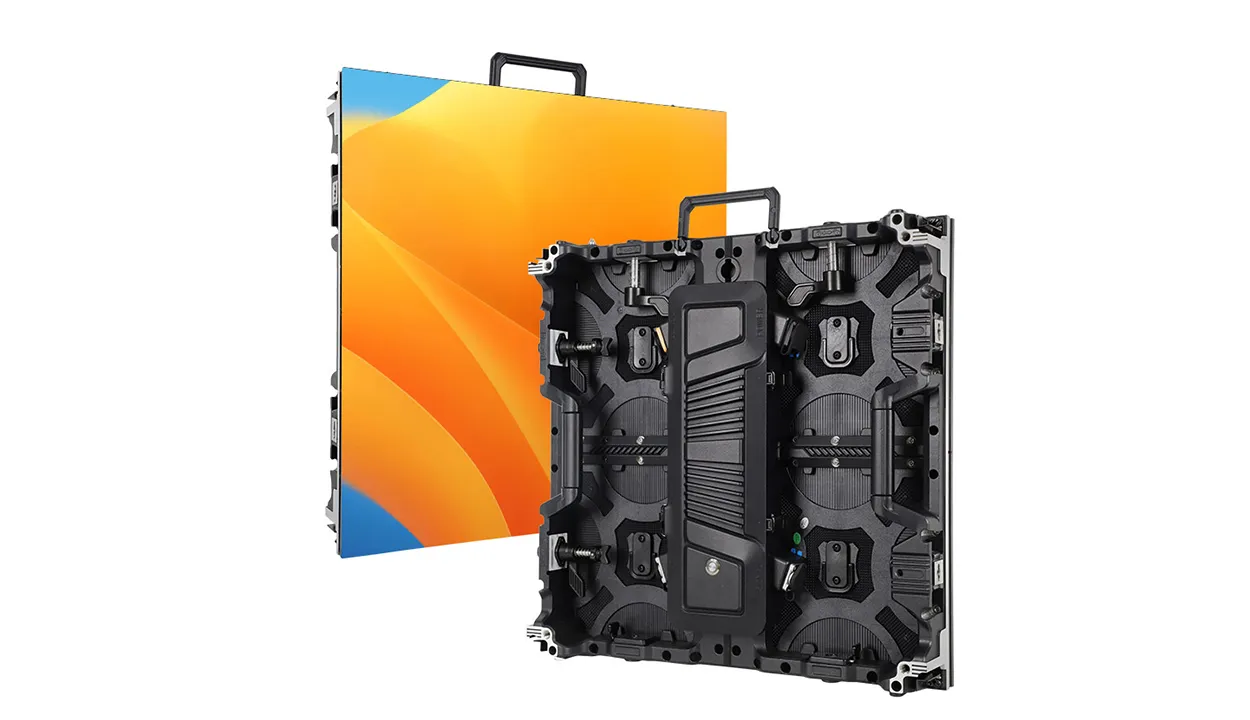
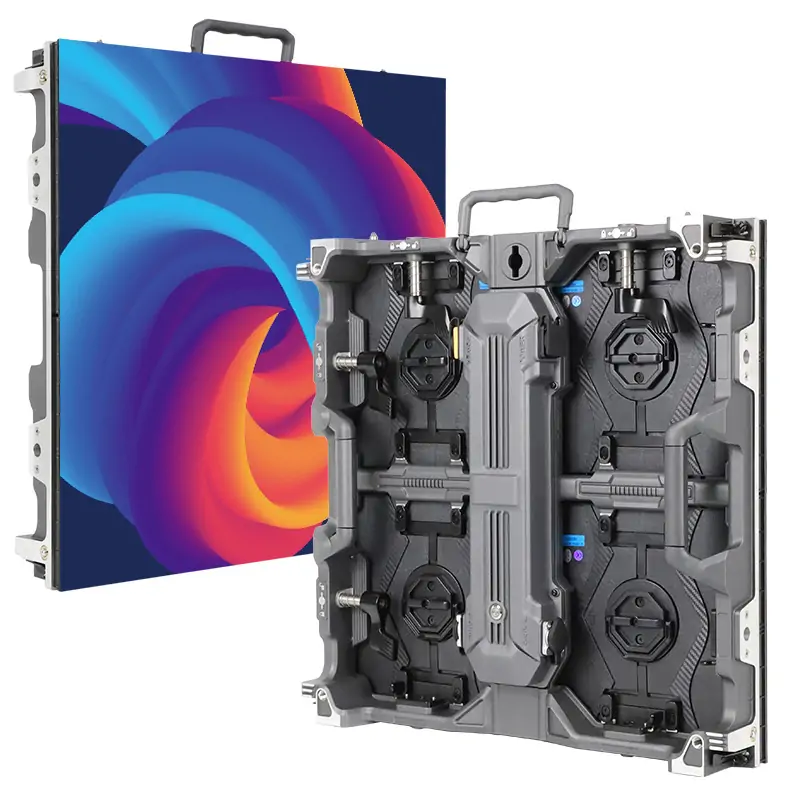
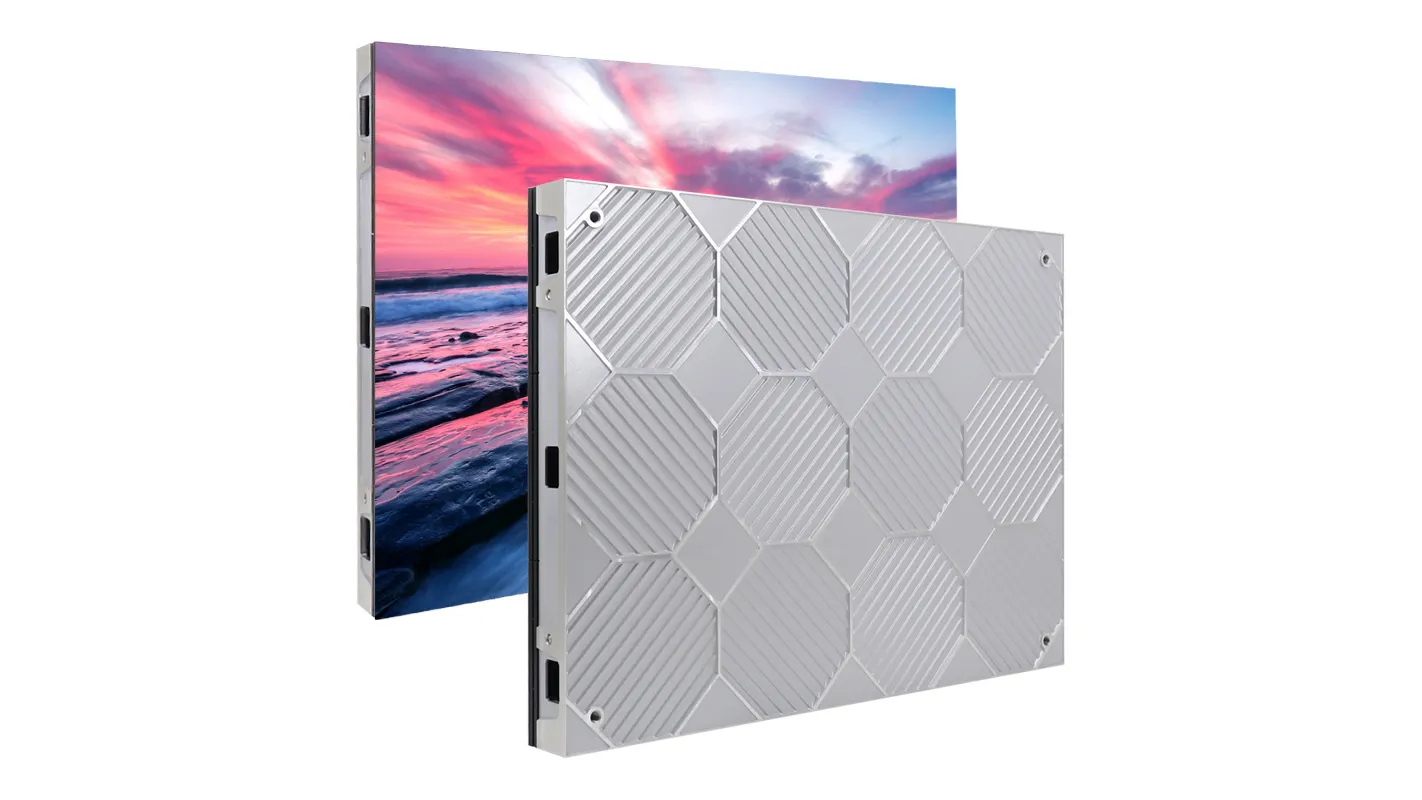
EagerLED’s EA500C6 500 × 500 mm rental cabinet is offered in indoor and outdoor versions across this pitch range, so the same physical wall size can produce any of the canvases in the table. That is why “what size should the video be?” has no answer until the pitch is fixed.
02. Multiply by the cabinet matrix
Canvas width = cabinets across × pixels per cabinet. Canvas height = cabinets down × pixels per cabinet. A wall 12 cabinets wide and 6 cabinets high at P3.91 is 1536 × 768 pixels. That is a 2:1 shape, wider than 16:9, so a standard HD file either leaves side bars or has to be cropped.

If the designer builds LED wall content at the native canvas, every pixel in the file lands on one LED pixel. If they build at 1920 × 1080, the processor has to scale the picture down and either distort it or add bars. Scaling also softens thin lines and small text, which is where most complaints about “blurry” LED wall content begin.
2. Worked Example: Canvas Sizes for Common Rental Walls
The table below shows how much the canvas changes with pitch for three wall sizes that come up often in event quotes. All three use 500 × 500 mm cabinets. The figures are straight multiplication from the nominal cabinet resolutions above, so treat them as a planning example and recalculate with your supplier’s sheet.
| Wall size | Cabinet matrix | Canvas at P2.6 | Canvas at P3.91 | Aspect ratio |
|---|---|---|---|---|
| 4 × 2.5 m (13.1 × 8.2 ft) | 8 × 5 | 1536 × 960 px | 1024 × 640 px | 16:10 |
| 6 × 3 m (19.7 × 9.8 ft) | 12 × 6 | 2304 × 1152 px | 1536 × 768 px | 2:1 |
| 8 × 4.5 m (26.2 × 14.8 ft) | 16 × 9 | 3072 × 1728 px | 2048 × 1152 px | 16:9 |
Two practical lessons come out of this table. First, only the 16 × 9 layout matches standard video proportions; the others need LED wall content designed for their own shape. If the client insists on running unchanged 16:9 slides, you can choose a cabinet matrix that fits 16:9, as the 16:9 vs 4:3 aspect ratio guide explains. Second, a finer pitch on the same wall roughly doubles the pixel count. A 3072 × 1728 canvas is larger than full HD and needs a playback system and processor that can output it, which is worth checking before the content team renders anything.
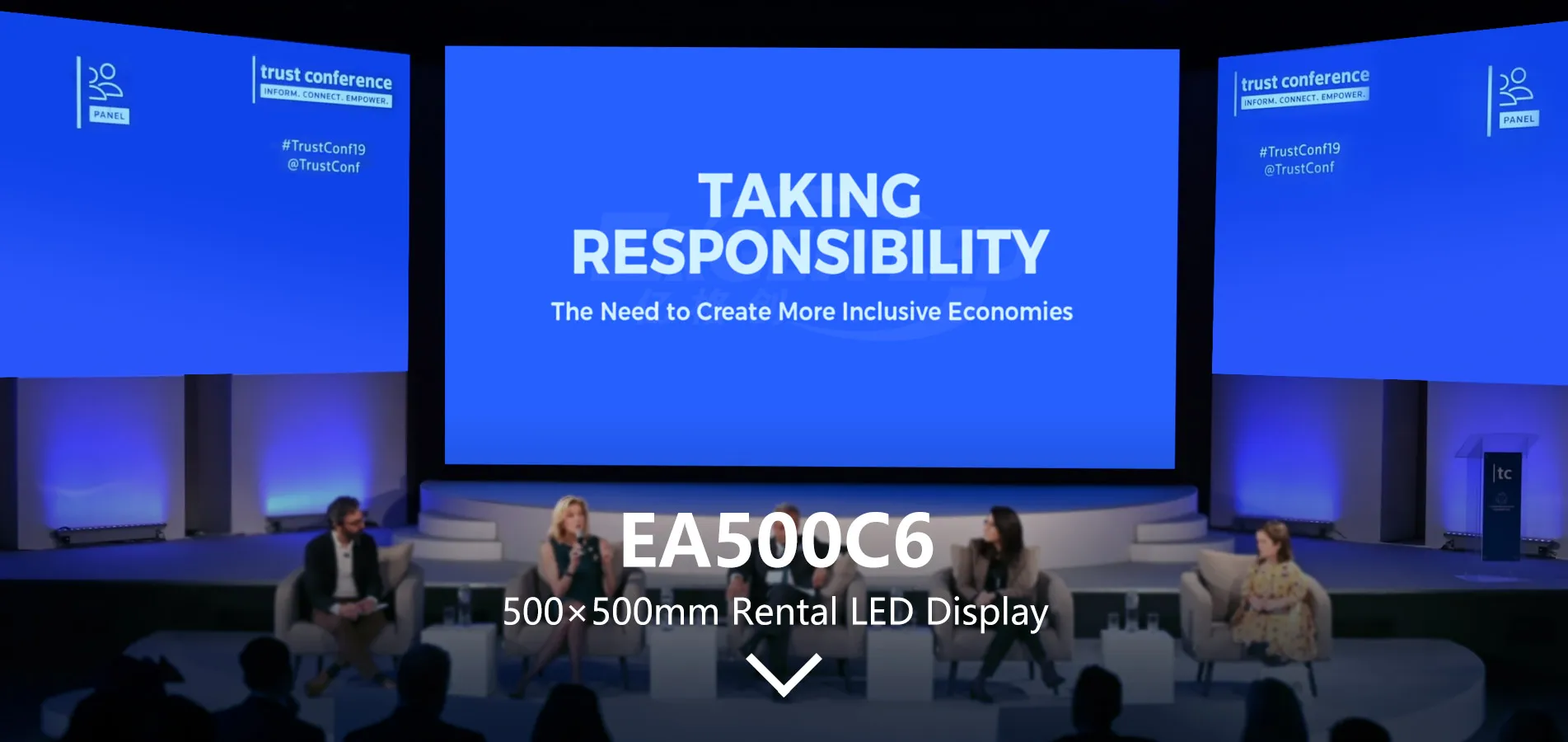
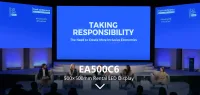
For a conference backdrop like this, the native canvas also decides where speaker names, session titles and sponsor logos can sit. Calculate it first and share the number in writing with everyone who will produce LED wall content for the show.
3. Mixed Cabinets, Curves and Split Screens
Real stage designs are rarely a single rectangle. When the build mixes cabinet sizes, bends around a curve or splits into a center screen with two side screens, the pixel map gets more complex, and the content brief has to follow it.
01. Mixed cabinet sizes
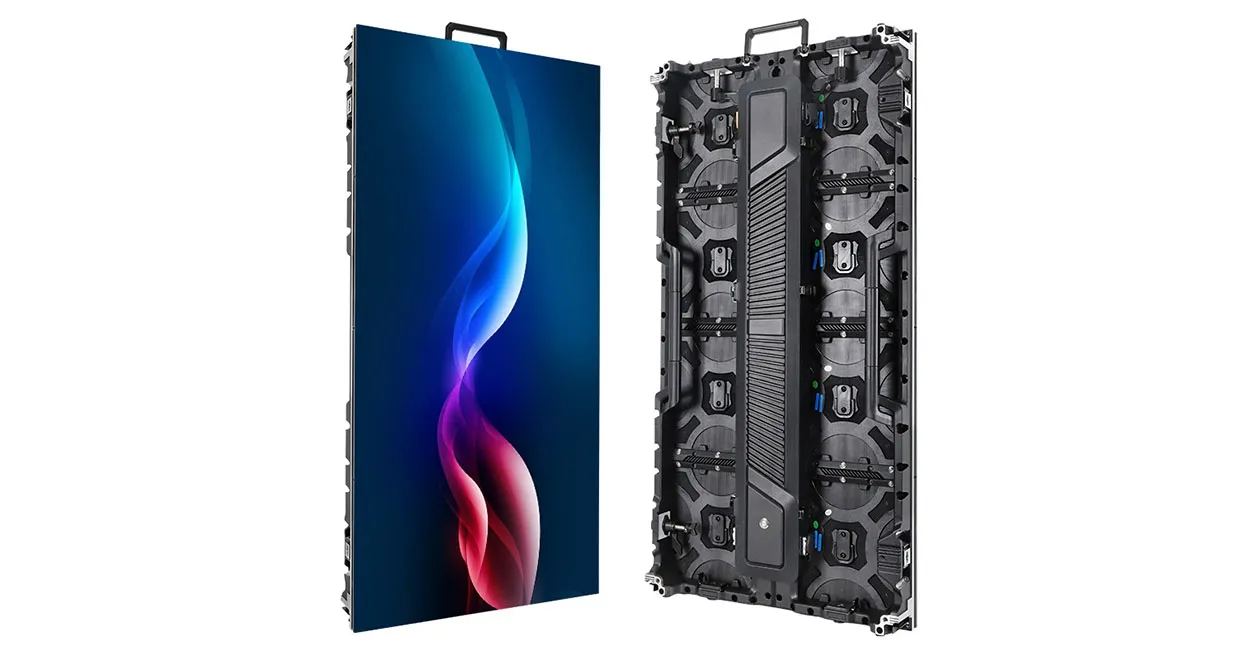
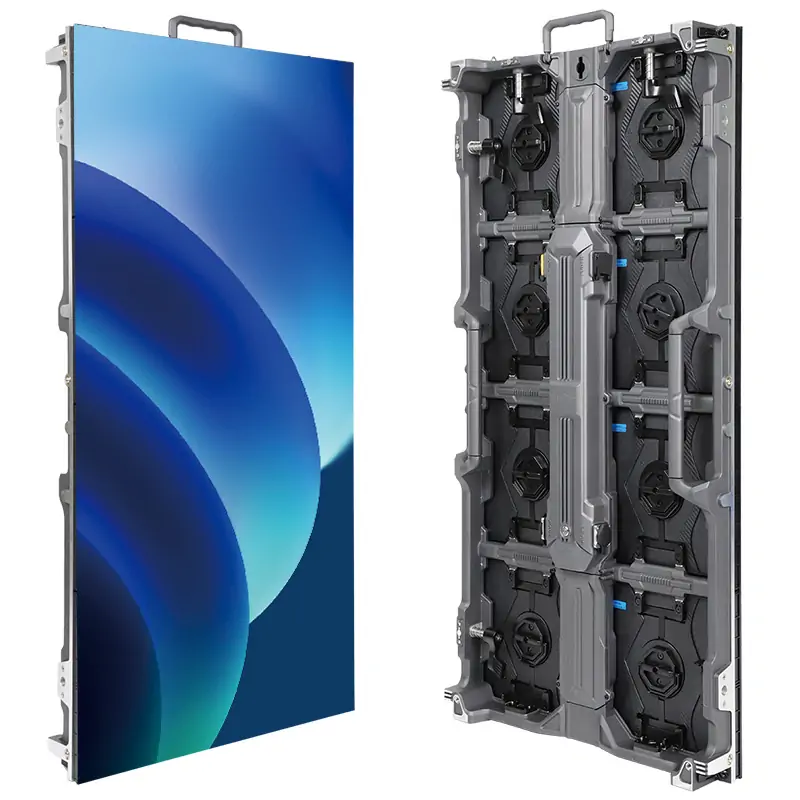
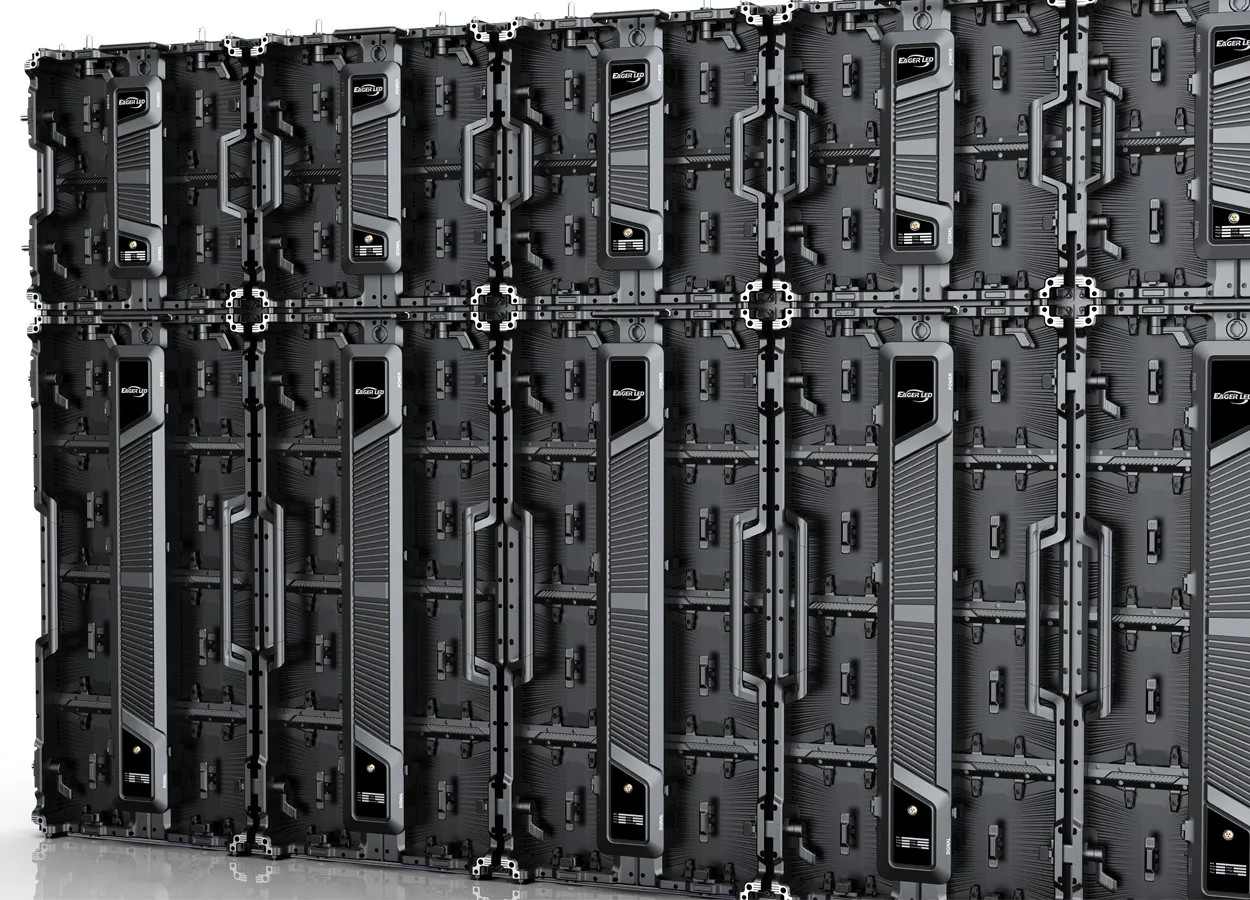
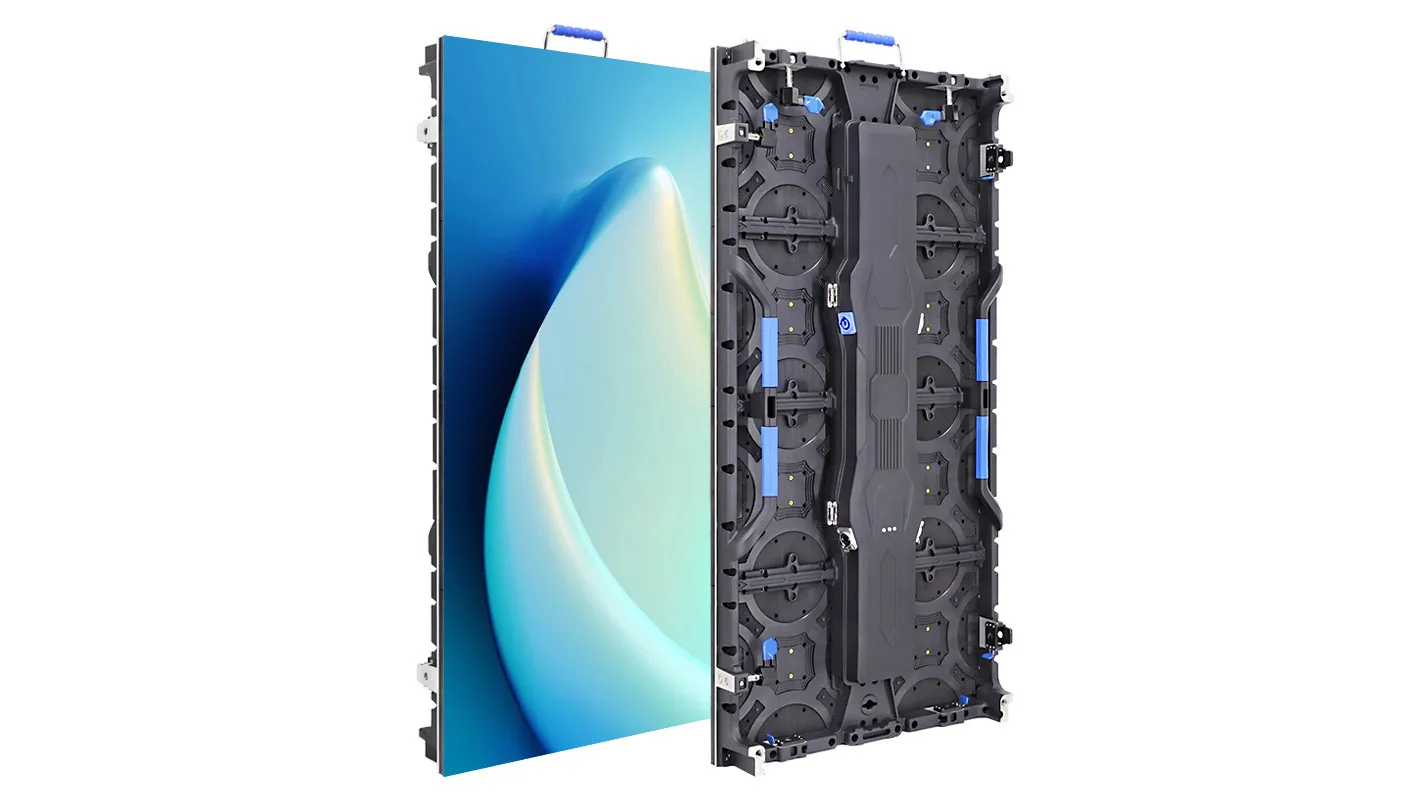
Many rental fleets combine 500 × 500 mm and 500 × 1000 mm cabinets of the same series to build height faster. EagerLED’s EA1000C6 500 × 1000 mm cabinet splices with the EA500C6, for example. As long as both cabinets use the same pitch, the pixel density is continuous: a 500 × 1000 mm cabinet at P3.91 is simply 128 × 256 pixels, and the canvas math stays the same. Problems start when cabinets of different pitches are mixed in one surface, because the processor then has to map two pixel densities to one image. Avoid that for any LED wall content carrying text or faces.
02. Curved walls
Curving a wall with curve locks does not change its pixel count, so the canvas is still cabinets × pixels. What changes is how the picture reads from the side. Straight lines and horizons drawn flat will appear bent to viewers off-axis, and text near the ends of a deep curve is seen at a steep angle. Keep critical text near the center of a curved wall and test any perspective artwork in your LED wall content on the real build.
03. Center screen plus side screens
When one processor drives a center wall and two side walls, ask the technical team for a single output map showing where each screen sits on the processor canvas, with pixel coordinates. Designers can then deliver either one combined file laid out exactly to that map or separate files per screen. Agree which one before production starts; switching later means re-rendering. For how signals travel from the source to each cabinet, see this explanation of LED signal paths and port mapping on LEDScreenBoard.
4. Layout Zones and Text-Safe Areas for LED Wall Content
A pixel-perfect file can still fail if the important parts end up behind a lectern. Once the canvas is known, mark the zones the audience will not see clearly and keep text and logos out of them.

- Lower band. On ground-stacked walls, the bottom row or two of cabinets is often hidden by floor monitors, risers, furniture or the presenters themselves. Use it for background motion only.
- Outer edges. Truss, side masking and audience sightlines can clip the outermost cabinet column. Keep text a cabinet or so in from each edge as a working rule, then check against the venue drawing.
- 16:9 window. If slides or a live camera feed (IMAG) will play on a wider wall, define a fixed 16:9 window with exact pixel coordinates. Designers fill the remaining side areas with background art that frames the window.
- Seams between screens. On split layouts, never place a word or a face across the gap between two physical screens.
Put these zones on a template file at the native canvas size and send it with the brief. A layered template removes most of the guesswork from LED wall content production and costs very little to make.
5. Text and Graphics That Stay Readable on LED
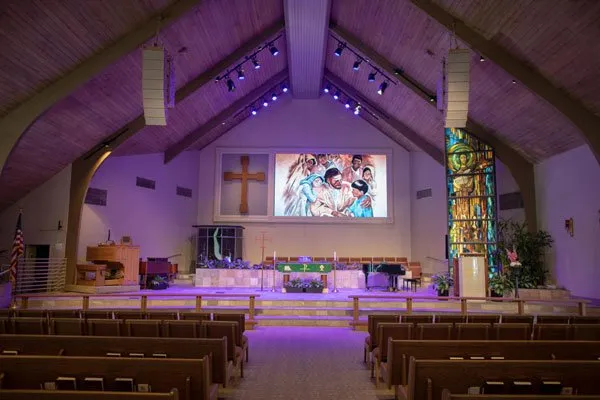
On an LED wall, text size is measured in pixels, and the physical height of a letter is pixels × pitch. A capital letter 40 pixels tall is about 156 mm (6.2 in) high at P3.91, but only about 104 mm (4.1 in) at P2.6. The same file therefore looks smaller on a finer-pitch wall of the same canvas, and larger on a coarse-pitch wall.
Practical rules that hold up on most rental walls:
- Check text in pixels, not points. Ask designers to measure cap height in pixels on the native canvas, then convert to millimeters with the pitch. Decide a minimum for each element (titles, names, lyrics, captions) and test it from the farthest seat during setup.
- Use heavier weights. Thin and light font weights in LED wall content can drop below one or two pixels per stroke and break up on coarse pitches. Medium, semibold and bold weights hold together better.
- Avoid one-pixel lines. Hairline rules, fine outlines and small serifs shimmer or disappear. Make strokes at least two pixels wide on the native canvas.
- Limit line length. On wide walls, long lines force the audience to turn their heads. Split lyrics and quotes into shorter lines placed inside the text-safe area.
- Leave contrast in the design. Light text on a dark background reads well on LED and also keeps the wall’s brightness comfortable in a dark room.
None of these rules replaces a test. Put a sample slide with each text size on the wall during setup and look at it from the back row and from the extreme side seats.
6. Frame Rate, Codec and Playback Format for LED Wall Content
Resolution is only half of a working file. The other half is whether the playback system can decode it smoothly at the show’s frame rate. Agree these settings in writing with the technical team before any LED wall content is rendered.
01. Match the show frame rate
Ask what frame rate the processor and playback system will run. Shows that are filmed or broadcast normally follow the local video standard: 25 or 50 fps in Europe and other 50 Hz regions, and 29.97, 30, 59.94 or 60 fps in North America. Content rendered at a different rate, such as 24 fps cinema footage played on a 60 Hz system, can show uneven motion on slow pans. Render at the agreed rate rather than relying on conversion during playback.
02. Use the codec the player expects
The right codec depends entirely on the playback device. Media servers used for stage shows commonly work with intra-frame codecs such as Apple ProRes or HAP, which decode reliably at high resolutions. Signage-style players and many LED multimedia players expect MP4 files encoded in H.264 or H.265. A laptop running presentation software has its own limits. Ask for the exact player model and its supported formats, maximum resolution and maximum bitrate, and do a test playback of one finished file at full canvas size before the rest of the batch is rendered.
03. Stills and slides
Deliver still LED wall content, such as logos and holding slides, as PNG at the native canvas size, or at the exact size of the zone they fill. For slide decks, set the slide size in the presentation software to the canvas or to the 16:9 window size, so text is not resampled during playback.
7. Color, Brightness and Camera-Friendly LED Wall Content
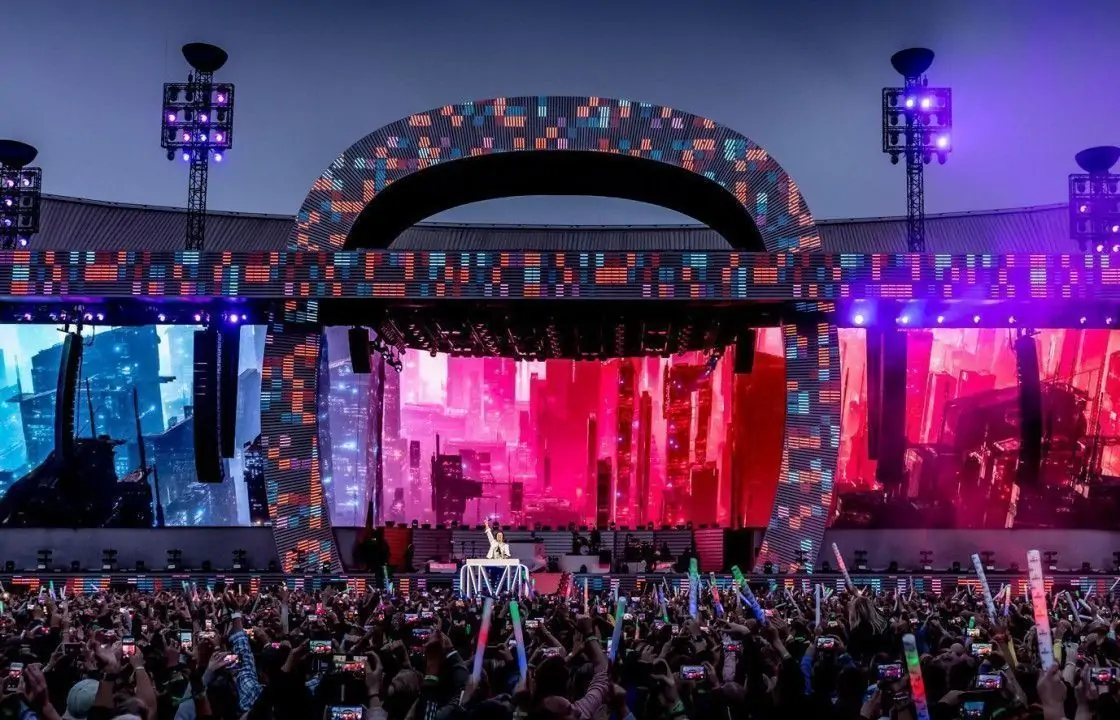
LED walls produce deep blacks because unlit pixels emit no light, and they can be far brighter than a projector or TV. LED wall content that looks balanced on a designer’s monitor can look harsh on the wall unless a few points are handled up front.
- Color space. Unless the technical team specifies otherwise, deliver video in Rec. 709 and stills in sRGB, which match standard playback chains. Ask before using HDR or wide-gamut masters.
- Large white fields. Full-screen white backgrounds are uncomfortable in a dark room and increase the wall’s power draw, because lit pixels use more power than dark ones. Use mid-tone or dark backgrounds for long holds such as walk-in loops and lower thirds.
- Saturated colors. Very saturated reds and blues can look heavier on LED than on a monitor. Preview key brand colors on the actual wall.
- Cameras. If the show is filmed, avoid fine stripes, tight grids and small checkerboard patterns, which can produce moiré on camera. Keep the wall at a brightness the camera can handle without clipping, and confirm the wall’s refresh and camera shutter settings with the video team. Our article on broadcast studio LED camera tests covers what to check on site.
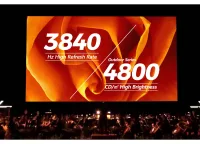
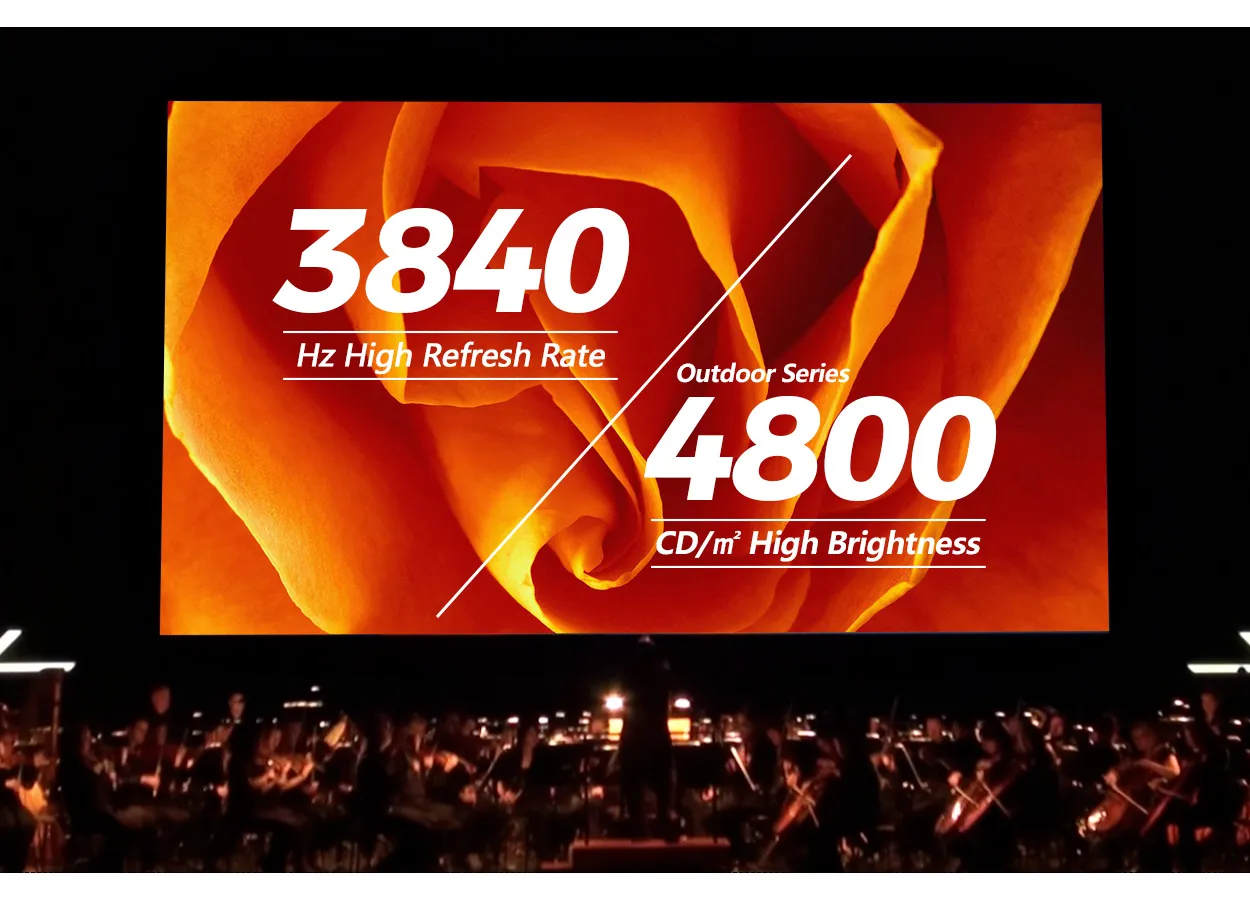
Hardware matters here too. Rental cabinets such as the EA500C6 are specified with a refresh rate of at least 3840 Hz, which helps with camera work, but refresh rate does not fix content that is too bright or full of fine patterns. Good LED wall content and correct wall settings work together.
8. The LED Wall Content Spec Sheet to Send Designers
Most LED wall content problems come from a missing number, not a bad designer. One page sent with the brief, plus a template file at the native canvas size, answers the questions designers otherwise guess at. Here is what to include.
| Item | What to specify | Why it matters |
|---|---|---|
| Native canvas | Exact pixel width × height for each screen, plus the combined output map if one processor drives several screens | Avoids scaling, distortion and black bars |
| Physical size and pitch | Wall size in meters and feet, cabinet matrix, pixel pitch | Lets designers convert pixel text sizes into real letter heights |
| Zones | Text-safe area, 16:9 window coordinates, blocked bands, seams | Keeps text and logos where the audience can see them |
| Frame rate | One agreed rate for all video, e.g. 50 fps or 59.94 fps | Prevents uneven motion and conversion artifacts |
| Codec and container | Player model, accepted codecs, maximum bitrate and resolution | Prevents files that stutter or will not open |
| Color | Rec. 709 for video, sRGB for stills, unless stated otherwise | Keeps colors consistent across the playback chain |
| Text minimums | Minimum cap height in pixels for titles, names, lyrics and captions | Gives a measurable target for readability |
| Delivery | File naming, versioning, transfer method and the deadline before rehearsal | Leaves time for a test on the wall and corrections |
Set the delivery deadline early enough for a full test playback on the built wall, not just on a laptop. A test pattern showing the cabinet grid, plus one finished clip and one text-heavy slide, will reveal almost every problem with LED wall content in a few minutes.
Keep the spec sheet as a reusable template. For a rental company, the pixel maps of your standard wall configurations rarely change, so a library of ready-made canvas templates saves time on every booking and makes your service easier to work with for agencies.
Frequently Asked Questions
What resolution should LED wall content be?
It should match the wall’s native canvas: cabinets across × pixels per cabinet for the width, and cabinets down × pixels per cabinet for the height. A 12 × 6 wall of 500 × 500 mm cabinets at P3.91 needs 1536 × 768 pixel files.
Can I just send a 4K file and let the processor scale it?
You can, but it is a fallback. Scaling softens text and thin lines, and a 16:9 4K file on a wall with a different shape will be cropped, stretched or shown with bars. Higher resolution than the canvas adds file size and decoding load without adding visible detail.
How do I know how many pixels one cabinet has?
Check “cabinet resolution” on the model’s specification sheet. As a quick estimate, divide the cabinet edge length in millimeters by the pixel pitch: 500 mm ÷ 2.604 mm gives 192 pixels.
Does a curved LED wall need different content?
The pixel count is the same as a flat wall with the same cabinets, so the canvas size does not change. What changes is the viewing angle at the ends of the curve, so keep key text near the center and test perspective artwork on the real build.
Who should calculate the pixel map: the screen supplier or the content team?
The screen supplier or rental company should provide it, because it depends on the exact cabinets, pitch and processor configuration. The content team should then confirm it in writing before rendering anything.
Will PowerPoint slides look right on an LED wall?
They will if the slide size is set to the wall’s canvas or to a defined 16:9 window, and text stays above the minimum pixel height. Default slide templates with small body text usually need to be enlarged for LED.
Get a Pixel Map With Your Quote
The fastest way to avoid content problems is to have the canvas numbers before the first design meeting. When you request a quote for a rental wall, include the wall size or venue drawing, the expected viewing distance, indoor or outdoor use, and whether the show will be filmed. EagerLED can suggest a cabinet matrix and pitch from our rental LED display range and give you the resulting pixel map, so your designers start LED wall content production with the right file size from day one. Send your project details to our team to get started.
 Football Perimeter LED Suppliers: Playout Acceptance Tests
 LED Scan Rate Explained: 1/8 vs 1/16 Scan for Outdoor Screens
Related Posts
Fill In Your Needs In Detail
Fill in the screen usage scene and size you need in “Content”.You will get a quote.