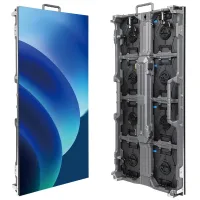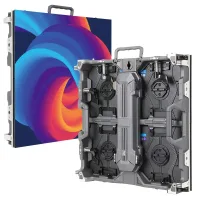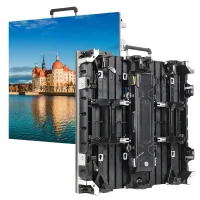
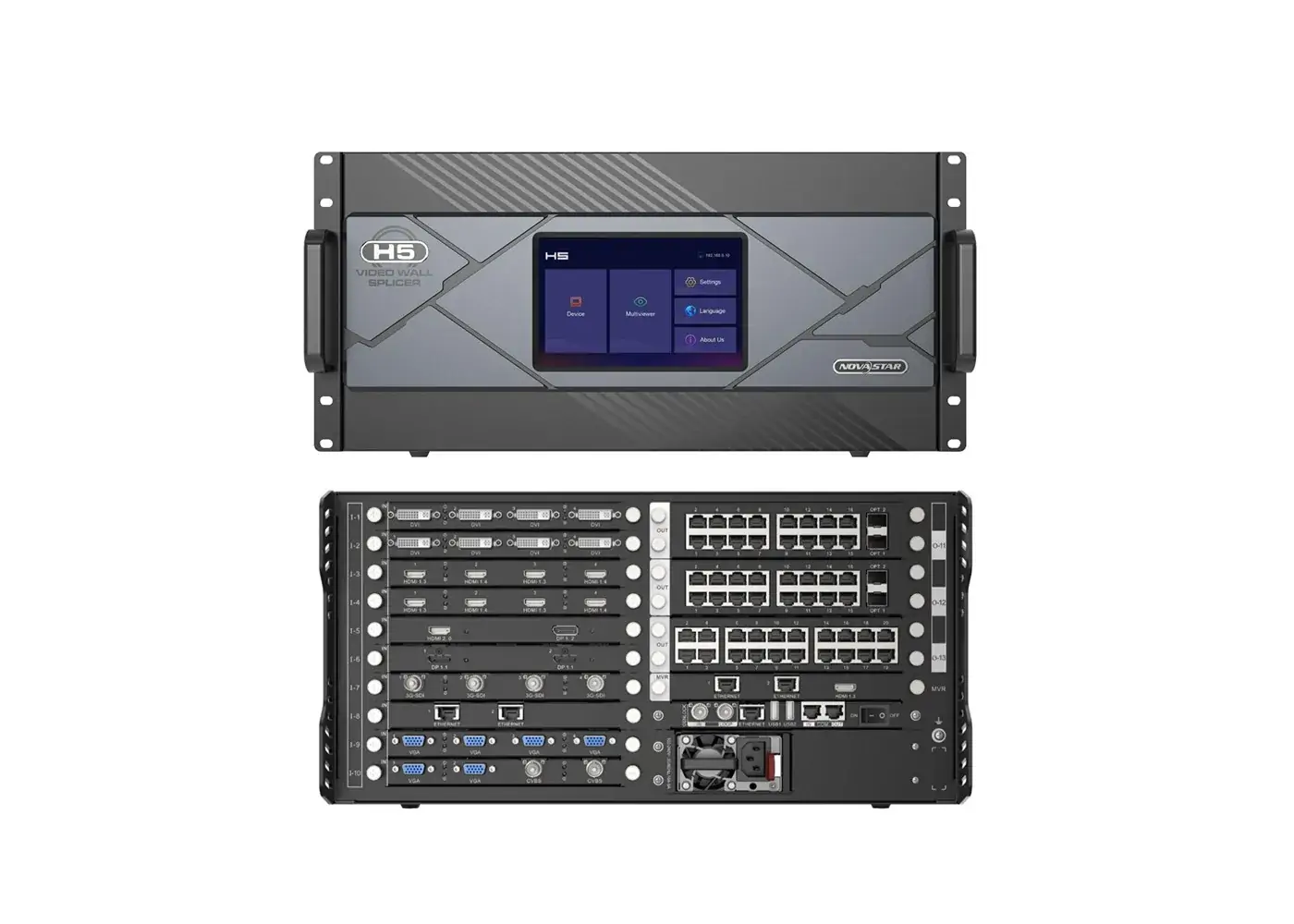
The NovaStar H5 video wall splicer is a 5U modular processor supporting up to ten input cards and three output cards. With compatible LED sending cards, it combines source processing, screen composition and LED data output. Its usable pixel capacity depends on the installed cards and operating mode. Choose the H5 when your source list, cabinet routes and busiest multi-window layout fit a verified card schedule, including any required backup paths.
This guide explains NovaStar H5 specifications, practical card selection, setup considerations and the information needed for an accurate price quotation. It is written for fine-pitch LED projects, control rooms, conference spaces and event systems where choosing the wrong output topology can create expensive changes during installation.
The technical baseline is NovaStar’s H5 Specifications V1.17.0, dated May 30, 2026, and H Series User Manual V1.15.0. Earlier installations may have different cards or firmware. Use the versioned documents linked below to confirm your hardware, particularly before enabling high frame rates, HDR, low latency or advanced fiber modes.
1. What Is the NovaStar H5 Video Wall Splicer?
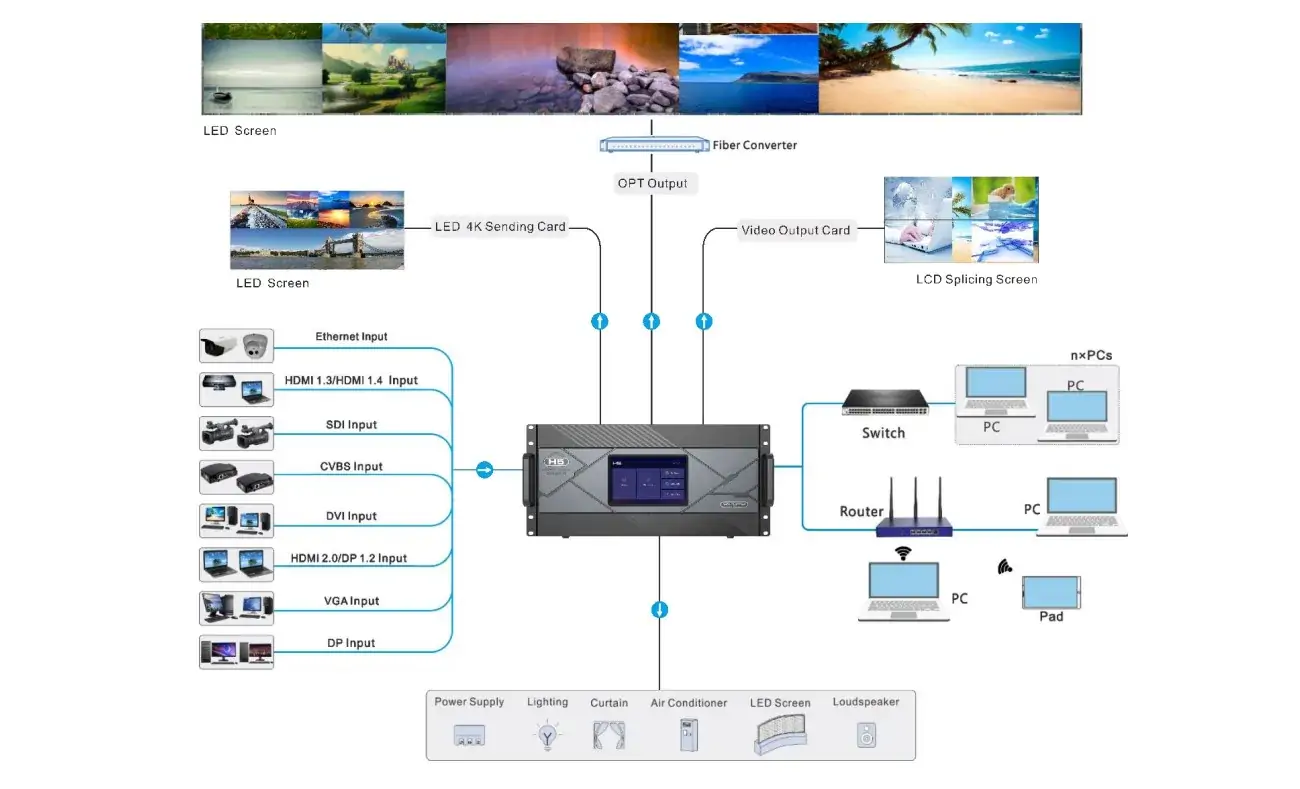
The NovaStar H5 is a configurable video wall processor that arranges incoming pictures on a larger display canvas. With LED sending cards installed, it also delivers display data to compatible receiving cards. With video output cards, it can feed downstream display equipment instead. These are different signal paths, so identify which one your project requires before comparing specifications.
A simple splitter duplicates one signal. A splicer builds a composition: a presentation can occupy the main area while camera feeds, dashboards or other sources appear in separate windows. The display canvas may cross cabinet boundaries and multiple outputs. The receiving cards still translate the delivered data into the scanning behavior required by the LED modules.
For a fine-pitch indoor LED screen, start with its actual cabinet pixel dimensions. Physical width and pixel pitch help estimate resolution, but the cabinet manufacturer’s pixel matrix is the reliable basis for mapping. A wall described as six meters wide does not, by itself, tell you how many outputs it needs.
The NovaStar H5 is most useful when several live sources, changing layouts or separate screens need centralized management. For a small wall with one fixed source, assess whether a simpler controller already meets the requirements. For larger installations, use the NovaStar H2, H5, H9 and H15 comparison to compare chassis by card inventory, layer demand and expansion needs rather than selecting solely by rack size.
2. Key Features of the NovaStar H5 Video Wall Splicer
01. Modular cards and service planning
The NovaStar H5 uses replaceable input and output cards, allowing the configuration to follow the project’s signal requirements. Hot-swappable hardware can simplify maintenance, but removing an active card can still interrupt the picture it carries. Establish a backup route and a maintenance procedure before treating a card replacement as an uninterrupted operation.
Make a slot schedule before ordering. List each card’s complete name, quantity, physical occupancy and purpose. Keep the schedule with the rack drawing so the installer can distinguish a source connector from a control port or an LED output. Spare card availability and a tested configuration backup often matter more operationally than an unused feature on a specification sheet.

02. FPGA processing, timing and realistic latency
The NovaStar H5 uses FPGA hardware for video processing. That architecture supports dedicated processing tasks, but it does not justify claims of zero latency or immunity to faults. Picture quality and responsiveness depend on the whole chain: source rendering, capture, conversion, scaling, transmission and the receiving system.
For live-camera use, agree on an acceptable end-to-end delay and test it with the actual source and wall. Keep the same timing across sources where practical, document any converters, and verify synchronization across output boundaries. A processor latency figure should not be substituted for a measured camera-to-display result.
03. NovaStar H5 layers, screens and presets
Layer resources determine how many independent pictures you can arrange at once. A specification expressed in 2K layers should not be interpreted as the same quantity of 4K windows. Create a drawing of the most demanding live layout, including any duplicated sources, background, text and standby windows, and ask for confirmation that it fits the selected output configuration.
Use clear source names such as Presentation Main, Camera Wide and Backup Laptop. Save presets around real operating tasks: a full-screen presentation, a discussion layout and an emergency holding screen. Rehearse transitions between them. If several operators share control, define who may change routing and who may only recall approved layouts.
04. HDR and 10-bit workflow checks
The NovaStar H5 supports HDR10, HLG and 10-bit processing in supported configurations. The practical benefit depends on compatible sources, input timing, sending cards, receiving cards and the LED display. An HDR label on the processor does not establish the wall’s peak brightness, black performance, calibration quality or achievable color gamut.
Check the signal’s color space, range and chroma format at every conversion. A full-range versus limited-range mismatch can crush shadow detail or wash out blacks. Use grayscale ramps, dark content and representative skin tones during commissioning. Confirm the pixel budget again when changing bit depth; an 8-bit loading calculation may not remain valid at 10-bit.
05. Source interfaces and browser control
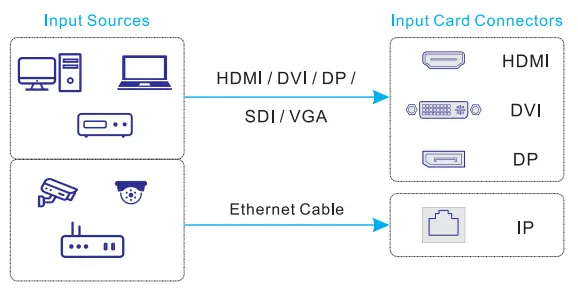
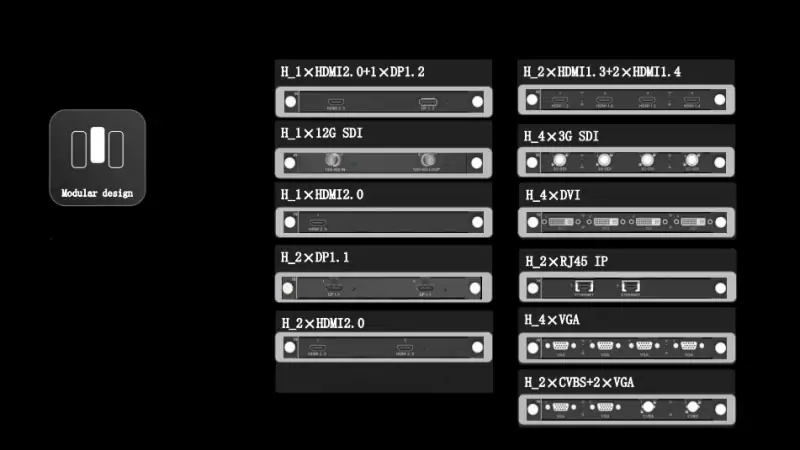
HDMI, DisplayPort, DVI, SDI, analog and network sources require the corresponding input cards. They are not a universal collection of built-in ports on every NovaStar H5. Network video also needs the correct protocol support; an IP input, an NDI input and a control Ethernet connection serve different purposes.
Browser control is convenient for operators, but it still depends on a reachable management network. Record the device address, subnet, access permissions and recovery procedure. Keep the control network separate from public guest access, and use approved remote-access arrangements when off-site support is required. This avoids confusing browser availability with unrestricted internet access.
3. Technical Specifications of NovaStar H5
Read NovaStar H5 specifications as configuration limits, not as a list of features that can all run at their maximum simultaneously. The following figures are a planning reference from the manufacturer’s versioned documentation. The order’s card list and intended operating mode must still be checked.
01. NovaStar H5 chassis specifications
| Item | Published specification | Planning implication |
|---|---|---|
| Rack format | 5U | Allow rack space plus service access. |
| Card maxima | 10 input cards; 3 output cards | Confirm physical occupancy and selected card mix. |
| Channel maxima | 40 input; 12 output | Channel counts depend on card type; LED ports are a separate measure. |
| Layer maximum | 48 | Validate the layer resolution and distribution. |
| Power | 100–240 V AC, 50/60 Hz; listed consumption 400 W | Size the rack supply using the full equipment schedule. |
| Redundant supply | Optional; single supply standard | Specify redundancy in the quotation. |
| Operating environment | 0–45°C; 0–80% RH, non-condensing | Check the rack’s internal environment. |
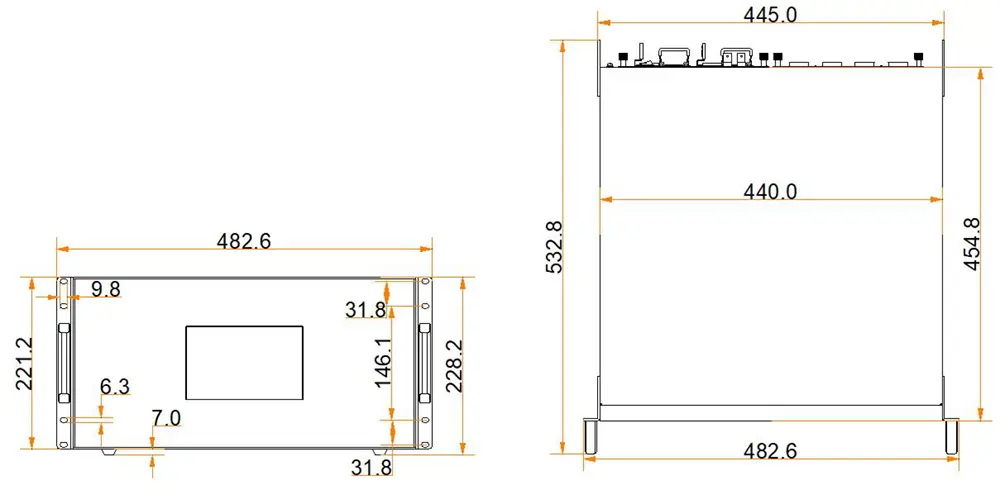
| Dimensions | 482.6 × 532.8 × 228.2 mm | Refer to the manufacturer drawing for clearances. |
Source: NovaStar H5 Specifications V1.17.0, specifications and card sections. Rack depth should also accommodate connectors, cable bend radius and access for service. Do not use the chassis dimensions alone as the finished installation envelope.
02. Output capacity by sending-card family
| Sending-card family | Maximum per card | Maximum H5 total | Key distinction |
|---|---|---|---|
| H_16xRJ45+2xfiber | 10.4 million | 31.2 million | Fiber ports copy the Ethernet outputs. |
| H_20xRJ45 | 13 million | 39 million | RJ45 LED sending topology. |
| H_4xfiber | 20.8 million | 62.4 million | Capacity depends on the selected fiber mode. |
| H_4xfiber (enhanced) | 26 million | 78 million | Distinct enhanced hardware; confirm downstream compatibility. |
These maxima apply to the corresponding populated configuration. They are not additive alternatives for a single card. Backup and copy paths must not be counted as extra unique screen pixels. NovaStar’s official H Series comparison also distinguishes chassis and output-card capacities.
03. Calculate the wall and each output
Multiply pixel width by pixel height to calculate the active wall load. For example, an illustrative 3,840 × 2,160 canvas contains 8,294,400 pixels. At a documented allowance of 650,000 pixels per Ethernet port for an applicable 8-bit configuration, the mathematical minimum is 13 ports. This calculation is an initial estimate, not a complete wiring design.
Cabinet chains must fit whole cabinets, and the shape of each mapped region matters. A route with awkward dimensions may need more outputs than the simple division suggests. For a standard 325,000-pixel 10-bit allowance, the same example requires at least 26 ports before cabinet geometry and redundancy are considered. Special supported modes can change limits; do not assume they are active.
For the NovaStar H5, approve the design only after checking four separate constraints: total pixels, pixels on each output, maximum mapped width and height, and the receiving-card load. Keep reserve capacity for the agreed expansion plan. If a project has several screens, list their loads separately before checking the shared hardware.
04. Resolution, frame rate and commissioning evidence
A source format includes width, height, frame rate, bit depth and chroma sampling. Write all five into the project specification. Saying “4K input” leaves important questions unanswered, particularly when a media server sends an unusually wide canvas or a broadcast source uses a fractional frame rate.
LED refresh rate is another separate parameter. A high panel refresh figure does not mean the processor receives that many distinct video frames per second. Verify a NovaStar H5 configuration with motion content, fine text, gradients and the actual camera settings where filming is involved. Store the approved test results alongside the final mapping and firmware versions.
4. Input and Output Card Details of NovaStar H5
01. Select NovaStar H5 input cards from the source list
Build an inventory of every source that must be connected, then mark which sources must appear simultaneously. Include visiting laptops, cameras, media servers, control-system graphics and backup players. Record cable distance and any existing conversion equipment. A source list prepared this way is more useful than choosing cards because their connectors look familiar.
| Requirement | Candidate interface | What to verify |
|---|---|---|
| Presentation laptop | HDMI input card | Expected resolution, adapters, EDID and HDCP compatibility. |
| Media-server canvas | HDMI or DisplayPort input card | Exact timing, color format and simultaneous input-channel count. |
| Broadcast camera feed | Matching SDI input card | SDI standard, frame rate and synchronization requirements. |
| Network video | Matching IP, NDI or ST 2110 card | Protocol, encoding, network capacity and supported streams. |
| Direct LED distribution | Compatible RJ45 or fiber sending card | Receiving cards, route geometry and primary/backup mapping. |
| External display equipment | Matching video output card | Accepted downstream timing and connector function. |
The NovaStar H5 input-card range includes both older and newer interface options. On combination cards, check whether connectors are selectable alternatives or independent channels. Two sockets do not automatically mean two simultaneous sources. Likewise, verify the actual card’s resolution table rather than applying the capability of a newer HDMI or DisplayPort card to an older one.
For network sources, coordinate with the network engineer before commissioning. Confirm switch capacity, stream formats and addressing. Keep video transport requirements distinct from browser management traffic. A link light proves a physical connection; it does not prove that the decoder supports the incoming stream or that the network can sustain every source at once.
02. Choose output cards around the LED topology
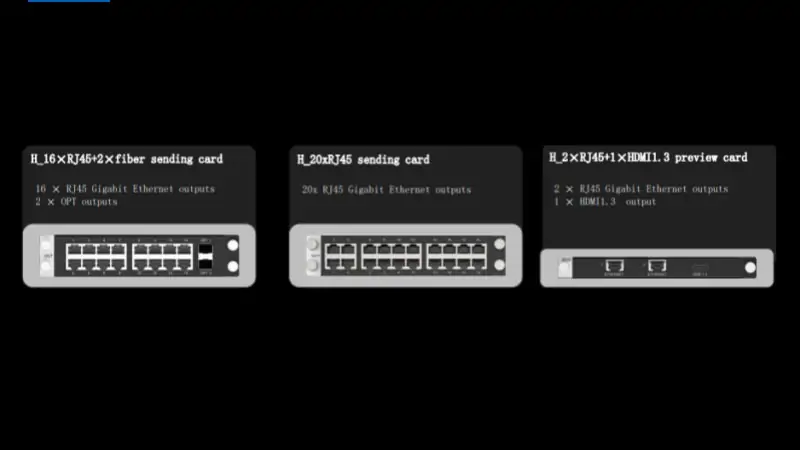
The NovaStar H5 output plan should begin at the cabinets and work back toward the rack. Label every receiving-card chain, calculate its pixel area and identify the required output. Where fiber is used, include the converter, optical modules, fiber type and connector pairing in the bill of materials. A fiber connector alone does not establish a working end-to-end link.
Use the capacity table to narrow the sending-card choice, then verify restrictions in the exact card documentation. Some fiber families cannot be combined with RJ45 sending cards to load the same screen. Standard and enhanced fiber cards also have restrictions when used together. Ask for a topology drawing that identifies these boundaries before purchasing a mixed configuration.
Keep preview outputs distinct from production outputs. A monitoring image helps the operator inspect sources and composition, but it is not evidence that every cabinet receives the correct data. At handover, test both the operator’s view and the physical wall. Include a labeled photograph of the completed rack and a port-to-cabinet schedule.
03. Practical NovaStar H5 setup sequence
Start with a documented, known-good cabinet configuration. EagerLED’s RCFG and RCFGX configuration guide explains receiving-card files; the correct file must match the actual module and receiving hardware. Avoid applying a file simply because its cabinet dimensions appear similar.
- Confirm the inventory. Check the chassis, card names, firmware and receiving-card models against the approved design.
- Establish control access. Use the address shown on the device and ensure the control computer can reach it without an address conflict.
- Prove the LED connection. Use suitable test patterns to verify cabinet order, orientation, missing modules and color consistency.
- Build the screen canvas. Match the mapped dimensions and output routing to the physical installation before arranging content.
- Add and label sources. Verify detection, timing and aspect ratio, then build the required layouts and presets.
- Test operation and recovery. Rehearse source changes, approved backup behavior and a controlled restart. Export the final configuration and record versions.
During NovaStar H5 commissioning, make one change at a time and record its effect. If the image is cropped, inspect canvas size and source scaling before changing cabinet wiring. If colors are wrong across the whole wall, investigate source range and color settings before recalibrating individual cabinets. This sequence keeps troubleshooting focused on the likely stage of the signal chain.
For acceptance, agree on a short test schedule with the operator. Check a full-screen source, the most complex multi-window layout, a backup source, small text and moving content. Confirm that the saved presets reproduce the intended result after a restart. Keep a recovery copy outside the processor so the configuration remains available if hardware is replaced.
5. Related File Download
Use manufacturer-hosted documentation for NovaStar H5 specifications and operating procedures. Record the document version with the project, since an older PDF may describe a different card range. These links were checked during this review; the manufacturer’s download listing should be consulted for later revisions.
- NovaStar H5 datasheet: Specifications V1.17.0 — chassis limits, card details, supported formats and physical information.
- NovaStar H5 manual: H Series User Manual V1.15.0 — screen configuration, sources, layouts and operating controls.
- H Series Quick Start Guide — initial connections and startup orientation.
- Official H5 firmware and release notes — select the H5 entry and review compatibility before downloading.
For related setup tools, see EagerLED’s NovaStar software download guide. Match the tool to the task: browser operation, screen configuration and firmware maintenance are different activities. Keep the installation package and version details used for the accepted system, so another technician can reproduce the working environment.
Before a NovaStar H5 firmware change, export the configuration, read the release notes and confirm the upgrade path with the supplier. Schedule time to verify inputs, outputs and presets afterwards. Do not upgrade immediately before a live event merely because a newer package exists. A maintenance record should identify what changed, why it changed and how the restored system was tested.
6. FAQ about NovaStar H5
01. What determines the NovaStar H5 price?
The NovaStar H5 price depends on the chassis, installed input and output cards, optional redundant power supply, optical modules, fiber converters and support scope. A bare-chassis offer is not a complete working LED control system. Request an itemized quotation showing card model numbers, quantities, shipping, taxes, warranty and commissioning. Compare quotations against the same screen resolution and operating mode; a cheaper configuration may omit the output capacity or backup paths your project needs.
02. How many pixels can the NovaStar H5 control?
Published maximum chassis capacities are 31.2 million, 39 million, 62.4 million or 78 million pixels, depending on the sending-card family. These figures describe different fully populated configurations. They are not interchangeable guarantees for every frame rate, bit depth or backup mode. Check the card, each output port, screen dimensions and receiving-card limits before approving a design. The capacity table above identifies the corresponding hardware.
03. Does the NovaStar H5 support 4K and 144 Hz?
Yes, supported configurations offer 4K processing and selected connectors support 144 Hz. That does not mean every card supports every 4K format at 144 Hz. Confirm the complete timing, color depth, chroma format and receiving-card compatibility in the card specification. A panel's LED refresh specification, such as 3,840 Hz, is a different measurement from a 60 Hz or 144 Hz video frame rate.
04. What software does the NovaStar H5 need?
Routine composition and control use the H Series browser interface. NovaLCT is used for compatible LED screen and receiving-card configuration. Start with the address displayed on the device, a reachable control network and the correct software version for your hardware. The browser interface does not remove the need to configure cabinet parameters, receiving-card connections and output mapping correctly.
05. Is NovaStar H5 latency really one frame?
NovaStar specifies latency as low as one frame from the input source to the receiving card under supported conditions. One frame is about 16.7 milliseconds at 60 Hz. This is not a promise of one-frame camera-to-screen delay: capture, source processing, conversion and panel behavior can add delay. Test the complete production chain, especially when matching live speech, camera images or an XR scene.
06. Can the NovaStar H5 run stereoscopic 3D or XR?
The documentation includes XR scenario control and stereoscopic 3D support with compatible equipment, including the EMT200 Pro emitter. The H Series manual states that enabling 3D halves output capacity and that 3D and low-latency functions cannot operate together. XR still requires suitable rendering, tracking, synchronization and camera settings. Treat these as system engineering requirements, rather than assuming the processor alone produces a complete XR workflow.
07. Why is my NovaStar H5 showing a black screen?
First check whether the input is detected and whether the intended layer is visible. Then check blackout or freeze status, output routing, cabinet power and receiving-card connections. Try a known-good source and cable at a documented timing. If an internal test pattern works but the source does not, investigate the source format, EDID and HDCP path. Record what changed before the fault instead of resetting every setting at once.
08. Can I mix different NovaStar H5 output cards?
Do not assume that all sending cards can jointly drive one logical screen. NovaStar documents restrictions on mixing fiber and RJ45 sending-card families, and on mixing standard and enhanced fiber cards for the same screen. Have the proposed topology checked before ordering. Separate screens, video outputs and LED sending outputs also require different routing decisions; matching connector shapes alone does not establish compatibility.
7. Conclusion
The NovaStar H5 video wall splicer is best evaluated as a complete configuration. Start with the wall’s real pixel matrix, select a compatible sending topology, match input cards to the source inventory and validate the most demanding layout. Then check frame rate, bit depth, redundancy and service access together.
For a useful NovaStar H5 quotation, send EagerLED the cabinet layout, total pixel resolution, receiving-card model, source list, cable distances and backup requirements. Contact the EagerLED team with those details to discuss a suitable configuration. An agreed card schedule and commissioning plan provide a clearer basis for purchase than a headline pixel count or a bare-chassis price.
 LED Wavelength Guide: Color Chart, Formula & Binning
 NovaStar MCTRL300: Specs, Software, Setup & Price Guide
Related Posts
Fill In Your Needs In Detail
Fill in the screen usage scene and size you need in “Content”.You will get a quote.